AdGuard Home: network-wide ad and tracking blocker
Set up AdGuard Home with Docker: your own DNS server that blocks ads, trackers and malicious sites for all devices – securely, only via the VPN.
Table of contents
Ads and trackers are blocked most effectively not in the browser, but in DNS – there, where every device asks which IP belongs to a domain. AdGuard Home is a self-hosted DNS server that simply lets requests to known ad, tracking and malicious domains run into the void. One server, all devices – phone, TV, laptop – without a single app on the client.
What are we building?
By the end, AdGuard Home v0.107.79 runs as a DNS server on your VPS. It answers DNS requests, filters out ads/trackers/malware based on block lists, and shows you live in a web interface what was blocked. Concretely:
- a DNS filter with over 150,000 rules (default block list), extensible with any lists,
- a web interface with statistics and a query log, secured behind your reverse proxy,
- the DNS service reachable exclusively via your WireGuard tunnel – not open on the internet.
The last point is decisive and the reason this tutorial requires WireGuard: an open DNS resolver on the internet is abused within hours for DNS amplification attacks. So we bind the DNS port to the VPN interface, and only your own devices talk to it via the tunnel.
Prerequisites
- A server with Docker and a running Traefik reverse proxy (for the web interface under its own domain with TLS).
- A set-up WireGuard VPN with the server interface
wg0at10.8.0.1. Your devices later reach the DNS server through it. - Basic understanding of DNS (domain → IP) helps but isn’t a must.
- The
bind9-dnsutilspackage fordig(sudo apt install bind9-dnsutils) – we use it later to check that the resolver really filters.
AdGuard Home is extremely frugal – it gets by with a few tens of MB of RAM. The smallest plan is plenty, especially since it probably runs alongside other services at your place anyway.
VPS 1000 G12.5
4 vCores · 8 GB RAM · 128 GB SSD
from €14.50/month
More than sufficient for AdGuard Home.
💶 1 month free:
Single use, valid for VPS 1000 G12.5. Redeem it in an empty cart – the code adds the server itself. Redeem in the cart →
💶 €5 voucher for new netcup customers: always valid · not for domains or VPS Lite
Step by step
Step 1: Is port 53 free?
AdGuard Home needs port 53 – the DNS port. On some systems systemd-resolved already occupies it. Check that:
ss -tulpn | grep ":53 "On the netcup Debian 13 image used here, the port was free (no systemd-resolved active), so the output was empty. If you instead get a line with systemd-resolve, you have to disable its stub listener – otherwise AdGuard won’t start (“address already in use”):
sudo mkdir -p /etc/systemd/resolved.conf.d
echo -e "[Resolve]\nDNSStubListener=no" | sudo tee /etc/systemd/resolved.conf.d/adguard.conf
sudo systemctl restart systemd-resolvedDon't forget resolv.conf
/etc/resolv.conf may still point to 127.0.0.53 and the server itself can no longer resolve names. In that case, set a working resolver, e.g. nameserver 9.9.9.9 (or your provider’s), so apt & co. keep working.Step 2: Create the Docker Compose
Create the project folder:
mkdir -p /opt/adguardhome/work /opt/adguardhome/conf && cd /opt/adguardhomeCreate the compose.yaml:
services:
  adguardhome:
    image: adguard/adguardhome:v0.107.79
    container_name: adguardhome
    restart: unless-stopped
    volumes:
      - ./work:/opt/adguardhome/work
      - ./conf:/opt/adguardhome/conf
    ports:
      - "10.8.0.1:53:53/tcp"
      - "10.8.0.1:53:53/udp"
    networks:
      - proxy
    labels:
      - "traefik.enable=true"
      - "traefik.http.routers.adguard.rule=Host(`YOUR_DOMAIN`)"
      - "traefik.http.routers.adguard.entrypoints=websecure"
      - "traefik.http.routers.adguard.tls.certresolver=le"
      - "traefik.http.services.adguard.loadbalancer.server.port=3000"

networks:
  proxy:
    external: true
The most important things:
ports: "10.8.0.1:53:53"– the DNS port is bound only to the WireGuard address, not to0.0.0.0. This makes the resolver reachable exclusively via the VPN tunnel and never open on the internet. This one line is the difference between “secure” and “abused for attacks”.- The web interface runs on container port 3000 and is published under
YOUR_DOMAINwith TLS via the four Traefik labels. ReplaceYOUR_DOMAINwith your real domain. - Both
volumes(work,conf) make the configuration and statistics persistent.
Start the container:
docker compose up -dCheck that it’s running:
docker compose psYou should see Up and that port 53 is bound to 10.8.0.1.
Never port 53 open to the internet
- "53:53/udp" (that binds to all interfaces) on a public server. An open resolver is found automatically and abused for amplification DDoS against third parties – your provider then rightly suspends you. Always bind to a private interface (10.8.0.1).Step 3: The initial setup
Open your domain in the browser – you land in the setup wizard. At the bottom right you can set the language.
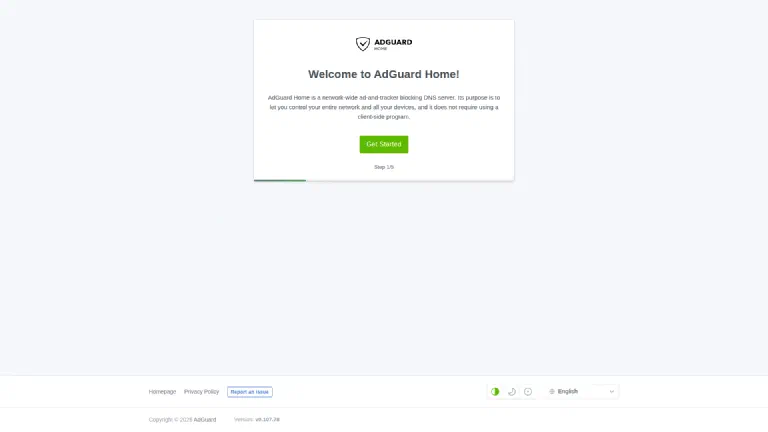
Click through the five steps. Two settings are important:
- Admin web interface: as the port you must enter 3000 (All interfaces, port
3000) – because that’s exactly where Traefik forwards. The suggestion is often port 80; if you don’t change it, the interface is no longer reachable via Traefik after the setup. - DNS server: port 53 (All interfaces). The restriction to the VPN interface is already handled by the port binding from the Compose – inside the container, AdGuard may listen on all interfaces.
Then you create a username and a strong password for the login. Done – you’re redirected to the login.
Step 4: The dashboard
After logging in you see the overview: number of requests, how many of them were blocked, the most frequently requested and the most frequently blocked domains.
At first everything is at zero – it fills up as soon as the first device uses AdGuard as its DNS (step 6).
Step 5: Manage block lists
Under Filters → DNS blocklists you see the active block lists. By default the AdGuard DNS filter is active – for us with 177,545 rules.
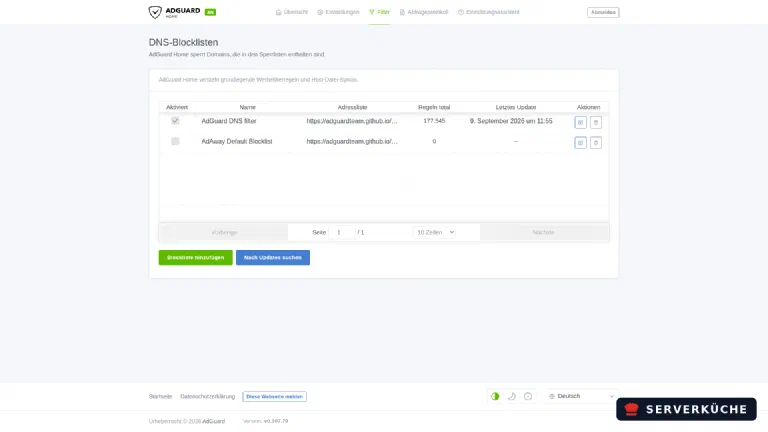
Via Add blocklist you can include more curated lists (AdGuard brings a catalog, e.g. AdAway or OISD). Less is often more: one or two good lists block most, without legitimate sites constantly breaking. With Check for updates you update the rules manually; AdGuard otherwise keeps them current automatically (see “Maintenance”).
Don't overdo it
Step 6: Switch devices to AdGuard
For your devices to use the filter, they have to use AdGuard as their DNS server. Via the WireGuard tunnel this works most elegantly centrally in the client configuration: enter the server’s tunnel address as DNS in the [Interface] section of your WireGuard clients:
[Interface]
# ... your existing lines ...
DNS = 10.8.0.1
As soon as the tunnel is up, the device sends all DNS requests to AdGuard – whether on Wi-Fi on the go or on the mobile network. No intervention at the router needed, and the protection works on the go too.
Step 7: Does it really work?
Check the resolver directly on the server via the VPN address. A normal domain must resolve:
dig @10.8.0.1 +short example.com172.66.147.243A known tracking domain must be blocked – AdGuard then answers with 0.0.0.0:
dig @10.8.0.1 +short doubleclick.net0.0.0.0As a counter-check that the resolver does not listen openly, you query it via the loopback address – that must fail:
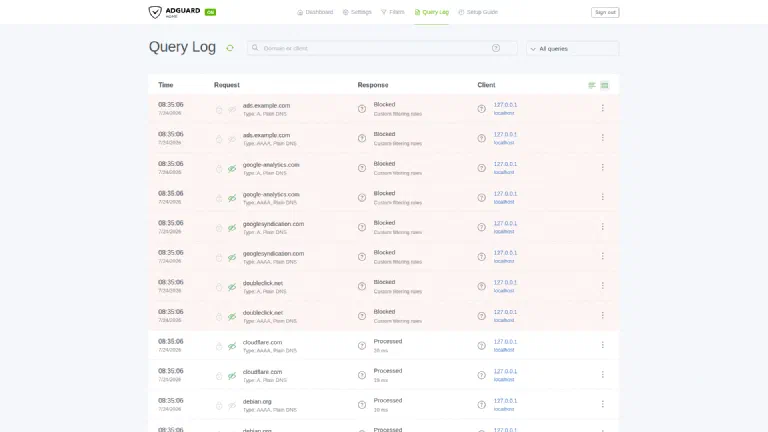
dig @127.0.0.1 +time=2 +tries=1 example.com;; communications error to 127.0.0.1#53: connection refusedExactly as it should be: reachable via 10.8.0.1 (the tunnel), rejected on all other addresses. A look at the query log in the web interface shows the same requests live – blocked entries are marked red and name the list that took effect:
When things go wrong
The container won’t start, the log says “listen udp :53: bind: address already in use”.
systemd-resolved (or another DNS service) occupies port 53. disable the stub listener as in step
1, then docker compose up -d again.
docker compose up fails with “cannot assign requested address” for 10.8.0.1. the WireGuard
interface wg0 with 10.8.0.1 doesn’t exist (yet) – Docker can’t bind the port to a non-existent
address. first set up the WireGuard VPN and bring wg0 up
(ip -br addr show wg0 must show 10.8.0.1), then start the container.
After the setup, the web interface is no longer reachable. in the wizard, the admin port was set
to 80 (the suggestion) instead of 3000 – but Traefik forwards to 3000. in
./conf/AdGuardHome.yaml under http: correct the address to 0.0.0.0:3000 and docker compose restart.
DNS doesn’t filter, even though the device is connected. the browser uses DNS-over-HTTPS
(DoH) and thus bypasses your server completely – Firefox and Chrome have this active by default in
part. disable “Secure DNS” / “DNS over HTTPS” in the browser settings. You can check with dig @10.8.0.1 … (always takes effect).
A website is suddenly broken (empty pages, missing images, no login). overblocking – a block list blocks a domain the site really needs. find the blocked domain in the query log, allow it via right-click/menu (exception) or disable the overly aggressive list.
Your problem is not listed? Search all error messages →
Maintenance & backups
Block-list updates. AdGuard updates the lists automatically (default: every 24 hours). You don’t have to do anything here; a manual Check for updates is possible any time if needed.
Backups. The entire configuration is in /opt/adguardhome/conf/AdGuardHome.yaml – admin login, DNS settings, lists, exceptions. You back up this file (plus the work folder with the statistics) regularly, e.g. via Restic. This way a server migration is done in minutes: bring up the container, restore conf, done.
Updates. You fetch new versions like with any Compose stack. Pin the tag deliberately (not latest) so updates happen in a controlled way:
cd /opt/adguardhome
docker compose pull && docker compose up -d
Privacy. The query log stores which device requested which domain – that’s gold for troubleshooting, but also sensitive. Under Settings → General settings you can shorten the retention period of the log or disable logging entirely. Especially when other people share your DNS, a short retention is fair.
Last updated: Sep 9, 2026
Send feedback: feedback@serverkueche.de
You might also like