Audiobookshelf: Self-Host Audiobooks & Podcasts
Set up Audiobookshelf 2.36 with Docker and Traefik: an audiobook library with chapters, podcast subscriptions, server-side listening progress and mobile apps.
Table of contents
For most people, audiobooks are an MP3 collection on a hard drive – and the listening position lives in their head. Audiobookshelf turns that into your own audiobook and podcast server: it remembers where you stopped, continues on your phone and fetches new podcast episodes by itself.
What are we building?
At the end, Audiobookshelf 2.36.0 runs in Docker behind your Traefik at https://YOUR_DOMAIN
with a valid Let’s Encrypt certificate. You get two libraries: one for audiobooks (with chapters,
covers and metadata from Audible) and one for podcasts that downloads new episodes
automatically. Listening progress is stored server-side in your account – you continue on your
desktop exactly where your phone left off.
Audiobookshelf isn’t meant for music – Navidrome is the right tool for that, and Jellyfin for films and series. All three run happily side by side.
Audiobookshelf is pleasantly lightweight: the container uses around 55 MiB RAM when idle, the image is 469 MB. Disk space is needed almost exclusively by your audio files.
Prerequisites
- A server running Debian 13 with Docker (tested on a netcup VPS with Docker 29.6.1 and Compose v5.3.1)
- A running Traefik with its
proxynetwork, as set up in Traefik as a reverse proxy - A subdomain pointing at your server – see Connecting a domain to your server
- The basics of Docker Compose and bind mounts
- Your audiobook files (MP3, M4B, FLAC …). If you have none yet: LibriVox offers public-domain audiobooks in many languages.
VPS 1000 G12.5
4 vCores · 8 GB RAM · 128 GB SSD
from €14.50/month
Plenty for Audiobookshelf – the service itself is tiny, the files need the space.
💶 1 month free for new netcup customers:
Single use, valid for VPS 1000 G12.5. Redeem in the cart →
💶 €5 voucher for new netcup customers: always valid · not for domains or VPS Lite
Step by step
1. Create the directories
Audiobookshelf separates four data areas – and that separation is exactly what makes backups easy later: config (database, accounts), metadata (covers, cache, internal backups) and your media in their own folders.
mkdir -p /opt/audiobookshelf/{config,metadata,audiobooks,podcasts}The image starts as root by default; with the user: "1000:1000" above, the process runs
under UID/GID 1000 instead. The folders therefore have to belong to
that user, otherwise Audiobookshelf can neither scan nor store podcasts:
chown -R 1000:1000 /opt/audiobookshelf2. Add audiobooks – the folder structure decides
Audiobookshelf derives author and title from the folder structure and enriches them with the
tags inside the files. Stick to Author/Title/ and the mapping is right from the start:
/opt/audiobookshelf/audiobooks/
└── Franz Kafka/
    └── Ein Landarzt/
        ├── landarzt_01.mp3
        ├── landarzt_02.mp3
        ├── landarzt_03.mp3
        └── landarzt_04.mp3
Several files in one title folder are combined into a single audiobook with chapters – not into four separate books. After copying, fix the ownership:
chown -R 1000:1000 /opt/audiobookshelf/audiobooks3. Write the Compose file
Create /opt/audiobookshelf/compose.yaml and replace YOUR_DOMAIN with your real subdomain:
services:
  audiobookshelf:
    image: ghcr.io/advplyr/audiobookshelf:2.36.0
    restart: unless-stopped
    user: "1000:1000"
    environment:
      TZ: Europe/Berlin
    volumes:
      - ./config:/config
      - ./metadata:/metadata
      - ./audiobooks:/audiobooks
      - ./podcasts:/podcasts
    networks: [proxy]
    labels:
      - "traefik.enable=true"
      - "traefik.http.routers.abs.rule=Host(`YOUR_DOMAIN`)"
      - "traefik.http.routers.abs.entrypoints=websecure"
      - "traefik.http.routers.abs.tls.certresolver=le"
      - "traefik.http.services.abs.loadbalancer.server.port=80"

networks:
  proxy:
    external: true
Three details matter here:
loadbalancer.server.port=80– inside the container Audiobookshelf listens on port 80. The 13378 from the official example Compose is only the port you publish when running without a reverse proxy. We publish no port at all: Traefik reaches the container through theproxynetwork.- The pinned version
2.36.0instead oflatest– updates then arrive when you plan them, not in the middle of the week. user: "1000:1000"matches the ownership from step 1.
Start the stack:
cd /opt/audiobookshelf && docker compose up -dCheck that the container is running:
docker compose psYou should see Up, not Restarting:
NAME                              STATUS         IMAGE
audiobookshelf-audiobookshelf-1   Up 8 seconds   ghcr.io/advplyr/audiobookshelf:2.36.0
4. Verify TLS before you click
Traefik needs a few seconds for the certificate. The status endpoint tells you whether everything is in place – it answers without a login:
curl https://YOUR_DOMAIN/status{"app":"audiobookshelf","serverVersion":"2.36.0","isInit":false,"language":"en-us",
"authMethods":["local"],"ConfigPath":"/config","MetadataPath":"/metadata"}Two things are now certain: 2.36.0 really is running, and isInit:false means the server is
still waiting for its first account. If you get a certificate error here, look at the Traefik logs
first – not at Audiobookshelf.
5. Create the first account
Open https://YOUR_DOMAIN in your browser. On the first visit Audiobookshelf asks for a username
and password for the root account, i.e. the administrator.
No registration – and no password recovery
Afterwards you’ll notice the address jumps to https://YOUR_DOMAIN/audiobookshelf/. That is
intentional on the project’s side: the web interface is built with the fixed router path
/audiobookshelf. There is a ROUTER_BASE_PATH variable, but it does not help at runtime – the path
is baked into the pre-built frontend inside the image (tested: with ROUTER_BASE_PATH: "" the
interface still loads from /audiobookshelf/_nuxt/…). Visiting https://YOUR_DOMAIN still works,
your bookmarks just carry the suffix.
6. A note on the interface language
The interface follows a per-browser setting, not a per-account one: Audiobookshelf stores it locally and does not save it on the user. You pick it under your username in the top right corner (Language), and you have to set it again on every new device.
7. Create the audiobook library
Under Settings → Libraries you create the first library:
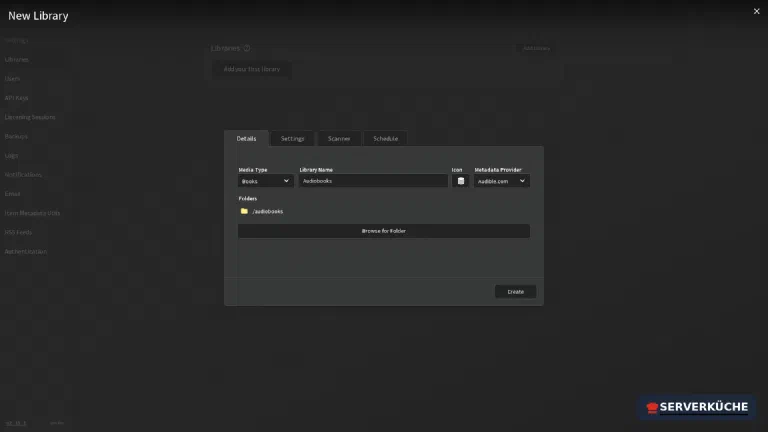
- Media Type:
Books - Library Name: e.g.
Audiobooks - Metadata Provider: pick the Audible catalogue for your language –
Audible.comfor English titles gives noticeably better matches than the defaultGoogle Books. iTunes, FantLab.ru and the other Audible country catalogues are available too. - Folders: enter
/audiobooksand confirm with Enter. That is the path inside the container – thanks to the bind mount it points at/opt/audiobookshelf/audiobooks.
Then click Create.
8. Trigger the first scan yourself
This is where most people stumble: the library stays empty at first, and the interface says so.
The first scan does not start on its own – not even after minutes (measured). In the library view, use the scan action offered next to that notice. With four files and 14 MB the scan finished in under four seconds, after which the audiobook appears with its cover:
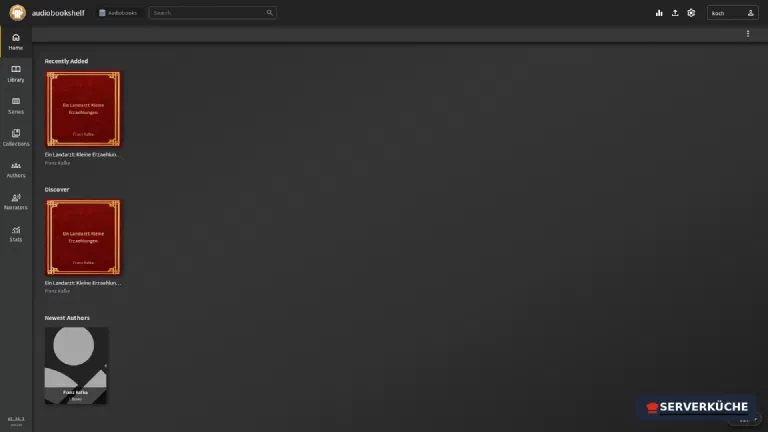
From now on Audiobookshelf watches the folder itself: newly copied files are picked up, and a manual scan is only needed when creating the library.
9. Listening – chapters, speed, sleep timer
Clicking the cover opens the detail page. The four MP3s have become one audiobook with four chapters; duration and size are shown at the top:
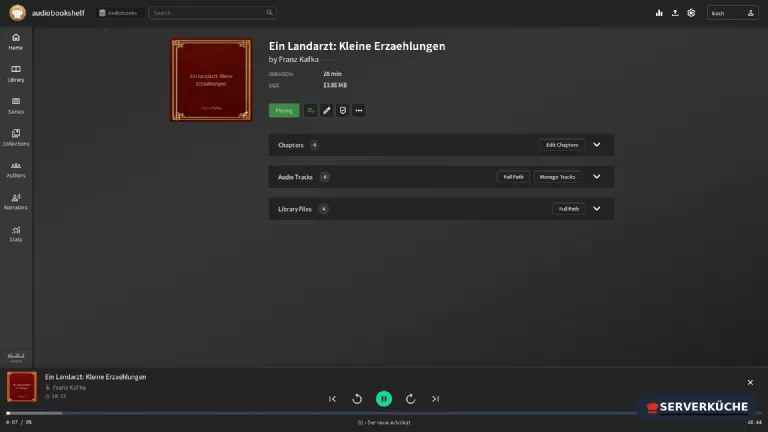
The player at the bottom stays put while you navigate. It offers playback speed (1.0x), jump
marks, bookmarks, the chapter list and a sleep timer. The progress – 0:06 / 28:52 in the
screenshot – is stored server-side in your account, not in the browser. That is precisely why you
self-host this thing.
10. Subscribe to podcasts
Podcasts need their own library, because Audiobookshelf treats them differently: episodes, feeds, automatic downloads. So go to Settings → Libraries → Add Library again, this time with:
- Media Type:
Podcasts - Name: e.g.
Podcasts - Metadata Provider:
iTunes - Folder:
/podcasts
In the new library, click Add. The input field takes either a search term – then the server queries the iTunes catalogue – or the feed URL directly:
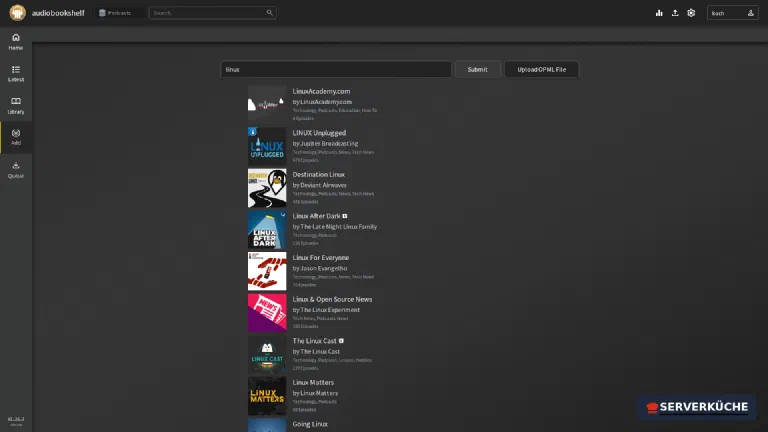
When subscribing you decide whether new episodes are downloaded automatically and how many Audiobookshelf keeps. Keep disk space in mind: a weekly podcast with 60-minute episodes costs roughly 30 MB per episode at 64 kbps and 55 MB at 128 kbps – so about 1.5 to 3 GB per year.
Feed instead of search
11. Add more users
Listening progress belongs to an account – so create separate users for your partner or kids instead of sharing the root account. That happens under Settings → Users → Add User.
There are three account types: root (only once, the first account), admin (may change settings
and libraries) and user for the normal case. A freshly created user account gets these
permissions:
download: true       – may download titles (for offline listening in the app)
update: false        – may not change metadata
delete: false        – may not delete anything
upload: false        – may not upload files
accessAllLibraries:  true    – sees ALL libraries
accessExplicitContent: false – titles flagged explicit stay hidden
The second-to-last line is the important one: by default a new user sees all libraries. If the
kids should not browse the grown-up audiobooks, turn accessAllLibraries off in the user dialog and
pick the allowed libraries individually.
Tip
12. Apps for your phone
Everyday use happens on the phone. There is an official Audiobookshelf app for Android (Play Store and F-Droid) and for iOS. On first launch you enter:
- Server address:
https://YOUR_DOMAIN– withhttps://, without a path - Username and password of your account
The app then downloads titles for offline listening and reports progress back to the server. On iOS there are also alternatives such as Plappa or ShelfPlayer that use the same API.
When things go wrong
The library stays empty after you create it. The first scan does not run automatically – that is
not a bug but how Audiobookshelf behaves. Trigger the scan in the library view. If it stays empty
afterwards, check with docker compose exec audiobookshelf ls -R /audiobooks whether the
container sees the files at all, and with ls -ln /opt/audiobookshelf/audiobooks that everything is
owned by UID 1000.
Four MP3 files become four audiobooks instead of four chapters. The files sit directly in the
author folder instead of a shared title folder. Audiobookshelf groups by Author/Title/ – move the
files into a subfolder named after the book and scan again.
Traefik answers with 404 even though the container is running. Usually
traefik.http.services.abs.loadbalancer.server.port=80 is missing. Inside the container
Audiobookshelf listens on 80; without that line Traefik guesses and misses. Also check that the
container really is attached to the proxy network.
The address jumps to /audiobookshelf/. That is normal: the frontend ships with this fixed
router path, and ROUTER_BASE_PATH changes nothing at runtime because the path is baked into the
image. https://YOUR_DOMAIN remains a valid entry point.
After switching devices the language is back to English. The language choice lives locally in the
browser, not on the account. Set it once per device via your username → Language.
The podcast is not found. The search queries the iTunes catalogue; a typo or a missing entry there leads to „no search results". Use the podcast’s RSS URL instead – the same field accepts both.
Your problem is not listed? Search all error messages →
Maintenance & backups
Updates. Audiobookshelf releases often, roughly a new minor version per month. Because the
version is pinned, you update deliberately: raise the tag in compose.yaml, then
cd /opt/audiobookshelf && docker compose pull && docker compose up -dBefore jumping across several versions, read the release notes – and take a fresh backup. How to do this systematically is described in Keeping your Docker stack up to date.
The built-in backup – switch it on first. Audiobookshelf can write archives itself, but it does not do so out of the box: under Settings → Backups the automatic backup toggle is off by default.
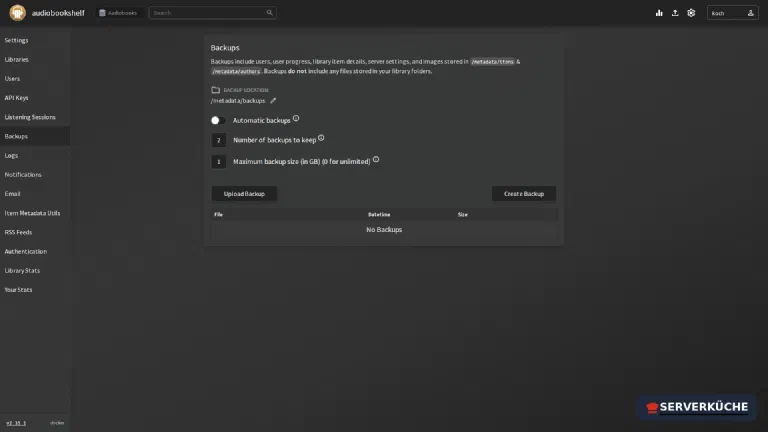
Switch it on and check the two limits below it, because both are set tight:
- Number of backups to keep: 2 – older ones are deleted. For „I only notice a problem two weeks later" that is too few; 7 to 14 is more realistic.
- Maximum backup size: 1 GB – if the archive grows larger, the backup aborts. With many covers in
/metadatathat can happen;0means „no limit".
The archives end up in /metadata/backups, in our case
/opt/audiobookshelf/metadata/backups. They contain users, listening progress, library item details,
server settings and the images from /metadata/items and /metadata/authors. The interface states it
clearly itself: files from your media folders are not included.
Restoring works on the same page via the upload option – worth knowing, because it reduces a move to a new server to two steps: upload the archive, copy the media.
Real backups. That gives you a clear split:
config/andmetadata/are small (480 KB and 112 KB here) and belong in a daily backup – that is where the actual work lives: accounts, progress, metadata.audiobooks/andpodcasts/are large and rarely change. They need a backup too, but on a different schedule – podcast episodes can even be classed as „re-downloadable any time".
Restic handles both reliably. Once a quarter, verify with a real restore that the backup actually comes back.
Trigger a scan via the API
If you push audiobooks onto the server by script or Syncthing, you do not need the web interface: Audiobookshelf has an HTTP API. Create a token under Settings → API Keys, then this call starts the scan of a library:
curl -X POST https://YOUR_DOMAIN/api/libraries/YOUR_LIBRARY_ID/scan \
  -H "Authorization: Bearer YOUR_TOKEN"
GET /api/libraries returns your library IDs with the same header. Handy for a cron job after the
nightly file sync – how to monitor such jobs is covered in
Healthchecks.
Keep an eye on disk space. Audio files and automatically downloaded episodes are the only real space eaters:
du -sh /opt/audiobookshelf/*14M /opt/audiobookshelf/audiobooks
480K /opt/audiobookshelf/config
112K /opt/audiobookshelf/metadata
4.0K /opt/audiobookshelf/podcastsIf it grows beyond your disk, additional block storage for the media folders is the cheaper answer than a bigger server – the rest of Audiobookshelf stays tiny.
Send feedback: feedback@serverkueche.de
You might also like