Authentik: Single Sign-On for All Your Services (Part 1)
Set up Authentik 2026.8 with Docker and Traefik: your own identity provider with Postgres instead of Redis – initial setup, flows and safe operation.
Table of contents
With every new service the list of passwords grows: Nextcloud, Immich, Grafana, the wiki – each with its own accounts. Authentik turns that around: one account, one login, centrally managed. This first part builds the identity provider and explains its model. Part 2 then attaches the services.
What are we building?
At the end, Authentik 2026.8.3 runs behind your Traefik at https://YOUR_DOMAIN – your own
identity provider with PostgreSQL on an internal network. You have an administrator account, you know
how flows, stages and providers fit together, and you can create users and groups.
Two things that many guides still show differently, and that will save you work:
- Redis is no longer needed. Current Authentik versions keep cache and websocket channels in
PostgreSQL – visible in the startup log as the migrations
django_postgres_cacheanddjango_channels_postgres. The stack now consists of PostgreSQL, server and worker only. - Resource usage is modest. Measured while idle right after setup: server 312 MiB, worker 197 MiB, PostgreSQL 42 MiB – around 550 MiB RAM in total. The frequently quoted „at least 2 GB" is a recommendation with headroom, not a starting figure.
Why Authentik – and when something else?
The three usual candidates differ mainly in weight:
- Authentik ships a full web interface with user management, groups, an event log and protocols from OIDC to LDAP. That is a lot of functionality – and the reason it needs a database and a worker.
- Authelia is considerably lighter, configured through YAML files, and has no user management in the browser. If you want to protect two or three services and like keeping configuration in files, it is the leaner choice.
- Keycloak is the heavyweight from the Java world, powerful in enterprise contexts, but with matching resource and learning costs.
For a self-operated stack with a handful of services and the wish to manage users in a browser, Authentik is the best compromise. If you only have a handful of static users and no appetite for a database, Authelia gets you there faster.
Prerequisites
- A server running Debian 13 with Docker (tested: netcup VPS, Docker 29.6.1, Compose v5.3.1)
- At least 2 GB RAM for the server overall – Authentik takes around 550 MiB, but database maintenance and load spikes during many logins need headroom
- A running Traefik with its
proxynetwork (guide) - A dedicated subdomain, e.g.
auth.YOUR_DOMAIN(connecting a domain) - An understanding of Docker networks – we deliberately separate the public and the internal network here
Authentik becomes the master key
VPS 2000 G12.5
8 vCores · 16 GB RAM · 256 GB SSD
from €26.92/month
For Authentik plus the services behind it, the VPS 2000 is the more relaxed choice.
💶 1 month free:
Single use, valid for VPS 2000 G12.5. Redeem it in an empty cart – the code adds the server itself. Redeem in the cart →
💶 €5 voucher for new netcup customers: always valid · not for domains or VPS Lite
Step by step
1. Create directories and secrets
mkdir -p /opt/authentik/{media,certs,custom-templates} && cd /opt/authentik
chmod 755 media certs custom-templates
That chmod is not cosmetic. If you have hardened your server with a stricter umask – such as
UMASK 027 in /etc/login.defs, as the Lynis audit (Tutorial expected in October) recommends – mkdir creates drwxr-x---. The
Authentik container runs as user 1000 and cannot enter directories like that. With chmod 755
it works regardless of the umask:
without chmod (drwxr-x---)   /if/flow/initial-setup/  ->  HTTP 500
with    chmod (drwxr-xr-x)   /if/flow/initial-setup/  ->  HTTP 200
The nasty part: the health endpoint /-/health/ready/ answers 200 in both cases. The
container counts as healthy while the interface serves nothing but errors.
Authentik needs two secrets: a database password and a SECRET_KEY that signs sessions and tokens.
Generate both randomly and put them into an .env:
{
  echo "PG_PASS=$(openssl rand -base64 36 | tr -d '\n=+/')"
  echo "AUTHENTIK_SECRET_KEY=$(openssl rand -base64 60 | tr -d '\n')"
} > .env
chmod 600 .envThe SECRET_KEY must never change
AUTHENTIK_SECRET_KEY. If it is lost or replaced, every login
becomes invalid – in the worst case you cannot get into the interface any more. It belongs in your
backup and in your password manager before you carry
on.2. The Compose file with separated networks
The layout follows the pattern from
understanding Docker networks: only the server is
attached to the public proxy network, while the database and the worker live on an internal
network with no internet access. Create /opt/authentik/compose.yaml and replace YOUR_DOMAIN:
services:
  postgresql:
    image: postgres:16-alpine
    restart: unless-stopped
    healthcheck:
      test: ["CMD-SHELL", "pg_isready -d $${POSTGRES_DB} -U $${POSTGRES_USER}"]
      interval: 30s
      timeout: 5s
      retries: 5
      start_period: 20s
    environment:
      POSTGRES_DB: authentik
      POSTGRES_USER: authentik
      POSTGRES_PASSWORD: ${PG_PASS}
    volumes:
      - database:/var/lib/postgresql/data
    networks: [intern]

  server:
    image: ghcr.io/goauthentik/server:2026.8.3
    restart: unless-stopped
    command: server
    depends_on:
      postgresql:
        condition: service_healthy
    environment:
      AUTHENTIK_SECRET_KEY: ${AUTHENTIK_SECRET_KEY}
      AUTHENTIK_POSTGRESQL__HOST: postgresql
      AUTHENTIK_POSTGRESQL__NAME: authentik
      AUTHENTIK_POSTGRESQL__USER: authentik
      AUTHENTIK_POSTGRESQL__PASSWORD: ${PG_PASS}
      AUTHENTIK_ERROR_REPORTING__ENABLED: "false"
      AUTHENTIK_LISTEN__TRUSTED_PROXY_CIDRS: 172.16.0.0/12
    volumes:
      - ./media:/media
      - ./custom-templates:/templates
    shm_size: 512mb
    networks: [proxy, intern]
    labels:
      - "traefik.enable=true"
      - "traefik.http.routers.authentik.rule=Host(`YOUR_DOMAIN`)"
      - "traefik.http.routers.authentik.entrypoints=websecure"
      - "traefik.http.routers.authentik.tls.certresolver=le"
      - "traefik.http.services.authentik.loadbalancer.server.port=9000"

  worker:
    image: ghcr.io/goauthentik/server:2026.8.3
    restart: unless-stopped
    command: worker
    user: root
    depends_on:
      postgresql:
        condition: service_healthy
    environment:
      AUTHENTIK_SECRET_KEY: ${AUTHENTIK_SECRET_KEY}
      AUTHENTIK_POSTGRESQL__HOST: postgresql
      AUTHENTIK_POSTGRESQL__NAME: authentik
      AUTHENTIK_POSTGRESQL__USER: authentik
      AUTHENTIK_POSTGRESQL__PASSWORD: ${PG_PASS}
      AUTHENTIK_ERROR_REPORTING__ENABLED: "false"
    volumes:
      - /var/run/docker.sock:/var/run/docker.sock
      - ./media:/media
      - ./certs:/certs
      - ./custom-templates:/templates
    shm_size: 512mb
    networks: [intern]

volumes:
  database:

networks:
  proxy:
    external: true
  intern:
    internal: true
Four points that matter here:
loadbalancer.server.port=9000– internally Authentik listens on 9000 (HTTP). Its own HTTPS port 9443 stays unused: TLS is Traefik’s job.shm_size: 512mbcomes from the official reference and prevents memory errors on larger database queries.user: rootplus the Docker socket on the worker are needed so Authentik can later manage its own “outposts” as containers. The socket is deliberately not mounted:rohere: Authentik has to create, kill and remove containers, and that only works with write access. If you don’t need outpost management, drop the socket.Write access to the Docker socket is effectively root on the host, though. Authentik therefore recommends putting a Docker socket proxy in front of it, allowing only the API calls actually needed (create, read, kill and remove containers, query the version). On a server that does more than run Authentik, that is worth the effort.
AUTHENTIK_ERROR_REPORTING__ENABLED: "false"turns off error reporting to the project. It is on by default; for privacy-friendly operation it belongs off.AUTHENTIK_LISTEN__TRUSTED_PROXY_CIDRShas been mandatory behind a reverse proxy since 2026.8. Authentik now only honoursX-Forwarded-Proto,X-Forwarded-HostandX-Forwarded-Forwhen the connection comes from a network listed here – this prevents forged proxy headers. Enter the Docker network Traefik connects from (Docker allocates from172.16.0.0/12by default). Without it, Authentik builds redirects tohttp://instead ofhttps://and the interface hangs on an endless loading spinner. Find your Traefik’s exact address withdocker network inspect proxy.
3. Start it and wait for the migrations
cd /opt/authentik && docker compose up -dOn the first start Authentik creates its database schema – over 70 migrations, and that takes a while. The health endpoint makes the progress observable:
curl -s -o /dev/null -w "%{http_code}\n" https://YOUR_DOMAIN/-/health/ready/While the migrations run it answers 404; once Authentik is ready, 200. On the VPS 1000 that most recently
took just under two minutes. The setup flow follows a few seconds later – the worker only
imports the bundled flows afterwards; in the test it was reachable 15 seconds after the first
200. In parallel, the container states:
docker compose ps --format "{{.Name}}\t{{.Status}}"authentik-postgresql-1 Up 27 seconds (healthy)
authentik-server-1 Up 21 seconds (health: starting)
authentik-worker-1 Up 21 seconds (healthy)Tip
docker logs -f authentik-server-1 shows the migrations one by one and then the web server starting.
Only after that is it worth looking at the browser – before that you only get error pages.4. Create the administrator account
Now the step where many people stumble: open the root address, i.e. https://YOUR_DOMAIN/. From
there Authentik redirects you into the setup flow.
If you call the flow directly (/if/flow/initial-setup/), Authentik refuses with „request denied –
Access the authentik setup by navigating to https://…/". That is not a mistake in your configuration
but intentional.
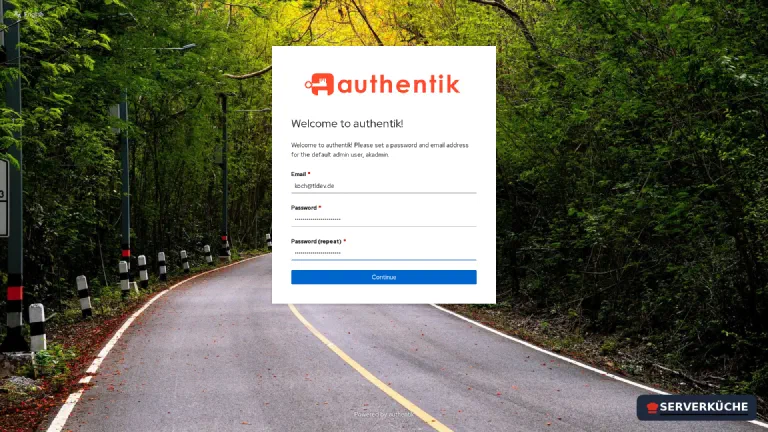
Enter the email address and a very long password. Two things worth knowing:
- The username of the account created here is
akadmin– not your email address. - The interface appears in your browser’s language.
After submitting you land in the user interface (/if/user/) – the view all your users will see
later: a tile library of the applications they are allowed to use.
5. The administrator interface
Administration lives at https://YOUR_DOMAIN/if/admin/ – or via the button in the top right:
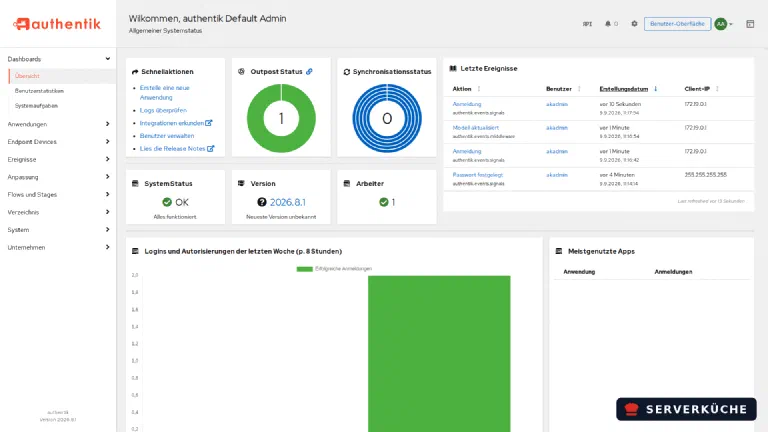
Four tiles answer the typical operational questions:
- System status – „everything is operational" means: database reachable, no open warnings.
- Version – the running version. If it says the latest version is unknown, Authentik could not perform the version check; with restricted outbound traffic that is normal.
- Workers – must be at least 1. If it says
0, theworkeris not running, and then a lot silently does not happen: no emails, no certificate rotation, no scheduled tasks. - Latest events – every login and change with user, time and client IP. This is your audit log and the first place to look for „who changed that?".
6. Understanding the model: flows, stages, providers, applications
Authentik is not a login form but a construction kit. Once you know these terms you find your way around the interface immediately – and you understand the error messages.
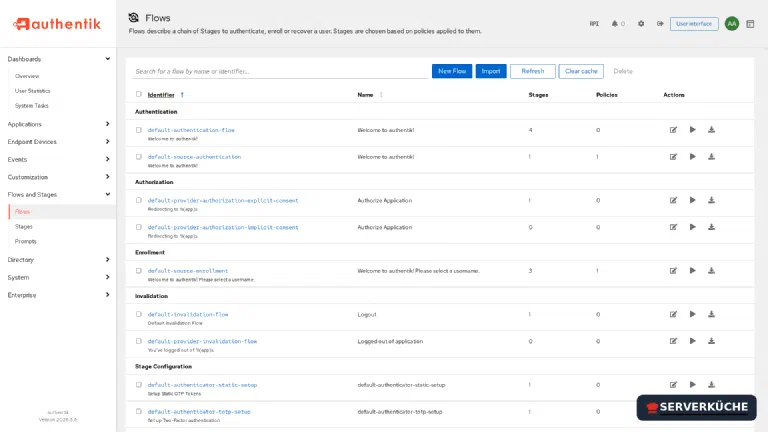
- Stage – a single step: ask for a password, check a TOTP code, obtain consent, write a user. A stage can do nothing on its own.
- Flow – a chain of stages for one purpose. Authentik ships ready-made ones, visible in the
list:
default-authentication-flow(login, 4 stages),default-invalidation-flow(logout),default-source-enrollment(enrollment through an external source), plus flows for setting up TOTP and static recovery codes. - Policy – a condition deciding whether a stage applies or access is allowed: „only members of this group", „only from this network", „only with a confirmed email".
- Provider – the technical interface to one service: OAuth2/OpenID Connect, SAML, LDAP or the proxy provider for applications without their own login.
- Application – the bracket around it: it connects a provider with permissions and creates the tile in the user library.
- Outpost – an outsourced component Authentik operates itself (for the proxy provider, for instance). That is exactly why the worker needs the Docker socket.
For everyday use that means: you do not touch the default flows. You create one provider plus one application per service – and that is precisely the content of part 2.
What actually happens during a login can be read off the default flows. When a user opens a protected
service, the default-authentication-flow runs with its four stages:
- Identification – who are you? (username or email, depending on the setting)
- Password – checked against the stored password
- Authenticator validation – if there is a second factor, it is demanded here
- User login – the session is created
After that the authorization flow takes over: it decides whether this user may use this application
(default-provider-authorization-explicit-consent asks for consent once,
…-implicit-consent skips the question). On logout the invalidation flow applies.
If something goes wrong later, that order is your search aid: if the user gets stuck at the password, it is a problem in the authentication flow. If they get through but don’t see the application, it is authorization – so permissions or policies.
7. Create users and groups
Under Directory → Users you create accounts. The important distinction:
- Users have a username, name, email and optionally attributes.
- Groups bundle users – and you attach the permissions for applications to groups. So create
groups right away (
family,admins) instead of granting rights per user. Otherwise you maintain the same list ten times over for ten services.
You then use the akadmin account for administration only; for everyday use you create yourself a
normal account. That is the same separation as „don’t work as root".
A second factor for the administrator
default-authenticator-totp-setup is in the list from step 6. Register a
second factor for akadmin through the user interface (Settings → MFA devices) before you attach any
services. An identity provider with plain password protection only does half its job. How TOTP works in
general is covered in SSH with 2FA.8. Harden Authentik itself
From now on the identity provider is the most rewarding target on your server. Four measures that cost little together:
- Put a rate limit and security headers in front of it. Authentik has its own reputation checks, but the first brake belongs on the reverse proxy. Attach the middlewares from hardening Traefik to the router – a rate limit makes password guessing unattractive before the request even reaches Authentik.
- Restrict the administration interface. You rarely need
/if/admin/, and rarely while travelling. An IP allowlist or access only through WireGuard is appropriate here – without restricting the normal login path for your users. - Make a second factor mandatory, at least for administrators. In Authentik that hangs off the authenticator validation stage of the login flow.
- Leave error reporting off – already set in the Compose file above. By default Authentik sends error reports to the project; for a service that sees every credential in your environment, that belongs switched off.
No SSO in front of your emergency exit
When things go wrong
The interface returns Internal Server Error while the container counts as healthy. Then
Authentik cannot read its template directories. Typical for servers with UMASK 027: mkdir
creates drwxr-x--- there – and the container runs as user 1000, which cannot enter them. The log says PermissionError: [Errno 13] Permission denied: '/templates/if/error.html'. Fix it with chmod 755 media certs custom-templates in the
stack directory and restart.
The page answers with 404 for minutes even though the containers are running. On the first start over
70 database migrations run; while they do, /-/health/ready/ returns 404 as well. On the VPS 1000 that was
over after just under two minutes, the setup flow 15 seconds later. docker logs -f authentik-server-1 shows the progress.
Calling the setup flow gives „request denied". The setup flow cannot be opened directly via
/if/flow/initial-setup/. Go to the root address https://YOUR_DOMAIN/, from where Authentik redirects
correctly.
The „workers" tile shows 0. The worker container is not running or cannot reach the database.
Without it, emails, scheduled tasks and outpost management are left undone – with no error message in the
interface. Check docker compose ps and the worker’s logs.
Traefik answers with 404. Usually
traefik.http.services.authentik.loadbalancer.server.port=9000 is missing. The container listens on
9000; port 9443 is Authentik’s own HTTPS, which we deliberately do not use.
After a rebuild all sessions are invalid or the login fails. Then the AUTHENTIK_SECRET_KEY changed –
for example because the .env was regenerated. The key has to stay the same for the lifetime of the
installation; restore it from your backup.
The username doesn’t match. The account created during setup is called akadmin, not your email
address. If you want to log in with the address, allow that in the identification stage of the login
flow.
Your problem is not listed? Search all error messages →
Maintenance & backups
Updates are mandatory here. The project releases frequently – the 2026.8 line saw several patch releases within a few weeks. Because Authentik is the master key to every attached service, you want security fixes promptly:
cd /opt/authentik && docker compose pull && docker compose up -dRead first, then update. Authentik uses date-based versions (2026.8.3). Between minor versions
(2026.2 → 2026.5) there are regularly changes that need manual work; the release notes name them
explicitly. Never jump across several minor versions at once, and take a backup first: the database is
migrated on start, and that is not easily reversible.
What belongs in the backup:
.env– contains theSECRET_KEYand the database password. Without the key the rest is worthless.The PostgreSQL database – it holds users, groups, flows, providers and applications. Back it up not as a file copy of the volume but as a dump:
Terminaldocker compose exec -T postgresql pg_dump -U authentik authentik \ | gzip > /opt/backup/authentik-$(date +%F).sql.gzmedia/– uploaded logos and icons. Small, but annoying to reconstruct.
Restic then picks up the dump. Why not a volume copy: you don’t copy a running database file by file – that produces inconsistent backups which only reveal themselves when you try to restore.
Plan for the outage. If Authentik is down, nobody gets into the attached services – that is the flip
side of single sign-on. Two precautions cost little: keep a local emergency account in every attached
service that works without SSO, and add Authentik to your
monitoring – ideally with a check on /-/health/ready/, which
tests exactly what matters.
Tidy up users and groups. An identity provider grows with you: guests, old accounts, test users. Take a look at the user list twice a year and deactivate what is no longer needed – deactivating beats deleting, because otherwise your event logs develop gaps.
Last updated: Oct 8, 2026
Send feedback: feedback@serverkueche.de
What's next?
You might also like