code-server: VS Code in the Browser on Your Own Server
code-server 4.141.0 behind Traefik: two locks in front, a custom image with a real toolchain, persistent Open VSX extensions and hard resource limits.
Table of contents
VS Code in the browser, from a tablet, from someone else’s machine, with no local setup – that is the tempting part. The uncomfortable one: whoever logs in gets a terminal on your server. Which is exactly why this tutorial is half a security tutorial.
What are we building?
We run code-server 4.141.0 (based on VS Code 1.141.0) behind Traefik, reachable over HTTPS and protected by two independent locks: BasicAuth in Traefik and code-server’s own password. On top of that we build a custom image with the toolchain you actually need – because the official one ships none.
At the end you can edit a file in the browser, run it in the integrated terminal and fetch the result. Extensions survive a restart, the container runs without a single capability and cannot grant itself root inside.
What you are really opening up
Requirements
- Traefik as a reverse proxy with a working Let’s Encrypt resolver and a domain pointing at the server
- BasicAuth from the Traefik hardening tutorial – we use that middleware directly here
- At least 2 GB of free memory. With one file open and the Python extension active the container needs 500 to 650 MB, more under load – we set the limit to 2 GB
- Roughly 6 GB of disk: the base image is 1.51 GB, our extended one 1.99 GB
VPS 2000 G12.5
8 vCores · 16 GB RAM · 256 GB SSD
from €26.92/month
An editor plus language servers plus your own project – the bigger VPS earns its keep here.
💶 1 month free:
Single use, valid for VPS 2000 G12.5. Redeem in the cart →
💶 €5.95 voucher for new netcup customers: always valid · not for domains or VPS Lite
Step by step
Step 1: Create the directories and generate the password hash
code-server runs in the container as the user with UID 1000. For it to write into the mounted directories, they have to belong to that user:
mkdir -p /opt/code-server/{config,local,projekte}
chown -R 1000:1000 /opt/code-server
cd /opt/code-server
The three directories have clearly separated jobs: config holds the configuration, local the
installed extensions and editor state, projekte your code. Only the third one contains things you
cannot recreate.
Now the password hash. code-server understands Argon2 hashes, and Debian ships the right tool:
apt-get install -y argon2
echo -n "YOUR_CODE_SERVER_PASSWORD" | argon2 "$(openssl rand -base64 12)" -e -id -k 65540 -t 3 -p 4$argon2id$v=19$m=65540,t=3,p=4$XXXXXXXXXXXXXXXXXXXXXXXX$XXXXXXXXXXXXXXXXXXXXXXXXXXXXXXXXXXXXXXXXXXXopenssl rand supplies the salt, -id selects the recommended Argon2id variant, and -k 65540 is
roughly 64 MB of memory cost per verification. That makes guessing expensive.
Note
npx argon2-cli. That package is now marked deprecated and
points at your distribution’s tool itself – so use argon2 from the package manager.You put the hash into code-server’s own configuration file, not into an environment variable:
# /opt/code-server/config/code-server/config.yaml
bind-addr: 0.0.0.0:8080
auth: password
hashed-password: "$argon2id$v=19$m=65540,t=3,p=4$YOUR$HASH"
cert: false
disable-telemetry: true
disable-update-check: true
disable-workspace-trust: truemkdir -p config/code-server # put the file there
chown -R 1000:1000 configWhy the file and not environment:? Because Docker Compose reads every $ in environment values
as the start of a variable and shreds your hash – a mistake you only notice at the login screen.
Details below under “When it doesn’t work”. cert: false is correct because Traefik handles TLS.
disable-workspace-trust saves you the “Do you trust the authors?” prompt for every folder – on a
server that only holds your own code, that is pure clicking.
Step 2: A custom image, because the official one is empty
This is the point where most guides stop and the trouble starts. Look at what the official image actually contains:
docker run --rm --entrypoint sh codercom/code-server:4.141.0 \
-c 'for c in git curl python3 node gcc make; do printf "%-8s %s\n" $c "$(command -v $c || echo MISSING)"; done'git /usr/bin/git
curl /usr/bin/curl
python3 MISSING
node MISSING
gcc MISSING
make MISSINGThe image contains the editor and nothing else. A .py file gets syntax highlighting, but
python3 app.py in the terminal answers bash: python3: command not found. So we build a derived
image with exactly the toolchain you need:
# /opt/code-server/Dockerfile
FROM codercom/code-server:4.141.0

USER root
RUN apt-get update \
 && apt-get install -y --no-install-recommends \
      python3 python3-venv python3-pip build-essential jq \
 && rm -rf /var/lib/apt/lists/*
USER coder
Swap the package list for whatever you work with – nodejs npm for JavaScript, golang-go for Go.
The trailing USER coder matters: without it the editor starts as root.
Step 3: The Compose stack
First generate the BasicAuth hash for Traefik:
docker run --rm httpd:2.4-alpine htpasswd -nbB YOUR_USER YOUR_BASICAUTH_PASSWORDYOUR_USER:$2y$05$XXXXXXXXXXXXXXXXXXXXXXXXXXXXXXXXXXXXXXXXXXXXXXXXXXXXXWarning
$ in the hash ($$). Otherwise Compose reads
$2y as a variable, substitutes nothing and hands Traefik a broken hash – the login then fails for
no visible reason.# /opt/code-server/compose.yaml
services:
code-server:
build: .
image: serverkueche/code-server:4.141.0
container_name: code-server
restart: unless-stopped
user: "1000:1000"
environment:
TZ: Europe/Berlin
volumes:
- ./config:/home/coder/.config
- ./local:/home/coder/.local
- ./projekte:/home/coder/projekte
command: ["/home/coder/projekte"]
cap_drop: [ALL]
security_opt:
- no-new-privileges:true
mem_limit: 2g
pids_limit: 512
networks: [proxy]
labels:
- traefik.enable=true
- traefik.http.routers.code.rule=Host(`YOUR_DOMAIN`)
- traefik.http.routers.code.entrypoints=websecure
- traefik.http.routers.code.tls.certresolver=le
- traefik.http.routers.code.middlewares=code-auth@docker
- traefik.http.middlewares.code-auth.basicauth.users=YOUR_USER:$$2y$$05$$YOUR$$HASH
- traefik.http.services.code.loadbalancer.server.port=8080
networks:
proxy:
external: trueFour lines deserve an explanation, because they do more here than usual:
user: "1000:1000"– the editor does not run as root, and the files underprojekteend up belonging to you instead of root.cap_drop: [ALL]– code-server needs not a single Linux capability. Editor, terminal and extensions all work with this in place.no-new-privileges:true– the sharpest line. The official image ships/etc/sudoers.d/nopasswdcontainingcoder ALL=(ALL) NOPASSWD:ALL; without this flag anyone who reaches the terminal is onesudoaway from root inside the container. With it,sudofails cleanly:sudo: The "no new privileges" flag is set, which prevents sudo from running as root.mem_limit: 2g/pids_limit: 512– a runaway language server or an endless loop in the terminal should not take the server down with it.
Never mount the Docker socket
/var/run/docker.sock into code-server so you can start containers
from the editor. That socket is equivalent to root on the host – it undoes every bit of
hardening in this setup. If you want to build containers, do it over SSH or in a separate
environment made for it.Step 4: Start it and check both locks
cd /opt/code-server && docker compose up -d --build
docker compose logs --tail 6info code-server 4.141.0 8b41915d25547e2edd553bab03ea4cbd621f98c5
info Using user-data-dir /home/coder/.local/share/code-server
info Using config file /home/coder/.config/code-server/config.yaml
info HTTP server listening on http://0.0.0.0:8080/
info - Authentication is enabled
info - Using hashed-password from /home/coder/.config/code-server/config.yaml
info - Not serving HTTPSLines five and six confirm the hash was read. Not serving HTTPS is correct – Traefik does that.
Now the counter-test from another machine. Without credentials you do not even reach the login form:
curl -s -o /dev/null -w "%{http_code}\n" https://YOUR_DOMAIN/401With BasicAuth, code-server redirects you to its own login:
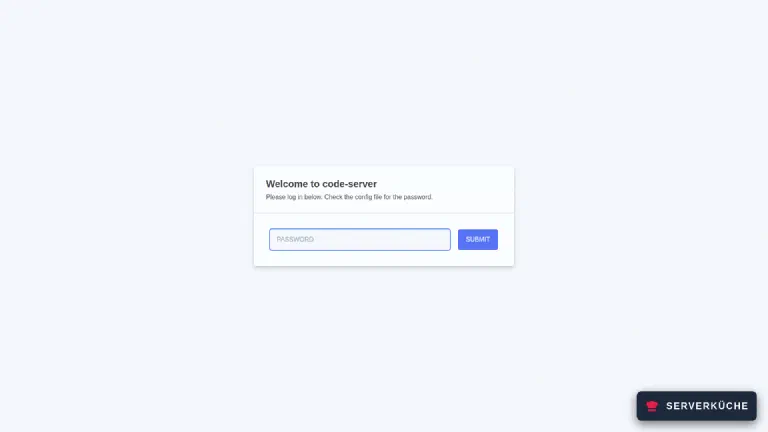
curl -s -o /dev/null -w "%{http_code}\n" -u YOUR_USER:YOUR_BASICAUTH_PASSWORD https://YOUR_DOMAIN/302That is exactly right: two hurdles, two different passwords. In the browser you see code-server’s login after the BasicAuth dialog:
Warning
Secure and HttpOnly protection flags. There is no server-side logout:
whoever holds the cookie stays in until you change the password. So run it over HTTPS
only, and clear browser storage afterwards on machines that are not yours.Step 5: Working – file, terminal, port
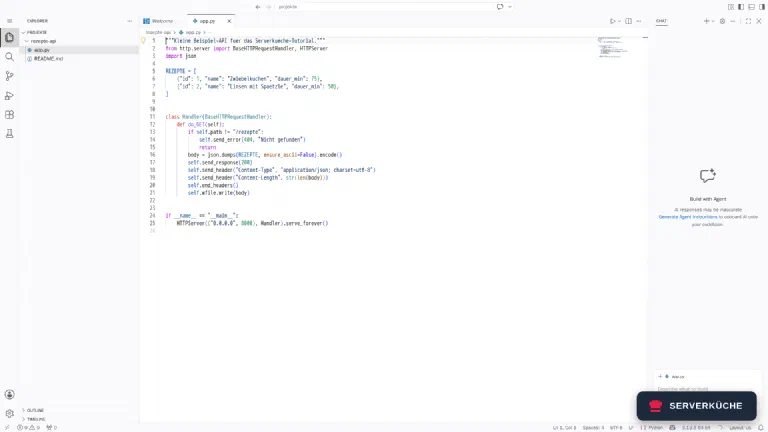
After logging in you land directly in the working directory we passed via command:. Open a file
with Ctrl+P:
The real test is the terminal – via the command palette (Ctrl+Shift+P) and
“Terminal: Create New Terminal”. There you start your program and call it right away:
cd rezepte-api && python3 app.py & sleep 2; curl -s localhost:8000/rezepte | jq .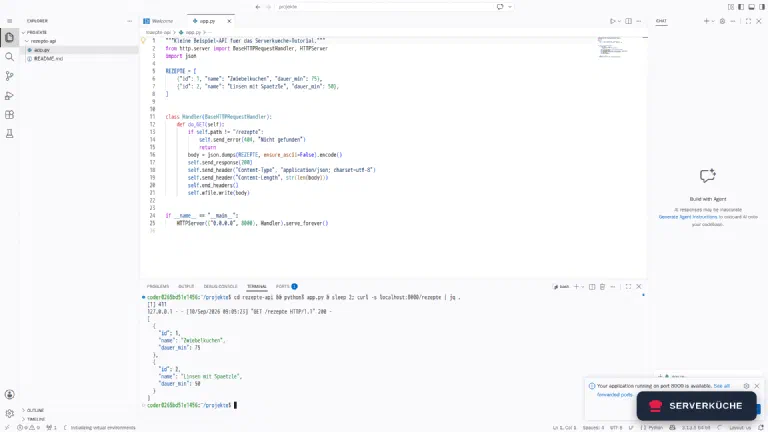
VS Code detects the opened port automatically and offers it under the PORTS tab. You cannot reach those forwarded ports from outside through a reverse proxy though – they are meant for working inside the editor, not for publishing.
A sudo in the terminal is refused now, by the way. That is intentional: the tools you need are
already in the image, and anything beyond that belongs in the Dockerfile – not in an ad-hoc
installation that disappears at the next docker compose pull.
Step 6: Extensions from Open VSX
code-server does not use Microsoft’s marketplace but Open VSX. That is not a setting but a licensing matter: the official marketplace may only be used by Microsoft’s own products.
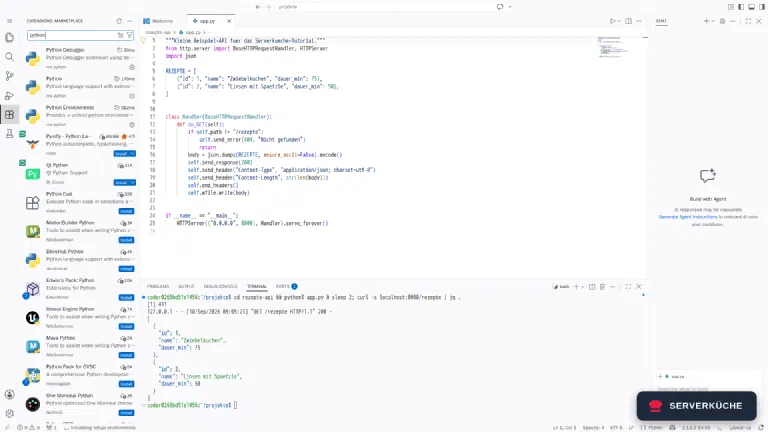
Day to day it is better than its reputation: Python, the debugger, Docker, GitLens and the common
themes are all available. What is missing are the extensions Microsoft licenses exclusively for VS
Code – above all Pylance, the C# extension and Remote Development. For Python,
ms-python.python steps in with the open language server.
Extensions can also be installed from the command line, which is worth it for a reproducible setup:
docker exec code-server code-server --install-extension ms-python.pythonExtension 'ms-python.vscode-python-envs' v1.38.0 was successfully installed.
Extension 'ms-python.debugpy' v2026.6.0 was successfully installed.
Extension 'ms-python.python' v2026.4.0 was successfully installed.They land in the local volume and therefore survive restarts and updates:
docker compose restart && sleep 10
docker exec code-server code-server --list-extensionsms-python.debugpy
ms-python.python
ms-python.vscode-python-envsWhen it doesn’t work
The login fails with the correct password even though the hash is right. Then the hash is probably in a .env file or under environment:. Docker Compose interpolates $ characters in values from env files too, turning $argon2id$v=19$m=65540,... into =19=65540,t=3,p=4/Ntxaqbs... – and it only warns with The "argon2id" variable is not set. Either double every $ to $$, or do it the way we did and put the hash in config.yaml, where Compose never looks.
Traefik answers with 401 even though you typed the right BasicAuth password. Same cause, different place: every $ of the bcrypt hash in the basicauth.users label has to be doubled. Check what actually arrives with docker compose config – a mangled hash there means the doubling is missing.
The terminal says bash: python3: command not found. The official image contains only the editor, no language runtimes – git, curl and sudo are there, nothing more. Build the derived image from step 2 and restart with docker compose up -d --build. Installing into the running container only helps until the next restart.
code-server cannot save a file and reports Permission denied. The folders under projekte belong to root instead of UID 1000. That happens as soon as you create a directory as root on the host. chown -R 1000:1000 /opt/code-server/projekte fixes it; the habit worth building is to create new projects from inside the editor rather than on the host.
sudo in the terminal aborts with The "no new privileges" flag is set. That is not a defect but the effect of security_opt: no-new-privileges:true. Do not remove that line – it is the only reason the bundled coder ALL=(ALL) NOPASSWD:ALL in /etc/sudoers.d/nopasswd is useless to anyone. Whatever you need permanently belongs in the Dockerfile.
Your problem is not listed? Search all error messages →
Maintenance & backups
Updates go through the image tag, and because we build ourselves it takes two steps:
cd /opt/code-server
sed -i 's/code-server:4.141.0/code-server:NEW_VERSION/g' Dockerfile compose.yaml
docker compose up -d --build
docker exec code-server code-server --version
code-server tracks VS Code closely and releases often – roughly a new minor version every month. You do not have to take every one; once a quarter is fine unless a security advisory shows up in between. Keep in mind that an update also refreshes the base image and with it the Debian packages from your Dockerfile – which is what you want.
Only one of the three directories genuinely needs backing up:
/opt/code-server/projekte/   # your code – irreplaceable
/opt/code-server/config/     # config.yaml with the password hash
/opt/code-server/Dockerfile  # your toolchain
/opt/code-server/compose.yaml
local/ with the extensions is deliberately left out: it grows with every extension – with the
Python extension it is around 60 MB – and is restored in two minutes by reinstalling your extension list. Keep that list as a file in the project instead
– code-server --list-extensions > extensions.txt – and back that up. All of it belongs in your
Restic backup.
Better still: use Git. The editor ships with it, and your code then exists twice by default. On your own Forgejo instance it stays in house while doing so.
Realistic effort: little, once it is set up – one update per quarter, a glance at memory use when the editor gets sluggish. The part that needs attention is not maintenance but access control: rotate both passwords when a device goes missing, and check the Traefik logs now and then for who has been trying the BasicAuth.
One step stricter
Send feedback: feedback@serverkueche.de
You might also like