Connecting a domain to your server (DNS basics)
Point your domain to your server: set A and AAAA records, understand TTL and propagation, verify with dig – and set reverse DNS (PTR) at netcup.
Table of contents
So far you only reach your server via its IP address. For real services you need a domain – and not just for looks: without a publicly resolving domain, Traefik can’t fetch a TLS certificate from Let’s Encrypt later. This tutorial connects your domain to the server and explains the three terms beginners get stuck on: A record, TTL and propagation.
What are we building?
By the end, your domain (YOUR_DOMAIN) points to your server IP via an A record
(IPv4) and – if your server has IPv6 – an AAAA record, including www. You can
verify this yourself with dig and understand why a change isn’t always visible
immediately. Optionally you also set up reverse DNS (PTR) – important as soon as
your server sends emails. This lays the foundation for all publicly reachable
services.
Prerequisites
- A set-up server with a known public IP address
- A registered domain (at netcup, another registrar, or included in your hosting package)
- Access to the DNS management of your domain (at netcup: the customer account CCP)
Step by step
Step 1: Find the server IP
Connect via SSH and display the public IP addresses:
ip -4 addr show scope global
ip -6 addr show scope global
The IPv4 address is after inet (e.g. 203.0.113.10), any IPv6 address after
inet6 (does not start with fe80::, that would only be link-local). If Docker is
already running on the server, private addresses show up on docker0/br-… as well:
for IPv4 from 172.16.0.0/12, for IPv6 ones starting with fd (ULA). Both report
scope global too, but they are container networks and don’t belong in DNS. You need
the addresses on eth0. Alternatively you’ll find both in the netcup Server Control
Panel (SCP) in the server overview.
Tip
Step 2: Create A and AAAA records
Open the DNS management of your domain. There you enter resource records – the mapping of names to addresses. Create:
| Type | Host / Name | Value |
|---|---|---|
A | @ | YOUR_SERVER_IPV4 |
A | www | YOUR_SERVER_IPV4 |
AAAA | @ | YOUR_SERVER_IPV6 (only if available) |
AAAA | www | YOUR_SERVER_IPV6 (only if available) |
@stands for the domain itself (YOUR_DOMAIN),wwwfor the subdomainwww.YOUR_DOMAIN.- A points to an IPv4 address, AAAA to an IPv6 address. The name “AAAA” comes from an IPv6 address being four times as long as an IPv4 address.
- For individual services you can later create specific subdomains (e.g.
cloud,git) – following the same pattern.
Warning
http://, no slash, no port. For
redirects to other names there would be CNAME, but for “domain → own server” the
A/AAAA record is the right and most robust way.Step 3: Understand TTL and propagation
Every record has a TTL (Time To Live) in seconds – e.g. 3600 (one hour). It
tells resolvers worldwide how long they may cache the answer before asking again.
From this follows the notorious propagation: if you change a record, some resolvers see the new value immediately, others only after the old TTL expires. “DNS propagating” means nothing more than these caches expiring one by one. In everyday use, reckon with minutes up to an hour, occasionally longer.
Before planned migrations
300 (5 minutes). Then the actual switch takes effect almost immediately later.
Raise it again after the migration.Step 4: Verify with dig
Wait a few minutes, then check from your own machine where the domain points. dig
is the standard tool for that; on Debian and Ubuntu it lives in the bind9-dnsutils
package:
sudo apt install bind9-dnsutilsThen query the A record:
dig +noall +answer YOUR_DOMAIN AThis is what a correct answer looks like (example for this site’s real domain):
serverkueche.de. 3600 IN A 152.53.246.100The number 3600 is the remaining TTL – it counts down while the answer sits in a
cache – followed by the target IP. For IPv6, query the AAAA record the same way:
dig +short YOUR_DOMAIN AAAA2a0a:4cc0:c0:939c::1+short returns just the bare values, for IPv4 too:
dig +short YOUR_DOMAIN152.53.246.100If your correct server IP appears, the domain is connected. Also check www:
dig +short www.YOUR_DOMAINWith its own A record for www (step 2), exactly one line with the same IP as the
apex comes back. If www instead points to the main domain via CNAME – also common
and perfectly fine – dig +short prints the CNAME target first and then its IP, as on
this site:
serverkueche.de.
152.53.246.100
Either way, what counts is the last line: it has to carry your server’s IP.
Step 5: Set reverse DNS (PTR) – optional but recommended
The A record answers the question “Which IP belongs to this name?”. Reverse DNS – the PTR record – answers the opposite direction: “Which name belongs to this IP?”. For a plain website you don’t need this. But as soon as your server sends emails – even if only notifications from Nextcloud, Gitea & co. – it’s practically mandatory: the receiving mail servers reject mail from IPs without a matching PTR or treat it as spam. The PTR is only the first of four DNS building blocks – SPF, DKIM and DMARC join it as soon as you really send mail; those are covered by the email deliverability tutorial.
The crucial difference from the previous records: you enter the PTR not at your
DNS provider, but where the IP address is managed – i.e. at your VPS provider.
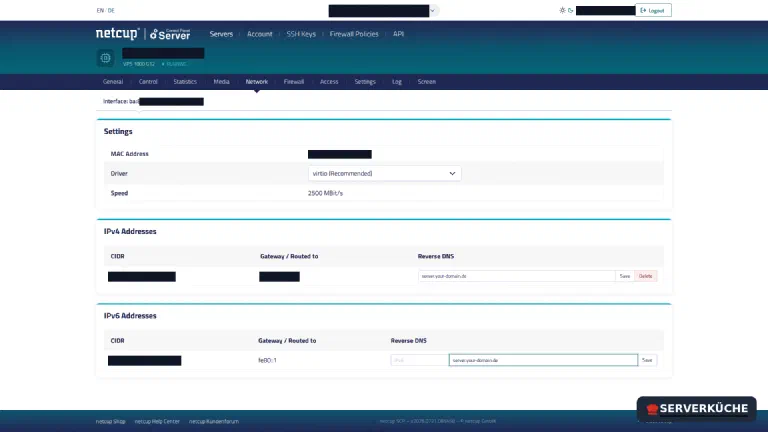
At netcup you’ll find it in the Server Control Panel (SCP) in the Netzwerk
(Network) tab – there’s a Reverse DNS field per address (IPv4 and IPv6). Enter a
hostname there that points to the same server via an A record – either directly
YOUR_DOMAIN or your own name like server.YOUR_DOMAIN (shown as an example in the
screenshot) – and click Save.
Forward and reverse must match
YOUR_DOMAIN and
www this is already satisfied by step 2. If you use your own name like
server.YOUR_DOMAIN, first create an A/AAAA record for it as in step 2 – otherwise
the reverse direction doesn’t match.If you have IPv6, set the PTR for both addresses – IPv4 and IPv6. The IPv6 PTR is easily forgotten, and that’s exactly what some mail servers trip over after all.
You can check the result with dig and the -x option (reverse lookup) – for IPv6
do the same with YOUR_SERVER_IPV6:
dig +short -x YOUR_SERVER_IPV4Exactly the hostname you just entered should come back – with a trailing dot:
server.YOUR_DOMAIN.If nothing comes back, or still the provider’s default name (at netcup something like
v220….bestsrv.de), the PTR is not (correctly) set yet – or, as with every DNS entry,
the change still needs some time.
When things go wrong
dig returns no IP or a wrong (old) one. Usually still propagation. Query a
public resolver specifically to bypass your local cache: dig +short YOUR_DOMAIN @1.1.1.1. If it already shows the correct value, only your local/provider cache
hasn’t expired yet – wait.
The domain resolves, but to the wrong IP – e.g. a registrar’s parking page. Often an old A record or a redirect/parking setting still exists. Remove contradictory entries; per name and type there should be exactly one value (deliberate exceptions aside).
IPv4 works, IPv6 (AAAA) leads to timeouts. You entered an AAAA record even though the server has no working IPv6 address. Browsers then prefer IPv6 and run into a timeout. Remove the AAAA record until the server really supports IPv6.
In some interfaces the value is stored with a trailing dot (YOUR_DOMAIN.) and
you’re unsure. The trailing dot (root of the DNS hierarchy) is normal and correct –
many DNS managers add it automatically. No reason to worry.
Emails sent from the server land in spam or are rejected (the mail log shows e.g.
does not resolve to address or no PTR record). The reverse-DNS entry (PTR) is
missing or doesn’t match the sender hostname. Set the PTR as described in step 5 at
the VPS provider and make sure it points to the same name that also resolves via the
A/AAAA record.
Your problem is not listed? Search all error messages →
Maintenance & backups
- DNS is low-maintenance. Once set correctly, the A/AAAA record rarely changes. Exception: a server migration – then the TTL trick from step 3 applies.
- Document your records. Keep track somewhere of which names (
@,www,cloud, …) point to which IP. With several services you otherwise lose the overview. - No classic backup needed, but a screenshot or export of your DNS zone doesn’t hurt in case you switch providers.
- Carry reverse DNS along on an IP change. If the server gets a new IP (migration, new product), you have to reset the PTR at the VPS provider – it’s tied to the IP, not the domain.
Last updated: Sep 12, 2026
Send feedback: feedback@serverkueche.de
What's next?



You might also like