Forgejo Actions: your own CI/CD runner with Docker
Set up and register a Forgejo Actions runner with Docker-in-Docker: your own CI/CD pipelines on the self-hosted Git server – step by step.
Table of contents
Your Forgejo Git server is running – but code just sits there as long as no one tests and deploys it. Forgejo Actions brings CI/CD right into your Git platform: on every push, tests, builds or deployments run automatically. The work is done by a runner you operate yourself. This tutorial sets up such a runner with Docker-in-Docker and lets a first pipeline run green.
What are we building?
By the end, your Forgejo has a registered, active runner that executes workflows from the .forgejo/workflows/ directory. We rely on Docker-in-Docker (DinD): the runner starts each CI job in its own, disposable container, cleanly isolated from the host. Concretely, by the end this runs:
- the Forgejo runner (
code.forgejo.org/forgejo/runner:13.1.0), which asks Forgejo for jobs, - a Docker-in-Docker sidecar (
docker:29-dind) in which the jobs run isolated, - an example repository with a workflow that runs
actions/checkouton every push and starts a small action.
Forgejo Actions is largely compatible with GitHub Actions – the same workflow syntax, many marketplace actions work unchanged. So you can keep using existing knowledge directly, just on your own server. Tested with Forgejo 16.0.3 and Runner v13.1.0 on Debian 13 / Docker 29.
Prerequisites
- A running Forgejo server behind a reverse proxy, reachable under a public HTTPS domain (
YOUR_DOMAIN). The public URL is important – more on that below. - Docker on the same server (the runner and its DinD sidecar run as containers).
- Admin access to Forgejo to generate the registration token.
Actions has been enabled by default since Forgejo 1.21. If you’ve set it explicitly in your Forgejo Compose (recommended), it says there:
    environment:
      FORGEJO__actions__ENABLED: "true"
CI jobs are more resource-hungry than the plain Git server – builds need CPU and RAM. For running the runner alongside Forgejo we therefore recommend a bit more reserve – the VPS 2000, say; how much your specific setup needs is estimated by the server calculator.
VPS 2000 G12.5
8 vCores · 16 GB RAM · 256 GB SSD
from €26.92/month
Forgejo plus a runner and build jobs benefit from the larger plan.
💶 1 month free:
Single use, valid for VPS 2000 G12.5. Redeem it in an empty cart – the code adds the server itself. Redeem in the cart →
💶 €5 voucher for new netcup customers: always valid · not for domains or VPS Lite
Step by step
Step 1: Get the registration token
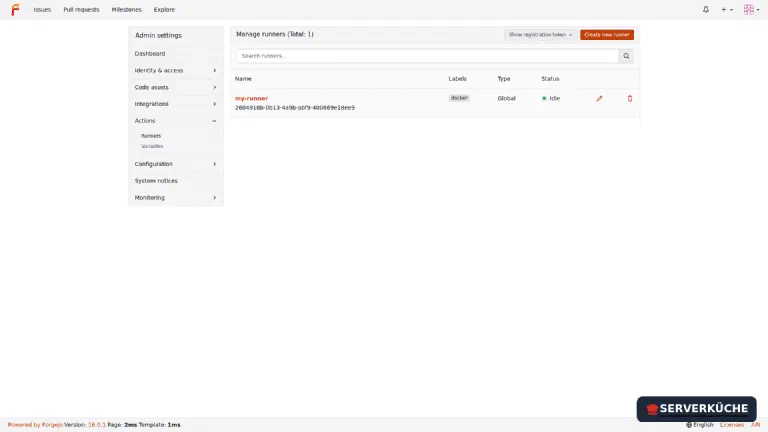
The runner has to register with Forgejo once. For that you need a registration token. The easiest way is via the web interface: log in as administrator and go to Administration settings → Actions → Runners. There you see all runners and, at the top right, the button Create registration token.
Alternatively via the command line directly in the Forgejo container:
docker compose exec -u git forgejo forgejo actions generate-runner-tokenThat outputs a long token – copy it, you need it once shortly.
Tip
Step 2: Write the runner Compose
Create a dedicated folder and change into it:
mkdir -p /opt/forgejo-runner && cd /opt/forgejo-runnerCreate the compose.yaml:
services:
  docker:
    image: docker:29-dind
    container_name: fjr-docker
    privileged: true
    restart: unless-stopped
    environment:
      DOCKER_TLS_CERTDIR: /certs
    volumes:
      - dind_certs:/certs
      - runner_data:/data

  runner:
    image: code.forgejo.org/forgejo/runner:13.1.0
    container_name: fjr-runner
    restart: unless-stopped
    depends_on: [docker]
    environment:
      DOCKER_HOST: tcp://docker:2376
      DOCKER_CERT_PATH: /certs/client
      DOCKER_TLS_VERIFY: "1"
    volumes:
      - dind_certs:/certs:ro
      - runner_data:/data
    working_dir: /data
    command: forgejo-runner daemon

volumes:
  dind_certs:
  runner_data:
The most important points:
- The DinD service is deliberately called
docker. Its automatically generated TLS certificate is issued for exactly this name – if the service is called something else, the runner fails with “certificate is valid for docker, not …” (see “When things go wrong”). privileged: trueis needed by DinD to run its own Docker engine. That’s the price of isolation; secure the runner server accordingly.- The runner talks to the DinD via
DOCKER_HOST: tcp://docker:2376with TLS; it shares the client certificates via thedind_certsvolume. - The registration lands as a
.runnerfile in therunner_datavolume and thus survives restarts and updates.
Why Docker-in-Docker?
/var/run/docker.sock) into the runner. That’s simpler, but effectively gives the CI jobs root on the host – a manipulated workflow could take over the whole server. DinD encapsulates the jobs in their own Docker instance and is the clearly safer choice.Step 3: Start DinD and register the runner
First start only the DinD sidecar so it generates its certificates:
docker compose up -d dockerNow register the runner once. Replace YOUR_TOKEN with the token from step 1:
docker compose run --rm runner forgejo-runner register \
  --no-interactive \
  --instance https://YOUR_DOMAIN \
  --token YOUR_TOKEN \
  --name my-runner \
  --labels "docker:docker://node:24-bookworm"
On success the output ends with Runner registered successfully. (a warning that register is “deprecated” you can ignore – it works).
Definitely use the public URL
https://YOUR_DOMAIN) – not an internal one like http://forgejo:3000. Reason: the CI jobs run in DinD in their own containers with their own network and can’t resolve internal Docker names. But when checking out, they have to reach the Git server. With the public URL that works from anywhere – with an internal name, every job fails at checkout.The label docker:docker://node:24-bookworm means: jobs with runs-on: docker are executed in a node:24-bookworm container (brings Node.js and the usual build tools). Node 24 is the currently active LTS line – Node 20 has been out of support since April 2026.
Step 4: Start the runner and check the status
Now start the whole stack:
docker compose up -dCheck that both containers are running:
docker compose psTake a look at the runner log – here you see whether the registration worked:
docker compose logs runnerYou should see a line like declared successfully and [poller] launched – the runner now actively asks Forgejo for jobs. In the web interface under Administration settings → Actions → Runners, my-runner appears with a green status dot and the label docker (see screenshot above). If it’s Idle with a green dot, all is well: it’s connected and just waiting for work.
Step 5: Create the first workflow
Workflows live in the repository under .forgejo/workflows/. In any repo, create the file .forgejo/workflows/ci.yml:
name: CI
on: [push]
jobs:
  test:
    runs-on: docker
    steps:
      - uses: actions/checkout@v7
      - run: echo "Commit $GITHUB_SHA is being tested"
      - run: node --version
Broken down:
on: [push]– the workflow starts on every push.runs-on: docker– selects our runner via the labeldocker.actions/checkout@v7– checks out the code (the same action as with GitHub; Forgejo loads it automatically from its action registry).- The two
runsteps output the commit and the Node version – a minimal but real example you later replace with your actual build/test commands.
Commit and push the file. The push triggers the workflow immediately.
Step 6: Look at the run
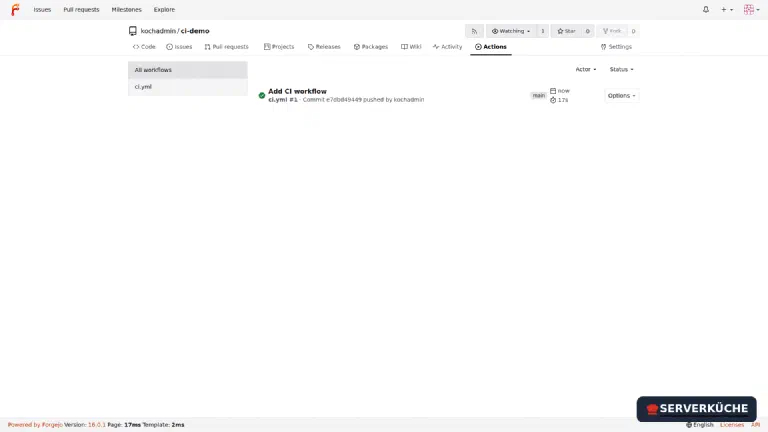
In the repository, open the Actions tab. Your run appears there – after a few seconds with a green checkmark:
A click on the run opens the job view with the individual steps and their logs. Here you see how actions/checkout clones the repository and the commands run one after another:
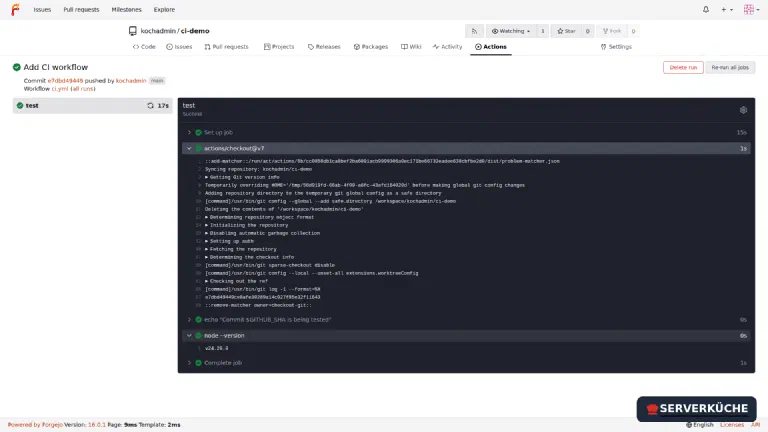
The node --version step outputs v24.20.0 for us – the proof that the job really ran in the node:24-bookworm container. With that your CI/CD is in place: from now on you can test, build and deploy whatever you need in the run steps.
When things go wrong
The runner restarts and reports “cannot ping the docker daemon … certificate is valid for docker,
…, not fjr-docker”. The DinD service is named something other than docker, but its TLS
certificate is issued for docker. name the DinD service exactly docker (as above) and
address it via DOCKER_HOST: tcp://docker:2376 – then the name matches the certificate.
The job starts but fails at actions/checkout with a connection error. The runner was
registered with an internal instance URL (http://forgejo:3000). The job containers in DinD
can’t resolve this name. re-register with the public URL https://YOUR_DOMAIN (delete the
.runner file in the volume first, or recreate the volume).
The runner doesn’t appear in the overview at all / the registration fails. Wrong or already-used
token, or the runner can’t reach Forgejo. get a fresh token (step 1) and check that the runner
container reaches https://YOUR_DOMAIN (docker compose run --rm runner wget -qO- https://YOUR_DOMAIN/api/healthz).
A job stays “pending” forever. No runner has a matching label. The workflow uses runs-on: docker, so the runner must carry the label docker. check the labels when registering; the runner
overview shows the labels per runner.
actions/checkout can’t find the action. Forgejo loads actions from a configured registry (by
default data.forgejo.org). If the server is completely cut off from the internet, that fails.
allow outbound HTTPS access or mirror actions in an internal registry.
Your problem is not listed? Search all error messages →
Maintenance & backups
Updates. You update the runner and DinD like any Compose stack:
cd /opt/forgejo-runner
docker compose pull && docker compose up -d
Keep the runner roughly on par with your Forgejo version – a heavily outdated runner version can run into problems with new Forgejo features. Pin a specific version instead of latest as above so updates happen deliberately.
Moving from runner v12 to v13
set-output, set-env and add-path have been removed without replacement – write to the files $FORGEJO_OUTPUT, $FORGEJO_ENV and $FORGEJO_PATH instead. On top of that, faulty expressions now make a job fail hard (instead of just warning), and in the runner configuration container.network_mode is now called container.network. A freshly set up runner like the one here isn’t affected; if you bring existing workflows along, read the v13 release notes first.Backups. What’s worth backing up is above all the .runner file in the runner_data volume – it contains the registration. If it’s lost, the runner registers as a new runner on the next start (the old one stays as “offline” in the overview and can be deleted there). A total loss is no drama: you get a new token and register again. The DinD data (dind_certs, job caches) is ephemeral and does not need to be backed up.
Cleanup. The CI jobs create unused images and layers in DinD over time. Clean them up occasionally so the disk doesn’t fill up:
docker compose exec docker docker system prune -afSecurity. The DinD runs privileged – treat the runner host like a security-critical system: only necessary ports open, no other sensitive services alongside, and CI only for repositories whose workflows you control. Whoever allows workflows from foreign forks should engage intensively with their risks beforehand.
Last updated: Sep 27, 2026
Send feedback: feedback@serverkueche.de
You might also like