Forgejo: your own Git server behind Traefik
Set up Forgejo with Docker & Traefik: your own Git server with HTTPS, repos via web UI, cloning over HTTPS and SSH – the self-hosted GitHub alternative.
Table of contents
GitHub is convenient – but your code then lives on someone else’s servers. With Forgejo you host your repositories yourself: a lean, completely open-source Git platform that runs on the smallest VPS and still brings issues, pull requests, wiki and CI.
What are we building?
By the end, Forgejo 16.0.3 runs as a single container behind your Traefik, reachable at https://YOUR_DOMAIN with an automatic Let’s Encrypt certificate. You create repositories via the web interface and clone/push them either over HTTPS or over SSH. As the database we use SQLite – for a personal or small-team Git server that’s easily enough and saves an additional database container. Forgejo is the community fork of Gitea and clearly on the rise in the self-hosting scene.
Why self-host at all? Your code, your issues and your project history then live exclusively on your server – no dependence on the terms, rate limits or acquisitions of an external provider, and full data sovereignty. Forgejo is no stripped-down toy: it can do almost everything you know from GitHub (see step 7), but stays lean enough for a small VPS.
Prerequisites
- A server with Debian 13 and running Docker (tested on a netcup VPS).
- A reverse proxy with Traefik (the
proxynetwork and the resolverlefrom it are assumed) – Forgejo brings no own HTTPS, Traefik handles the encryption. - A (sub)domain that points to your server via an A/AAAA record (
YOUR_DOMAIN). - For real backups: encrypted backups with Restic.
Forgejo is frugal and runs even on the smallest vServer. How much server your planned setup needs in total is estimated by the server calculator.
VPS 1000 G12.5
4 vCores · 8 GB RAM · 128 GB SSD
from €14.50/month
Forgejo with SQLite runs comfortably on the VPS 1000.
💶 1 month free:
Single use, valid for VPS 1000 G12.5. Redeem it in an empty cart – the code adds the server itself. Redeem in the cart →
💶 €5 voucher for new netcup customers: always valid · not for domains or VPS Lite
Step by step
Step 1: Create the Compose file
Create a folder for the stack and change into it:
mkdir -p /opt/forgejo && cd /opt/forgejoCreate the file compose.yaml. Replace YOUR_DOMAIN with your real domain:
services:
  forgejo:
    image: codeberg.org/forgejo/forgejo:16.0.3
    container_name: forgejo
    restart: unless-stopped
    environment:
      USER_UID: 1000
      USER_GID: 1000
      FORGEJO__server__DOMAIN: YOUR_DOMAIN
      FORGEJO__server__ROOT_URL: https://YOUR_DOMAIN/
      FORGEJO__server__SSH_DOMAIN: YOUR_DOMAIN
      FORGEJO__server__START_SSH_SERVER: "true"
      FORGEJO__server__SSH_PORT: "2222"
      FORGEJO__server__SSH_LISTEN_PORT: "2222"
      FORGEJO__service__DISABLE_REGISTRATION: "true"
      FORGEJO__database__DB_TYPE: sqlite3
    volumes:
      - forgejo_data:/data
      - /etc/timezone:/etc/timezone:ro
      - /etc/localtime:/etc/localtime:ro
    ports:
      - "2222:2222"
    healthcheck:
      test: ["CMD", "wget", "-q", "-O", "/dev/null", "http://localhost:3000/api/healthz"]
      start_period: 30s
      start_interval: 2s
      interval: 30s
      timeout: 5s
      retries: 3
    labels:
      - "traefik.enable=true"
      - "traefik.http.routers.forgejo.rule=Host(`YOUR_DOMAIN`)"
      - "traefik.http.routers.forgejo.entrypoints=websecure"
      - "traefik.http.routers.forgejo.tls.certresolver=le"
      - "traefik.http.services.forgejo.loadbalancer.server.port=3000"
    networks: [proxy]
volumes:
  forgejo_data: {}
networks:
  proxy:
    external: true
The most important points in detail:
FORGEJO__…variables configure Forgejo directly via environment variables (section and key via double underscore).ROOT_URLmust be exactly the public HTTPS address, otherwise clone links and redirects point nowhere.- Git over SSH is handled by Forgejo’s built-in SSH server (
START_SSH_SERVER=true) – so you don’t have to touch your host’s hardened SSH access (port 22). It listens on 2222 in the container and is published to the same host port. loadbalancer.server.port=3000tells Traefik the web interface runs internally on port 3000. Only SSH (2222) is published directly as a port – web access goes exclusively via Traefik.- The healthcheck with
start_interval: 2sis deliberately set that way (more on that in “When things go wrong”). DISABLE_REGISTRATION: "true"closes open self-registration from the start – your Git server is thus not open to strangers. You still create your admin account perfectly normally in the initial install wizard (step 3); alternatively you could generate it automatically viaFORGEJO__admin__*variables.
SSH port: definitely set both values
SSH_PORT (the port number shown in the clone link) and SSH_LISTEN_PORT (the port the server actually listens on) must match. If you set only SSH_PORT and leave out SSH_LISTEN_PORT, Forgejo tries to listen on the old default port and crashes at startup with bind: address already in use in a restart loop.Step 2: Start and wait for “healthy”
Start the container:
docker compose up -dCheck the status:
docker compose psAfter a few seconds the container is healthy:
NAME      IMAGE                                 SERVICE   STATUS                    PORTS
forgejo   codeberg.org/forgejo/forgejo:16.0.3   forgejo   Up 12 seconds (healthy)   22/tcp, 3000/tcp, 0.0.0.0:2222->2222/tcp, [::]:2222->2222/tcp
The 22/tcp in the port list is only a port declared by the image, not a published one – the only port reachable from outside is the 2222 you mapped yourself.
Traefik now fetches the certificate in the background. Check from your machine that the web interface responds over HTTPS:
curl -s https://YOUR_DOMAIN/api/healthzExpected output – Forgejo reports itself healthy. As long as the initial install (step 3) isn’t finished, the endpoint answers briefly with status and slogan:
{
  "status": "pass",
  "description": "Forgejo: Beyond coding. We forge."
}
Once the wizard is done, the same URL additionally lists the individual checks cache:ping and database:ping – and shows your instance name instead of the slogan.
Step 3: Initial install & admin account
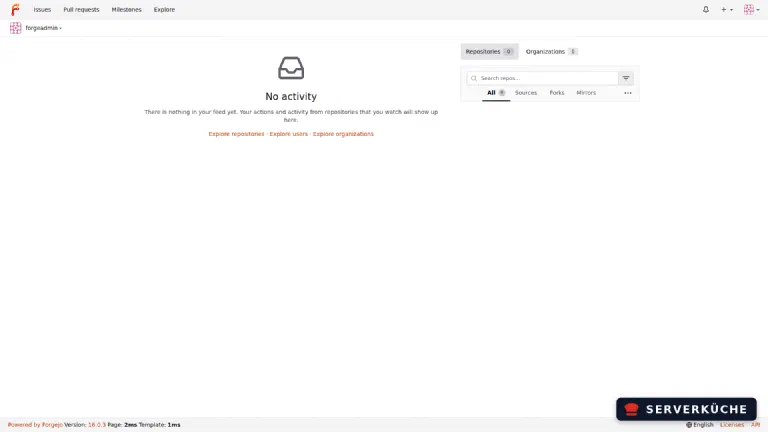
Open https://YOUR_DOMAIN in the browser. On the first start, Forgejo shows the initial install. The database and server settings are already correctly pre-filled thanks to the environment variables – you only have to create the administrator account here (expand the corresponding section and enter a username, email and a strong password). A click on Install Forgejo, and after a brief restart you land on your empty dashboard:
Tip
docker compose up -d and create your admin account in the process. Open self-registration is already disabled via FORGEJO__service__DISABLE_REGISTRATION: "true" in the Compose, so no one can create an account from outside.Step 4: Create the first repository
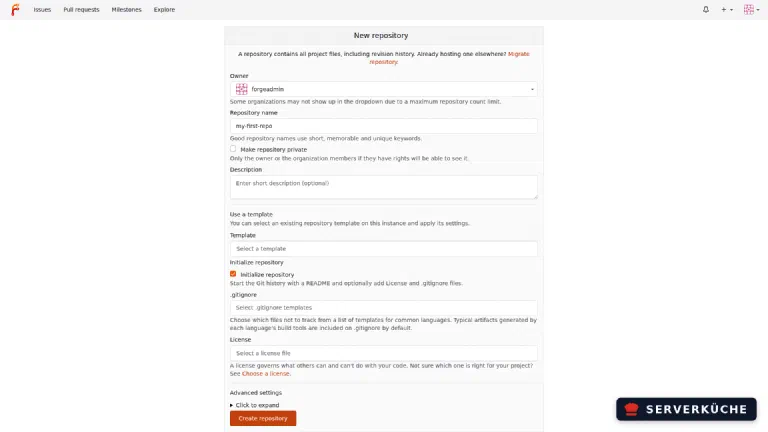
Click the + at the top right and then New Repository. Assign a name and check Initialize repository (creates a README right away so the repo isn’t empty):
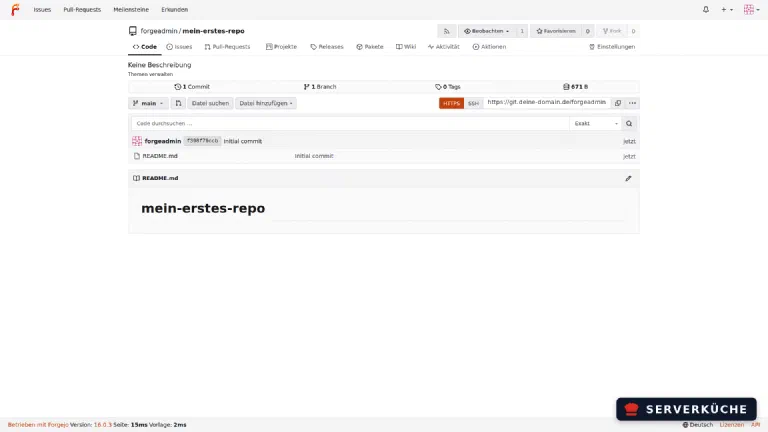
After creating it, you see the repository view. Via the HTTPS / SSH toggle you get the matching clone address:
Step 5: Clone and push over HTTPS
The fastest way is over HTTPS – it works immediately, without setting up keys:
git clone https://YOUR_DOMAIN/YOUR_USER/my-first-repo.gitA public repository clones without any login – expected output:
Cloning into 'my-first-repo'...
remote: Enumerating objects: 3, done.
remote: Counting objects: 100% (3/3), done.
remote: Total 3 (delta 0), reused 0 (delta 0), pack-reused 0 (from 0)
Receiving objects: 100% (3/3), done.
For a private repository, Git asks for a username and password right here. That closes the loop – you create a file, commit it and push it back to your server:
cd my-first-repo
echo "My first note" >> notes.txt
git add notes.txt
git commit -m "First note"
git push
At the latest on git push, Forgejo wants to know who you are: Git asks for a username and password. At the end, Git confirms the new state on the server:
To https://YOUR_DOMAIN/YOUR_USER/my-first-repo.git
f398f79..7bad57b main -> mainTip
Please tell me who you are as long as Git doesn’t know your name and email. Set them once globally: git config --global user.name "YOUR NAME" and git config --global user.email "YOUR_EMAIL".Seconds later the commit appears in the web interface – your code now lives versioned on your own server.
Tip
Step 6: Clone and push over SSH
For daily use, SSH is more convenient (no password per push). For that, store your public SSH key under Settings → SSH / GPG keys → Add key:
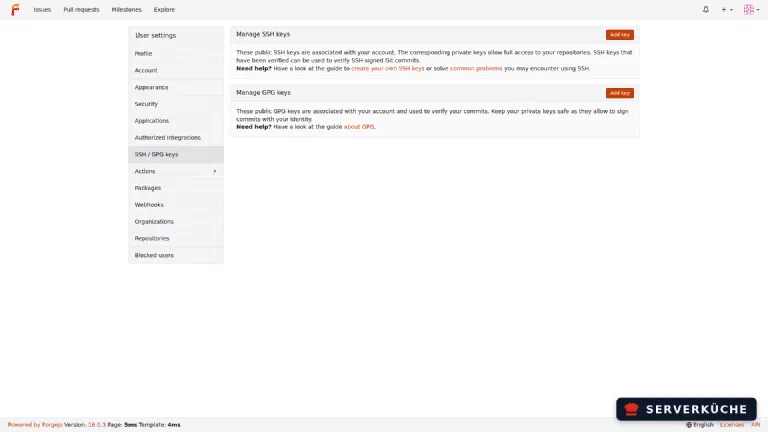
You display your public key locally with cat ~/.ssh/id_ed25519.pub (if none exists yet: ssh-keygen -t ed25519). Then clone over SSH – note port 2222:
git clone ssh://git@YOUR_DOMAIN:2222/YOUR_USER/my-first-repo.gitFor that to work, the SSH port must be open in both firewalls – in the UFW firewall (ufw allow 2222/tcp) and, if used, in the netcup firewall.
Step 7: More than just Git hosting
A repository and cloning are just the beginning – Forgejo brings the complete workbench around it. You find these features in the navigation bar of every repository or your account:
- Issues & pull requests: a full-featured ticket system and code review including labels, milestones and assignments – the basis for team collaboration.
- Forgejo Actions: a CI/CD engine compatible with GitHub Actions. Existing
.github/workflowsfiles often run unchanged. Actions do, however, need a separate runner that executes the jobs – for security reasons it doesn’t belong on the production host and has its own tutorial: Forgejo Actions: your own CI/CD runner with Docker (makes the case for dedicated cores: a good reason for a root server, see netcup recommendation). - Wiki & releases: documentation right at the project and versioned release downloads.
- Package registry: Forgejo can host container images, npm, Maven, PyPI and other packages – handy if you want to store your own artifacts without running another service.
- Organizations & teams: bundle repositories and control access rights per team.
You also don’t have to migrate your projects by hand: via + → Migration, Forgejo imports an existing repository from GitHub, GitLab or another Forgejo/Gitea instance – including issues, pull requests and releases, not just the Git history. This way you switch from GitHub to your own server in a few minutes without losing anything.
When things go wrong
The container restarts repeatedly (Restarting), the log says bind: address already in use.
The built-in SSH server collides with itself because SSH_PORT and SSH_LISTEN_PORT don’t match. Set both to the same value (here 2222) – then Forgejo starts cleanly.
The container takes forever to become healthy. By default, Docker runs the first healthcheck only after the interval (30 s) – so the container looks “unhealthy” for 30 s+, even though Forgejo has long been ready in ~2 s. The solution is already in the Compose above: start_interval: 2s checks every 2 seconds during the startup phase and switches to healthy as soon as the app responds. (Requires Docker 25+ / Compose v2.20+ – given on Debian 13.)
Traefik returns 502 Bad Gateway. Almost always the wrong port: Forgejo’s web interface listens internally on 3000, so loadbalancer.server.port=3000 must be set and the container must be on the proxy network.
Clone links show localhost or the wrong port. Then ROOT_URL, SSH_DOMAIN or SSH_PORT are wrong. Correct the values in the Compose and restart with docker compose up -d.
SSH clone fails with Permission denied (publickey). The SSH server is running, but your public key isn’t stored in the account yet (step 6) – or you forgot the port 2222.
Your problem is not listed? Search all error messages →
Maintenance & backups
Everything lives in the forgejo_data volume (/data): the SQLite database, your repositories and the SSH server’s host keys. This very volume is what should be backed up – cleanest with Restic. Because a SQLite file is written during operation, you back it up consistently by either briefly stopping the container (docker compose stop) or using Forgejo’s built-in dump:
docker compose exec -u git forgejo forgejo dump -t /tmp -f /tmp/forgejo-dump.zip-u git runs the dump as the git user instead of root (as root, Forgejo refuses the dump). To /tmp instead of /data, because the git account can’t write in /data itself (the root directory /data belongs to root, only the subfolders like /data/gitea and /data/git belong to the git user) and the dump would otherwise write recursively into the packed data directory. You then fetch the finished zip out of the container – to where Restic backs it up:
docker compose cp forgejo:/tmp/forgejo-dump.zip ./forgejo-dump.zipThe zip contains the database dump (forgejo-db.sql), the app.ini and all repository data – a complete, self-contained restore point.
Updates: Forgejo releases new versions regularly (currently the 16 series). For an update, set the new tag in the compose.yaml (instead of 16.0.3) and pull it:
docker compose pull && docker compose up -dBecause the data lives in the volume, repos and accounts are preserved. Deliberately pin the version to a fixed tag instead of latest and take a look at the release notes before a major jump – any migration hints are there. Also make a fresh backup before every update: a Git server without a working backup is a concentrated risk for all your code.
Securing it: A publicly reachable Git server is a worthwhile target. Three things you should do right away: disable open registration (see step 3), enable two-factor authentication for your admin account under Settings → Security, and use a normal account instead of the administrator for everyday work. Keep Forgejo up to date promptly – the fast releases also contain security fixes. And publish only the ports you really need: outward, 443 (Traefik) and your SSH Git port 2222 suffice.
Last updated: Aug 29, 2026
Send feedback: feedback@serverkueche.de
What's next?

You might also like