HedgeDoc: Shared Markdown Notes in Real Time
HedgeDoc 1.12 with Postgres 18 behind Traefik: type notes together live, share links – and set the permissions so they actually hold.
Table of contents
An Etherpad that speaks Markdown: two people type into the same note at once, the formatted version appears live on the right, and at the end you send a link. HedgeDoc does exactly that – and ships a few defaults you should know about before the note is out on the internet.
What are we building?
We run HedgeDoc 1.12.0 with PostgreSQL 18.6 behind Traefik. At the end you have an editor where several people work on the same Markdown note simultaneously, with tables, task lists and a live preview. Notes can be handed on as a link – read-only or editable, exactly as you configure it.
The second part matters more than the first: HedgeDoc arrives open. Anyone may register, and every visitor may create notes – without an account. We turn that around – closed as the base state, opened per note – and look closely while doing it, because two of the settings do not do what their names suggest.
Requirements
- Traefik as a reverse proxy with a working Let’s Encrypt resolver and a domain pointing at the server
- You need to know the domain in advance: HedgeDoc builds every link from one configured domain, and moving afterwards is unpleasant
- Around 1 GB of free memory for the application and database together
VPS 1000 G12.5
4 vCores · 8 GB RAM · 128 GB SSD
from €14.50/month
HedgeDoc and Postgres run comfortably together on the small VPS.
💶 1 month free:
Single use, valid for VPS 1000 G12.5. Redeem in the cart →
💶 €5.95 voucher for new netcup customers: always valid · not for domains or VPS Lite
Step by step
Step 1: The stack – with a current Postgres trap
mkdir -p /opt/hedgedoc && cd /opt/hedgedocSecrets first. HedgeDoc signs its session cookies with them; without your own value it picks a random one and every login is dropped on each restart:
umask 077
{
  echo "POSTGRES_PASSWORD=$(openssl rand -base64 24 | tr -d '=+/' | cut -c1-24)"
  echo "CMD_SESSION_SECRET=$(openssl rand -hex 32)"
} > .env# /opt/hedgedoc/compose.yaml
services:
database:
image: postgres:18.6-alpine
container_name: hedgedoc-db
restart: unless-stopped
environment:
POSTGRES_USER: hedgedoc
POSTGRES_PASSWORD: ${POSTGRES_PASSWORD}
POSTGRES_DB: hedgedoc
volumes:
- pgdata:/var/lib/postgresql
networks: [hedgedoc-internal]
healthcheck:
test: ["CMD-SHELL", "pg_isready -U hedgedoc"]
interval: 10s
timeout: 5s
retries: 5
app:
image: quay.io/hedgedoc/hedgedoc:1.12.0
container_name: hedgedoc
restart: unless-stopped
depends_on:
database:
condition: service_healthy
environment:
CMD_DB_URL: postgres://hedgedoc:${POSTGRES_PASSWORD}@database:5432/hedgedoc
CMD_SESSION_SECRET: ${CMD_SESSION_SECRET}
CMD_DOMAIN: YOUR_DOMAIN
CMD_PROTOCOL_USESSL: "true"
CMD_URL_ADDPORT: "false"
CMD_ALLOW_EMAIL_REGISTER: "false"
CMD_ALLOW_ANONYMOUS: "false"
CMD_DEFAULT_PERMISSION: "limited"
CMD_ALLOW_FREEURL: "true"
volumes:
- ./uploads:/hedgedoc/public/uploads
networks: [hedgedoc-internal, proxy]
labels:
- traefik.enable=true
- traefik.http.routers.hedgedoc.rule=Host(`YOUR_DOMAIN`)
- traefik.http.routers.hedgedoc.entrypoints=websecure
- traefik.http.routers.hedgedoc.tls.certresolver=le
- traefik.http.services.hedgedoc.loadbalancer.server.port=3000
volumes:
pgdata:
networks:
hedgedoc-internal:
internal: true
proxy:
external: trueTwo things about this stack are deliberate. The database sits in its own internal network
(internal: true) and is therefore unreachable both from outside and from other containers in the
proxy network – only HedgeDoc, which is in both, gets to it. And the healthcheck together with
depends_on: condition: service_healthy stops HedgeDoc from starting before Postgres is ready;
otherwise it aborts on its first connection attempt.
PostgreSQL 18 changed the data path
Older guides – including the HedgeDoc project’s own Compose file – mount the database under
/var/lib/postgresql/**data**. With PostgreSQL 18 the container then refuses to start at all,
even with an empty volume:
Error: in 18+, these Docker images are configured to store database data in a format which is compatible with "pg_ctlcluster" … The suggested container configuration for 18+ is to place a single mount at /var/lib/postgresql
So the mount has to move one level up, to /var/lib/postgresql. That applies to named volumes and
bind mounts alike.
Why a named volume and not a ./pgdata directory? Because a bind mount at the new path has to
belong to the container, and otherwise fails with mkdir: can't create directory '/var/lib/postgresql/18/': Permission denied – at the old path the image still fixed that up
itself. You do not need the directory for backups anyway: a database backup is made with pg_dump,
not with a file copy.
Step 2: The variables that decide links and security
Four of them concern the addresses HedgeDoc generates:
CMD_DOMAIN– your domain, without protocol and without path. Leave it out and your links saylocalhost.CMD_PROTOCOL_USESSL: "true"– produceshttps://links. The container itself still speaks HTTP; Traefik does the TLS.CMD_URL_ADDPORT: "false"– without it HedgeDoc appends a port to every URL.CMD_ALLOW_FREEURL: "true"– allows speaking addresses such as/cooking-nightinstead of a random ID: whoever opens an address that is still free creates a new note there. With the next setting, that only applies to signed-in users.
The other three decide who gets in at all:
CMD_ALLOW_EMAIL_REGISTER: "false"– nobody can register themselves. You create accounts on the command line (step 4).CMD_ALLOW_ANONYMOUS: "false"– guests may not create notes. The name is misleading: guests may still read, as far as the individual note permits (step 6). If the value istrue– the default – every visitor creates notes via New or a free address, and those notes belong to nobody and are editable by anyone. Bots scanning the internet for WordPress create notes such as/wp-jsonand/xmlrpc.phpthat way within the first few minutes. As a side effect, withfalseonly signed-in users may upload images.CMD_DEFAULT_PERMISSION: "limited"– new notes are closed to guests. You open them individually. This default only applies to notes with an owner; a guest note is always on “Freely” – one more reason forCMD_ALLOW_ANONYMOUS: "false".
Step 3: Start it and check that it is closed
docker compose up -d
docker compose psNAME STATUS
hedgedoc Up 25 seconds (healthy)
hedgedoc-db Up 50 seconds (healthy)Both containers report healthy – the database answers pg_isready, HedgeDoc its own healthcheck.
Now the counter-test from outside. HedgeDoc has an open status endpoint that works nicely for
checking:
curl -s https://YOUR_DOMAIN/status{"onlineNotes":0,"onlineUsers":0,"distinctOnlineUsers":0,"notesCount":0,"registeredUsers":0, …}And the three doors that should be shut:
curl -s -o /dev/null -w "register: %{http_code}\n" -X POST https://YOUR_DOMAIN/register
curl -s -o /dev/null -w "new note: %{http_code} %{redirect_url}\n" https://YOUR_DOMAIN/new
curl -s -o /dev/null -w "free URL: %{http_code} %{redirect_url}\n" https://YOUR_DOMAIN/cooking-nightregister: 404
new note: 302 https://YOUR_DOMAIN/
free URL: 302 https://YOUR_DOMAIN/404 means the registration route does not exist any more. For /new and the free address, the
target of the redirect is what counts: the start page means the guest was sent away. If the
redirect points to a new address such as https://YOUR_DOMAIN/JBdRlegoRAqN… or
https://YOUR_DOMAIN/cooking-night instead, HedgeDoc has just created a note – then
CMD_ALLOW_ANONYMOUS is still true. The counter-check is notesCount in the status endpoint: it
has to stay at 0 as long as you have not created anything yourself.
Step 4: Create an account – on the command line
Because self-registration is closed, you create accounts with the bundled tool. Mind the argument
order – --pass goes first, otherwise the script only prints its help:
docker compose exec app bin/manage_users --pass YOUR_PASSWORD --add YOUR@EMAILUsing password from commandline...
Created user with email YOUR@EMAILThe status endpoint confirms it worked:
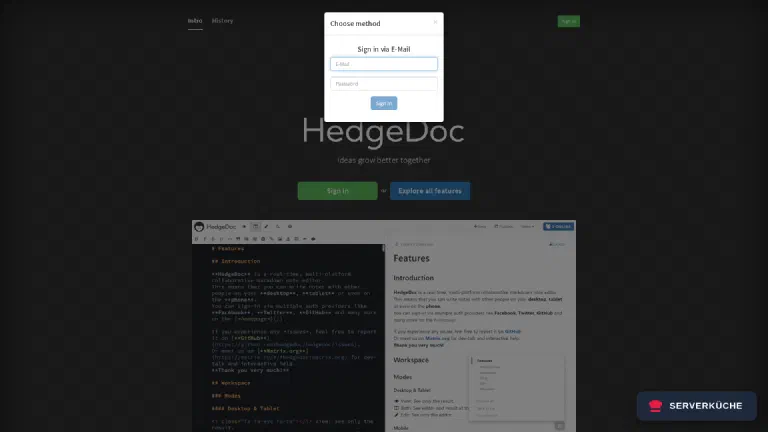
curl -s https://YOUR_DOMAIN/status | grep -o '"registeredUsers":[0-9]*'"registeredUsers":1The start page now only offers Sign In – no register button:
Warning
CMD_ALLOW_EMAIL_REGISTER to true “just for a moment” – an open HedgeDoc instance on the
internet becomes someone else’s data store within days.Step 5: The first note
After signing in you create a note with New. You type Markdown on the left and the result appears immediately on the right:
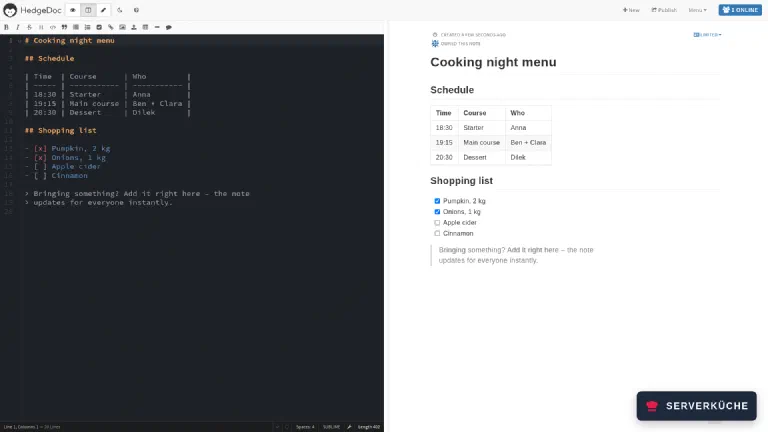
Tables, task lists with clickable boxes, quotes, code blocks, MathJax and a presentation mode are all built in. Anyone with the note open sees your changes instantly – the top right shows how many people are currently in.
Step 6: Five levels of who may do what
Above the preview on the right is the note’s current permission. One click opens the list:
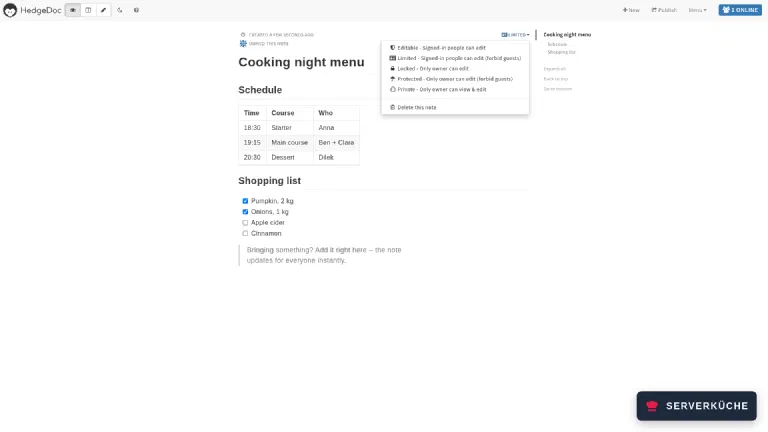
The levels from open to closed:
- Editable – signed-in users may edit, guests may read
- Limited – signed-in users may edit, guests are kept out entirely
- Locked – only the owner edits, guests may read
- Protected – only the owner edits, guests are kept out
- Private – only the owner sees the note at all
A sixth level, Freely (“Anyone can edit”), is only offered when guests may write. With
CMD_ALLOW_ANONYMOUS: "false" it is missing from the menu.
The “forbid guests” suffix is where people get it wrong. A note set to Limited is invisible to
outsiders even when you publish it – the request ends in a redirect. If you want to give someone
without an account something to read, Locked is the right level. The difference is
unambiguous: the same published note returns 302 to a guest on Limited and 200 on Locked.
The switch you must not rely on
CMD_ALLOW_ANONYMOUS_EDITS sounds like it forbids guests from writing. It does not – it can only
allow it. It defaults to false and still has no effect as long as CMD_ALLOW_ANONYMOUS is
true: then HedgeDoc offers “Freely”, and on such a note any browser writes along without signing
in. If you set CMD_ALLOW_ANONYMOUS_EDITS to true alongside our CMD_ALLOW_ANONYMOUS: "false",
you bring exactly that level back. So leave it out. What guests may do is decided solely by the
note’s permission – and with our configuration “Freely” cannot even be selected.Step 7: Handing it on
Publish gives the note a second, tidied-up address under /s/… – no editor, no toolbar, just
the finished text. That is the version you send out:
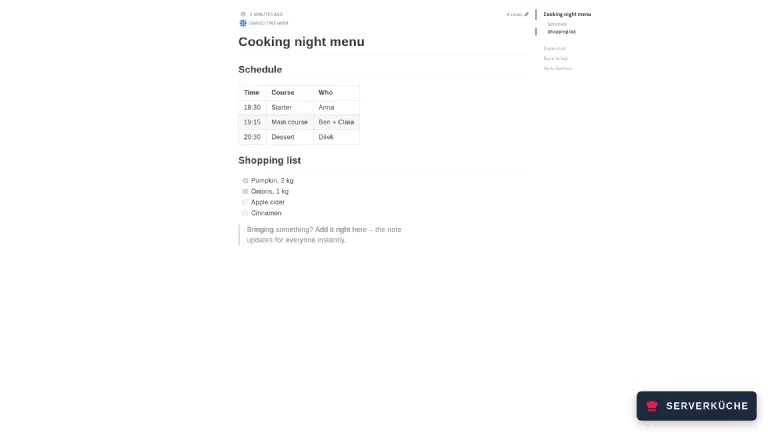
The editor stays available at the original address; the published version follows along with every
change. Anyone who should only read gets the /s/ link and the note is set to Locked.
When it doesn’t work
The database container refuses to start and says something about pg_ctlcluster and directory names. That is the PostgreSQL 18 change: from that major version the mount must no longer point at /var/lib/postgresql/data but one level up at /var/lib/postgresql. The container also aborts when the volume is brand new and empty – the check hangs on the mount, not the content. For an existing database, moving the mount is not enough; there you first need a pg_dump with the old major version and an import into the new one.
After moving the mount you get mkdir: can't create directory '/var/lib/postgresql/18/': Permission denied. You are using a bind mount and the directory on the host belongs to root – the Postgres user inside the container cannot create anything in it. At the old path the image still fixed the permissions itself, at the new one it does not. Either hand the directory to the container user, or use a named volume as we do here, where Docker inherits the permissions from the image.
Links you send point at localhost or carry a port. HedgeDoc does not build links from the Host header but from its configuration. Set CMD_DOMAIN to your domain (name only, no https://, no path), CMD_PROTOCOL_USESSL to true and CMD_URL_ADDPORT to false. The container has to be restarted for a change to take effect.
A guest edited your note even though CMD_ALLOW_ANONYMOUS_EDITS is false. That option only works when CMD_ALLOW_ANONYMOUS is false; with true it has no effect. What counts is the individual note’s permission: if it is on Freely, anyone with the link may write. Set CMD_ALLOW_ANONYMOUS to false, restart the container and set the note to Limited or Locked.
Notes such as wp-json or xmlrpc.php show up that nobody created. Those were bots looking for WordPress. With CMD_ALLOW_ANONYMOUS: "true" together with CMD_ALLOW_FREEURL: "true", every request to a free address creates a new note. Set CMD_ALLOW_ANONYMOUS to false and restart the stack. The notes already created have no owner who could delete them in the interface; you remove them in the database: docker compose exec database psql -U hedgedoc -d hedgedoc -c 'DELETE FROM "Notes" WHERE "ownerId" IS NULL;' – their revisions go with them.
An outsider only gets a redirect to the start page from the published link. Then the note is on Limited or Protected – both levels lock guests out completely, published versions included. For “read only, but for everyone”, Locked is the right choice. CMD_ALLOW_ANONYMOUS has nothing to do with it: the option only controls whether guests may create notes, not whether they may read them.
Your problem is not listed? Search all error messages →
Maintenance & backups
Updates go through the image tag. HedgeDoc 1.x publishes a minor version every few weeks; the database migration happens at startup:
cd /opt/hedgedoc
docker compose exec -T database pg_dump -U hedgedoc hedgedoc > before-update-$(date +%F).sql
sed -i 's/hedgedoc:1.12.0/hedgedoc:NEW_VERSION/' compose.yaml
docker compose pull && docker compose up -d
docker compose logs app --tail 10
The dump beforehand is not a formality – it is the only way back when a migration goes wrong. Do not touch the PostgreSQL major version at the same time. Going from 18 to 19 always needs a dump and an import; simply bumping the image tag ends with the container sitting there printing a version complaint.
Three things need backing up:
pg_dump output           # notes, accounts, permissions
/opt/hedgedoc/uploads/   # uploaded images
/opt/hedgedoc/.env       # database password and session secret
The .env explicitly belongs in there: without the CMD_SESSION_SECRET every session is invalid
after a restore, and without the database password the application cannot reach its own data. A
daily dump via a systemd timer and both of them into your
Restic backup – that is all it takes.
Realistic effort: low. One update per quarter, a glance at the note list when you notice nobody is tidying up. The item worth putting in your calendar is the Postgres major version: as long as you stay on the pinned tag nothing happens – but support runs out eventually, and then dump and import are due.
If it only needs to be internal
Send feedback: feedback@serverkueche.de
You might also like