Homepage: The Dashboard for All Your Self-Hosted Services
A tidy start dashboard for your server: Homepage links every service, shows system load and the live Docker container status – behind Traefik.
Table of contents
The more services you self-host, the more bookmarks and IP addresses you have to remember. A dashboard solves that: a single start page that links all your self-hosted services, shows system load and even tells you which containers are running right now. Homepage is the nicest and fastest tool for it.
What are we building?
A central dashboard with Homepage (v2.4.0) behind Traefik, configured entirely through simple YAML files. By the end you’ll have a tidy start page with tiles for all services, widgets for CPU/RAM/disk, a search box – and the killer feature: Homepage reads the Docker socket and shows live whether a container is running. Since version 2 Homepage also ships its own login, so the dashboard isn’t sitting open on the internet (step 7). All statically generated, no database, with a tiny footprint.
Prerequisites
- A server with Traefik running and Docker Compose
- A subdomain pointing at the server –
YOUR_DOMAINbelow (e.g.start.YOUR_DOMAIN) - A few already-running services to link (more fun, but not required)
VPS 1000 G12.5
4 vCores · 8 GB RAM · 128 GB SSD
from €14.50/month
Homepage is extremely frugal – runs happily alongside your other stack.
💶 1 month free:
Single use, valid for VPS 1000 G12.5. Redeem in the cart →
💶 €5.95 voucher for new netcup customers: always valid · not for domains or VPS Lite
Step by step
Step 1: Create the project and config folder
Homepage is driven entirely by YAML files in a config folder. Create the structure:
mkdir -p /opt/homepage/config /opt/homepage/icons && cd /opt/homepageStep 2: Base settings
config/settings.yaml controls appearance and layout. We define two groups as a row layout with three columns each:
title: My Serverküche
theme: dark
color: slate
headerStyle: boxed
layout:
  Infrastructure:
    style: row
    columns: 3
  Media:
    style: row
    columns: 3
The names under layout: (Infrastructure, Media) must later match the group names in the services file exactly – only then does the layout apply.
Step 3: Link your services
config/services.yaml is the heart – your tiles. Each service gets a name, a URL, a description and an icon (Homepage automatically pulls matching icons from a large catalog when you specify name.png):
- Infrastructure:
    - Nextcloud:
        href: https://cloud.YOUR_DOMAIN
        description: Your own cloud
        icon: nextcloud.png
    - Vaultwarden:
        href: https://vault.YOUR_DOMAIN
        description: Password manager
        icon: vaultwarden.png
- Media:
    - Immich:
        href: https://photos.YOUR_DOMAIN
        description: Photos
        icon: immich.png
    - Jellyfin:
        href: https://media.YOUR_DOMAIN
        description: Media server
        icon: jellyfin.png
This is how you link your already-installed services like Nextcloud, Immich, Jellyfin or Vaultwarden in one central place.
Step 4: Widgets for system load and search
config/widgets.yaml controls the info bar at the top. Resource display, a search box and date/time:
- resources:
    cpu: true
    memory: true
    disk: /
- search:
    provider: duckduckgo
    target: _blank
- datetime:
    text_size: xl
    format:
      dateStyle: full
      timeStyle: short
The resources widget shows the host’s utilization. Homepage reads CPU and RAM straight from within the container (no Docker socket needed); we only wire up the socket in the next step for the container status.
Step 5: Connect Traefik – and the crucial host protection
Now the compose.yaml. Replace YOUR_DOMAIN with your real subdomain:
services:
  homepage:
    image: ghcr.io/gethomepage/homepage:v2.4.0
    restart: unless-stopped
    environment:
      HOMEPAGE_ALLOWED_HOSTS: YOUR_DOMAIN
    volumes:
      - ./config:/app/config
      - ./icons:/app/public/icons
    networks: [proxy]
    labels:
      - "traefik.enable=true"
      - "traefik.http.routers.homepage.rule=Host(`YOUR_DOMAIN`)"
      - "traefik.http.routers.homepage.entrypoints=websecure"
      - "traefik.http.routers.homepage.tls.certresolver=le"
      - "traefik.http.services.homepage.loadbalancer.server.port=3000"

networks:
  proxy:
external: trueHOMEPAGE_ALLOWED_HOSTS is mandatory
HOMEPAGE_ALLOWED_HOSTS set to your domain you get an HTTP 400 with {"error":"Host validation failed. See logs for more details."} instead of the dashboard. Enter your domain there exactly – multiple ones separated by commas.Start the dashboard:
docker compose up -dVerify from outside that it responds with valid HTTPS:
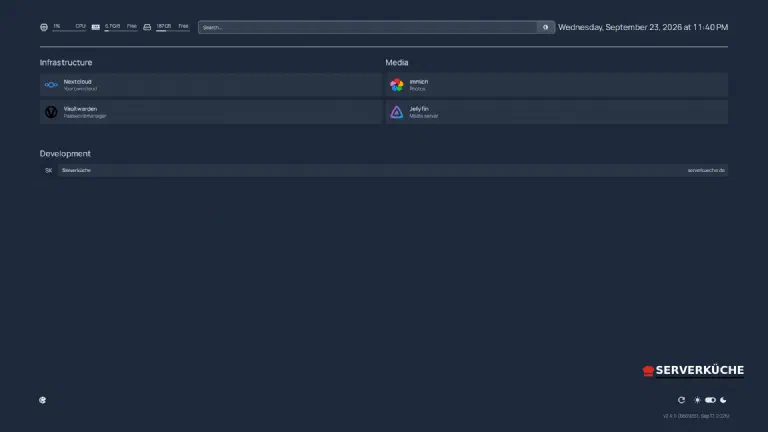
curl -sI https://YOUR_DOMAIN/ | head -1HTTP/2 200In the browser you now see your dashboard with tiles and the info bar:
Step 6: Live container status via the Docker socket
The strongest feature: Homepage can read directly from Docker whether a container is running, and show CPU/RAM per container. For that create config/docker.yaml:
my-docker:
  socket: /var/run/docker.sock
Then mount the socket read-only into the container – add under volumes: in compose.yaml:
- /var/run/docker.sock:/var/run/docker.sock:roAnd link a tile to its container (server refers to the name from docker.yaml, container to the real container name):
- Infrastructure:
    - Traefik:
        description: Reverse proxy
        icon: traefik.png
        server: my-docker
        container: traefik-traefik-1
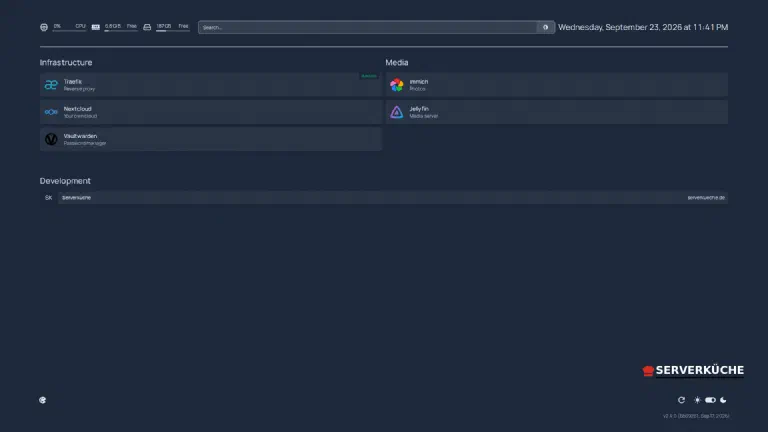
After docker compose up -d the tile shows a green status badge as soon as the container is running:
The Docker socket is powerful – mount it read-only
/var/run/docker.sock is effectively root access to the host (see Users & permissions). Always mount it with :ro (read only) and don’t expose Homepage unprotected on the internet. From here on it needs a login in front of it – that’s what the next step builds.Step 7: Protect the dashboard with a password
Up to version 1 Homepage had no login of its own; you had to put a BasicAuth middleware in Traefik in front of it. Since version 2 Homepage ships a login. For a dashboard that reads the Docker socket, it’s mandatory.
The secret and the password don’t belong in compose.yaml but in an .env next to it. First generate a random secret – Homepage signs the session cookie with it, and it needs at least 32 characters:
echo "HOMEPAGE_AUTH_SECRET=$(openssl rand -base64 32)" > .envAppend your password and take read access away from everyone else. Replace YOUR_DASHBOARD_PASSWORD with a long one you use nowhere else:
echo "HOMEPAGE_AUTH_PASSWORD=YOUR_DASHBOARD_PASSWORD" >> .env
chmod 600 .env
Add these four lines under environment: in compose.yaml. HOMEPAGE_EXTERNAL_URL is the address you open the dashboard at in the browser; Compose pulls the two ${…} from the .env automatically, so the secrets stay out of the compose file:
      HOMEPAGE_AUTH_ENABLED: "true"
      HOMEPAGE_EXTERNAL_URL: https://YOUR_DOMAIN
      HOMEPAGE_AUTH_SECRET: ${HOMEPAGE_AUTH_SECRET}
      HOMEPAGE_AUTH_PASSWORD: ${HOMEPAGE_AUTH_PASSWORD}
Restart:
docker compose up -dEvery request now lands on the sign-in page first. From outside you see it because / no longer answers with 200 but redirects:
curl -sI https://YOUR_DOMAIN/ | head -1HTTP/2 307In the browser the sign-in form appears – with the title from your settings.yaml:
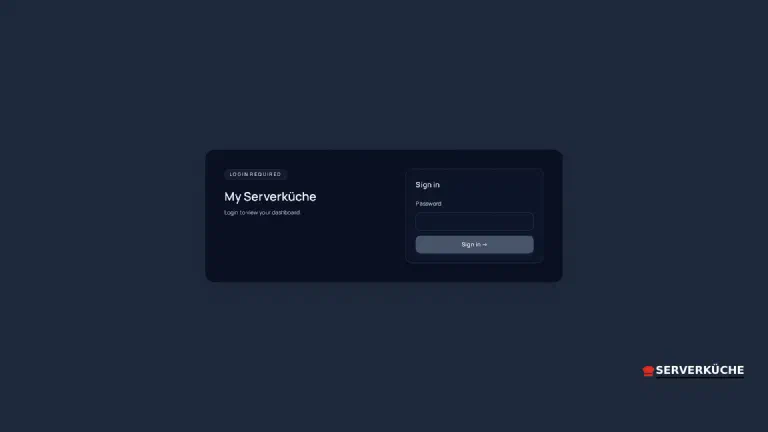
There is no username, just this one password.
Homepage does not rate limit attacks itself
/api/auth/callback/credentials, e.g. with Traefik's rateLimit middleware or fail2ban. And the .env with secret and password belongs in no Git repository.Step 8: Add bookmarks (optional)
Besides services, Homepage can show plain bookmarks – via config/bookmarks.yaml:
- Development:
    - Serverküche:
        - abbr: SK
          href: https://serverkueche.de
Now you have services, system load, search and bookmarks in one place. Homepage picks up changes to the YAML files automatically – a browser reload is usually enough, no restart needed.
When things go wrong
“Host validation failed” instead of the dashboard. The most common trap: HOMEPAGE_ALLOWED_HOSTS is missing or has the wrong domain. Enter exactly the domain you access it under, then docker compose up -d.
The resource widgets show no or wrong values. Homepage reads CPU and RAM from within the container (no socket needed). If disk: / shows the container filesystem instead of the host disk, mount the desired path as an additional volume (e.g. - /:/host:ro and disk: /host).
An icon doesn’t load. The name doesn’t match the icon catalog. Write the service name lowercase and without spaces (nextcloud.png), or place a custom image in the icons folder (mounted to /app/public/icons) and reference it as /icons/name.png.
The container tile shows no status. The value at container: must be the exact container name. Find it with docker ps --format '{{.Names}}' – with Compose it’s usually folder-service-1 (e.g. traefik-traefik-1).
Changes to the YAML files don’t take effect. A syntax error aborts the parsing. YAML is indentation-sensitive – check the logs with docker compose logs homepage for error lines and use consistent spaces (no tabs).
You get “Authentication error – Auth is disabled or misconfigured” instead of the sign-in form. Then HOMEPAGE_AUTH_ENABLED is set but the secret or the password arrives empty in the container – usually because the .env sits in the wrong folder or is missing a line. The log says Password auth is enabled but required settings are missing; docker compose config shows you which values Compose actually substitutes.
Your problem is not listed? Search all error messages →
Maintenance & backups
- Updates are low-risk. Homepage has no persistent state except your config files. Occasionally bump the image tag (
ghcr.io/gethomepage/homepage:v2.4.0) to the new version anddocker compose up -d; otherwise your normal update process handles it. After larger jumps check the release notes, as config options can change. Going from 1.x to 2.x,settings.yaml,services.yaml,widgets.yaml,bookmarks.yamlanddocker.yamlall stay valid unchanged – the only new part is the login from step 7. - The backup is tiny. Back up the
configfolder (and any customicons) – that’s your entire configuration. It belongs in your Restic backup; the application itself is recreated from the image any time. Keep the.envwith secret and password separate from it, for example in your password manager – if the secret is lost, only the open sessions become invalid and you simply sign in again. - Don’t forget security. A dashboard with Docker insight is a worthwhile target. Run it only behind HTTPS (Traefik handles that), keep the login from step 7 enabled, and rotate the password if you ever shared it over an insecure channel.
Last updated: Sep 23, 2026
Send feedback: feedback@serverkueche.de
You might also like