linkding: Self-Host Your Bookmarks
All your bookmarks in one place, across devices and without browser lock-in: linkding as a lean bookmark manager behind Traefik – with tags and API.
Table of contents
Browser bookmarks are tied to one device, chaotically organized and gone the moment the profile breaks. linkding collects your links centrally on your own server: via the browser, an extension, the API – searchable, tagged and cross-device.
What are we building?
A lean, self-hosted bookmark manager with linkding (v1.45.0) behind Traefik. By the end you save links in one click, tag them, find them again via full-text search – and linkding fetches title and description from the linked page automatically. linkding is deliberately minimalist and extremely frugal (SQLite, barely any RAM).
Prerequisites
- A server with Traefik running and Docker Compose
- A subdomain pointing at the server –
YOUR_DOMAINbelow
VPS 1000 G12.5
4 vCores · 8 GB RAM · 128 GB SSD
from €14.50/month
linkding is tiny – even the smallest VPS is bored by it.
💶 €5 voucher for new netcup customers: (not for domains or VPS Lite)
Step by step
Step 1: Project and Compose file
linkding stores everything (database, settings) in a data folder. Create the project:
mkdir -p /opt/linkding/data && cd /opt/linkdingThe compose.yaml – replace YOUR_DOMAIN. linkding creates the admin account on first start from the environment variables:
services:
  linkding:
    image: sissbruecker/linkding:1.45.0
    restart: unless-stopped
    volumes:
      - ./data:/etc/linkding/data
    environment:
      LD_SUPERUSER_NAME: cook
      LD_SUPERUSER_PASSWORD: YOUR_STRONG_PASSWORD
      LD_CSRF_TRUSTED_ORIGINS: https://YOUR_DOMAIN
    networks: [proxy]
    labels:
      - "traefik.enable=true"
      - "traefik.http.routers.linkding.rule=Host(`YOUR_DOMAIN`)"
      - "traefik.http.routers.linkding.entrypoints=websecure"
      - "traefik.http.routers.linkding.tls.certresolver=le"
      - "traefik.http.services.linkding.loadbalancer.server.port=9090"

networks:
  proxy:
external: trueDon't forget LD_CSRF_TRUSTED_ORIGINS
LD_CSRF_TRUSTED_ORIGINS set to your full HTTPS domain – otherwise the login form fails with a CSRF error. The login page loads, but submitting it is rejected.Step 2: Start and log in
docker compose up -dThe image ships a health check; Traefik only routes once linkding is healthy (about 30 seconds). Then open https://YOUR_DOMAIN/:
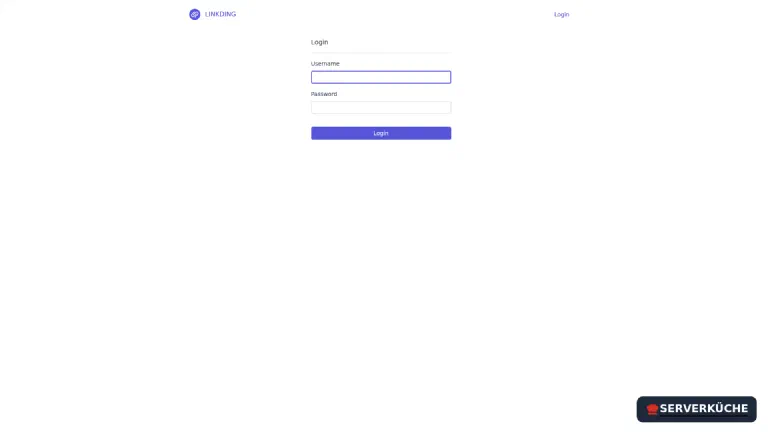
Log in with the account set in the Compose file.
Step 3: Save your first bookmark
Click Add bookmark at the top and paste a URL. The clever part: linkding fetches the page and fills in title and description automatically – you only add tags (separated by spaces, without #):

Optionally you can mark a bookmark as unread (“Mark as unread”) – handy as a read-later list.
Step 4: Search and filter the collection
The overview shows your bookmarks chronologically, with a clickable tag cloud on the right. The search finds links by words or #tags:
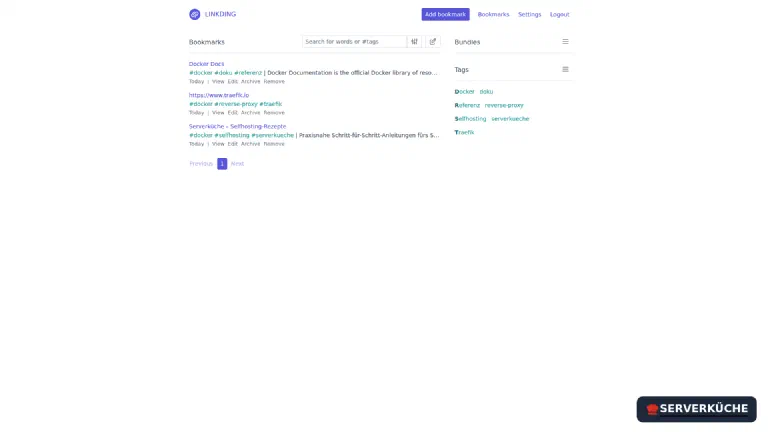
Clicking a tag filters instantly; multiple tags combine the filters. That keeps even a large collection tidy – without any folder hierarchy.
Step 5: Save quickly from the browser
For everyday use you don’t want to open the web interface every time. linkding offers two convenient ways:
- Browser extension: there’s an official linkding extension for Firefox and Chrome. In its settings you enter
https://YOUR_DOMAINand an API token (found in linkding under Settings → Integrations → REST API). After that you save the current page with one click. - Bookmarklet: alternatively linkding offers a bookmarklet under Settings – a bookmark in your browser bar that sends the current page straight to linkding. Works without an extension, on mobile too.
Import existing bookmarks
When things go wrong
Login fails with a CSRF error. LD_CSRF_TRUSTED_ORIGINS: https://YOUR_DOMAIN is missing or wrong (must be given with https:// and no path). Add it and docker compose up -d (see the warning in step 1).
The page doesn’t load (Traefik 404) even though the container is running. The health check isn’t healthy yet – Traefik deliberately doesn’t route then. Wait about 30 seconds after start; check the status with docker inspect -f '{{.State.Health.Status}}' linkding-linkding-1.
Title/description aren’t fetched automatically. The target page blocks automated access or responds too slowly. You can then simply enter title and description by hand – the fields are in the same form.
The admin account wasn’t created. LD_SUPERUSER_NAME/LD_SUPERUSER_PASSWORD only take effect on the first start with an empty database. If the data database already exists, a later change does nothing. Create the account afterwards: docker compose exec linkding python manage.py createsuperuser.
The extension won’t connect. Almost always the API token or the URL. Regenerate the token under Settings → Integrations and enter exactly https://YOUR_DOMAIN as the server.
Maintenance & backups
- Updates. Occasionally bump the image tag (
sissbruecker/linkding:1.45.0) to the current version anddocker compose up -d; the database migrates automatically at start. The rest runs through your normal update process. - The backup is tiny. The entire state lives in the
datafolder (SQLite database). Add it to your Restic backup – then all bookmarks, tags and settings are safe. Additionally an occasional HTML export (Settings → Export) makes a browser-readable, service-independent backup. - Near-zero effort. linkding is a “set it up and forget it” service. The only recurring activity is saving new links – and you’ll do that via the extension or bookmarklet in a second from now on.
Send feedback: feedback@serverkueche.de
You might also like

Stirling-PDF: The PDF Toolbox on Your Own Server
Merge, compress, convert PDFs and make them searchable with OCR – locally instead of on online services: Stirling-PDF …

Syncthing: Sync Files Between Devices – Without the Cloud
Sync folders directly between your devices, encrypted and without a third-party cloud: Syncthing as peer-to-peer sync …

HitKeep: self-host privacy-friendly web analytics
Set up HitKeep with Docker and Traefik: cookieless, GDPR-friendly website statistics on your own server – with tracking …