Matrix Part 2: Element Web, Federation and Day-to-Day Admin
Element Web next to Synapse on the same domain, device verification, encrypted rooms, invite tokens and the admin API for accounts, rooms and media.
Table of contents
The server from part 1 runs, federates and has exactly one account. Only nobody can see it. Now the interface joins in, and with it the questions that actually come up in daily use: how do friends get in without registration standing wide open? Who cleans up the rooms?
What are we building?
We put Element Web 1.12.33 next to Synapse 1.164.2, on the same domain; Traefik splits the requests by path. Afterwards you have a finished chat interface in the browser, an end-to-end encrypted room, a registration that only works with an invite token, and the admin moves for accounts, rooms and media.
This is part 2 of the Matrix series. Part 1 built the homeserver, the delegation and federation; this one is about everything that comes after.
Why one domain and not two
matrix. for the server, chat. for Element) are the more common route and
perfectly fine. We deliberately do it on just one domain here because that is the harder case: as
soon as two services share a hostname, the order of the Traefik rules decides who gets a request,
and that is exactly where it goes wrong in practice. If you have two subdomains, skip step 1 and
leave out the priority lines in step 3.Requirements
- A running Matrix server from Matrix: Your Own Chat Server with Synapse (Part 1), including a green federation test
- Debian 13 with Docker and a Traefik that fetches the certificates
- The domain from part 1; the
server_namestays unchanged - About 60 minutes, a good part of it for the first login
VPS 2000 G12.5
8 vCores · 16 GB RAM · 256 GB SSD
from €26.92/month
Synapse grows from a good 120 to around 280 MB with the first large federated room. Element itself needs nothing – under 5 MB.
💶 1 month free:
Single use, valid for VPS 2000 G12.5. Redeem in the cart →
💶 €5.95 voucher for new netcup customers: always valid · not for domains or VPS Lite
Step by step
Step 1: How two services share one hostname
Synapse lays claim to three path prefixes and nothing else:
/_matrix         # the client and federation API
/_synapse        # the admin API
/.well-known/matrix  # the delegation from part 1
Everything else (the start page, JavaScript, images, fonts) belongs to Element. Traefik can tell
them apart if you tell it which rule is checked first. That is what priority is for: the
higher the number, the earlier the rule is evaluated.
Rule                                              priority   Result
Host(`YOUR_DOMAIN`) && PathPrefix(`/_matrix`)        100      Synapse
Host(`YOUR_DOMAIN`)                                   10      Element
Without priority, Traefik sorts by rule length and the longer one wins. That happens to give the
right result here, but you cannot rely on it: it can change with every rule you add. Write the numbers
down.
Step 2: Configure Element
Element Web is pure JavaScript in the browser; the entire configuration sits in a single
config.json. Put it next to the compose.yaml:
cd /opt/matrix
nano element-config.json{
"default_server_config": {
"m.homeserver": {
"base_url": "https://YOUR_DOMAIN",
"server_name": "YOUR_DOMAIN"
}
},
"brand": "Kitchen Chat",
"disable_custom_urls": true,
"disable_guests": true,
"disable_3pid_login": true,
"default_country_code": "DE",
"show_labs_settings": false,
"room_directory": { "servers": ["YOUR_DOMAIN"] },
"setting_defaults": {
"breadcrumbs": true,
"UIFeature.feedback": false,
"UIFeature.registration": false
}
}The switches that matter:
disable_custom_urls: true: The sign-in mask shows your server fixed instead of an input field for arbitrary homeservers. Without it people accidentally sign in to matrix.org and wonder why their account does not exist.disable_3pid_loginanddisable_guests: No login via email/phone (that would need an identity server) and no guest accounts.UIFeature.registration: false: The “Create account” link disappears. We handle registration in step 7 via tokens, not via an open button.show_labs_settings: false: Element has a whole drawer of unfinished features. On a server other people share, that drawer is better left shut.
The file has to be readable for the container:
chmod 0644 element-config.jsonIf you hardened the server after Lynis
umask 027 in /etc/login.defs, as suggested by the
security audit with Lynis, creates new files with 0640.
Element runs unprivileged inside the container and then cannot read the file; the container refuses
to start with cp: can't open '/app/config.json': Permission denied. The chmod is therefore
mandatory.Step 3: Extend the stack
In the compose.yaml from part 1 we change Synapse’s Traefik rule and attach a second service:
# /opt/matrix/compose.yaml (excerpt)
  synapse:
    image: ghcr.io/element-hq/synapse:v1.164.2
    # ... unchanged ...
    labels:
      - traefik.enable=true
      - traefik.http.routers.synapse.rule=Host(`YOUR_DOMAIN`) && (PathPrefix(`/_matrix`) || PathPrefix(`/_synapse`) || PathPrefix(`/.well-known/matrix`))
      - traefik.http.routers.synapse.priority=100
      - traefik.http.routers.synapse.entrypoints=websecure
      - traefik.http.routers.synapse.tls.certresolver=le
      - traefik.http.services.synapse.loadbalancer.server.port=8008

  element:
    image: vectorim/element-web:v1.12.33
    container_name: element
    restart: unless-stopped
    volumes:
      - ./element-config.json:/app/config.json:ro
    networks: [proxy]
    labels:
      - traefik.enable=true
      - traefik.http.routers.element.rule=Host(`YOUR_DOMAIN`)
      - traefik.http.routers.element.priority=10
      - traefik.http.routers.element.entrypoints=websecure
      - traefik.http.routers.element.tls.certresolver=le
      - traefik.http.services.element.loadbalancer.server.port=80
Element sits only in the proxy network. It never talks to the database and not directly to
Synapse either: the visitor’s browser makes the API calls, not the container. The internal network
from part 1 stays reserved for the database.
docker compose up -d
docker compose psNAME STATUS
element Up 20 seconds (healthy)
matrix-db Up 20 seconds (healthy)
synapse Up 20 seconds (healthy)Step 4: Counter-check both routes
Before you open a browser, check from the outside that the split really works. First the root, where Element has to answer:
curl -s https://YOUR_DOMAIN/ | grep -o "<title>[^<]*</title>"<title>Element</title>Then the configuration Element loads at startup:
curl -s https://YOUR_DOMAIN/config.json | head -5{
"default_server_config": {
"m.homeserver": {
"base_url": "https://YOUR_DOMAIN",And finally that Synapse kept its three paths:
curl -s -o /dev/null -w "%{http_code}\n" https://YOUR_DOMAIN/_matrix/client/versions
curl -s https://YOUR_DOMAIN/.well-known/matrix/server
curl -s https://YOUR_DOMAIN/.well-known/matrix/client200
{"m.server":"YOUR_DOMAIN:443"}
{"m.homeserver":{"base_url":"https://YOUR_DOMAIN/"}}If one of the three returns HTML instead of JSON, Element intercepted the request. Then the
priority is wrong. If the first one returns JSON instead of HTML, it is the other way round.
Step 5: The first login and device verification
Open https://YOUR_DOMAIN/ in the browser. Because disable_custom_urls is set, your server is
fixed in the mask; you only enter the username and password from part 1.
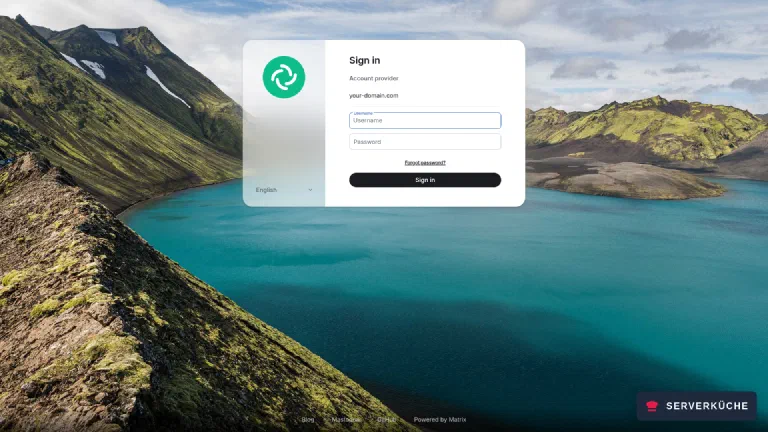
On the very first device Element sets up encryption by itself, without asking: in the background it creates a cross-signing key that marks your devices as yours, and a key backup on the server. The server only stores encrypted copies of those; it cannot read them. All you see of it is a prompt in the top left:
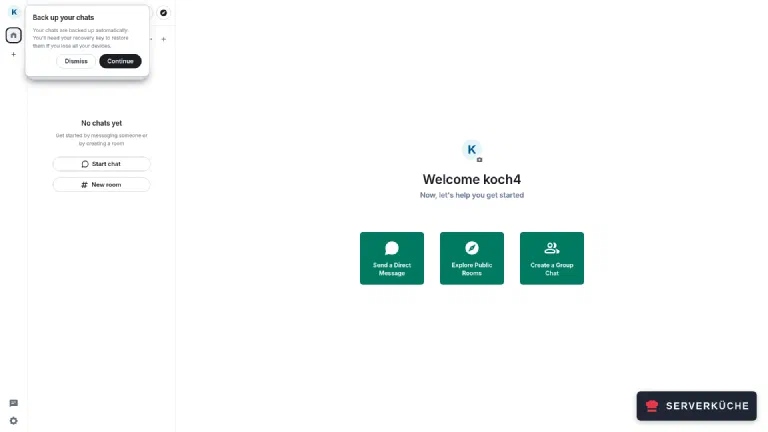
Do not dismiss the key backup prompt
The prompt “Back up your chats” says: “Your chats are backed up automatically. You’ll need your recovery key to restore them if you lose all your devices.” So the backup is already running, but without a recovery key you will never get at it again.
Take Continue. Element opens the settings under “Encryption”; there “Get recovery key” and “Continue” lead to “Save your recovery key somewhere safe” with the key. It belongs in your password manager. Click “Dismiss” instead and you have none.
That only surfaces when you sign in on another device. Element then asks with “Confirm your
digital identity”: “Use another device” or “Use recovery key”. Without a key the second option is
greyed out, and once all old devices are gone only “Can’t confirm?” remains, which resets your
identity, and the history that lives only on the server can no longer be deciphered. Not even by
you as the server administrator: a pg_dump saves the messages, not the keys for them.
Step 6: The first encrypted room
Via “New room” you create a room. Two settings decide things here that are fixed later on:
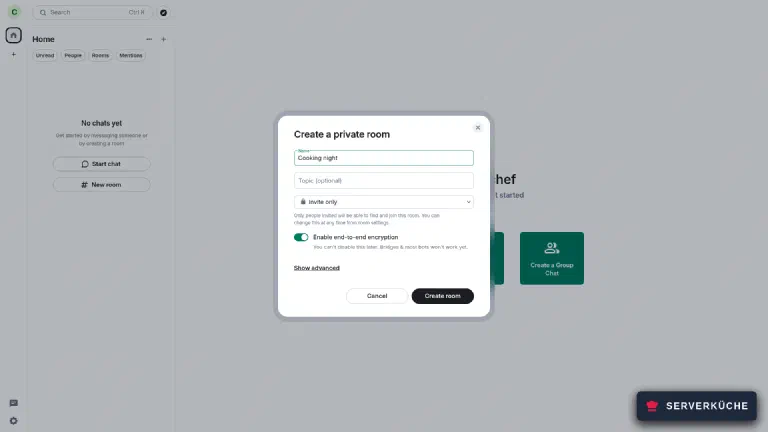
- “Invite only”: The visibility can be changed later.
- “Enable end-to-end encryption”: That one cannot be taken back. Element says so as well: “You can’t disable this later. Bridges & most bots won’t work yet.” An encrypted room is unusable for most bridges to other networks and for many bots. If you are planning a Telegram or IRC bridge later, create an unencrypted room for it.
After that the room is there, and the first message goes out:
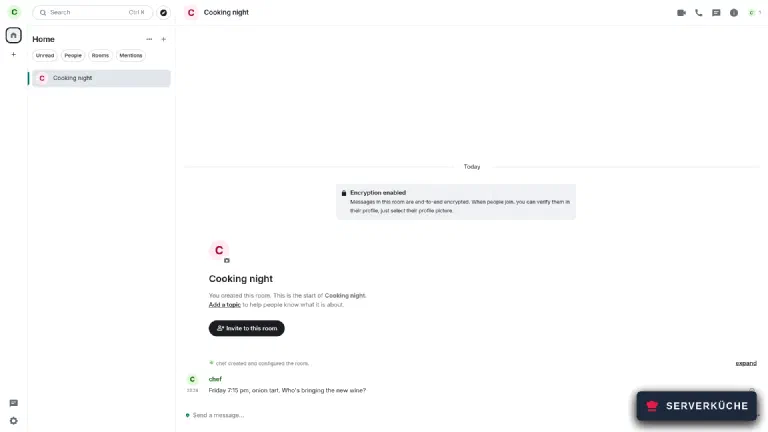
Through the admin API you can counter-check that the server really records the room as encrypted:
curl -s "https://YOUR_DOMAIN/_synapse/admin/v1/rooms?limit=5" \
-H "Authorization: Bearer YOUR_TOKEN"name: Cooking night | members: 1 | encryption: m.megolm.v1.aes-sha2m.megolm.v1.aes-sha2 is Matrix’s group encryption scheme. If it says null there, the room is
readable in the clear, for the server and for anyone who gets hold of the database.
Step 7: Let friends in without opening registration
Part 1 sets enable_registration: false. That is right as long as you are alone. Only you would
have to create every further account by hand and send the password over chat. The better way are
registration tokens: registration is open, but only with an invite code that you hand out.
# /opt/matrix/data/homeserver.yaml
enable_registration: true
registration_requires_token: truedocker compose restart synapseNow you create a token, here one that may be used three times:
curl -s -X POST "https://YOUR_DOMAIN/_synapse/admin/v1/registration_tokens/new" \
  -H "Authorization: Bearer YOUR_TOKEN" \
  -H "Content-Type: application/json" \
-d '{"uses_allowed": 3, "length": 12}'{"token":"LvM3cFXHXX7H","uses_allowed":3,"pending":0,"completed":0,"expiry_time":null}That string is what you send your people. Element asks for it during registration. The easiest way to check that nothing works without a token is at the start of the registration flow:
curl -s -X POST "https://YOUR_DOMAIN/_matrix/client/v3/register" \
-H "Content-Type: application/json" -d '{}'{"session":"PklWEdRKlnhHbBVJrwJnwnBG",
"flows":[{"stages":["m.login.registration_token","m.login.dummy"]}],"params":{}}The server now demands two stages, and the first one is the token. Without it (or with a wrong one, in which case the server reports “Invalid registration token”) the flow ends without an account being created. After a successful registration you can see the usage:
curl -s "https://YOUR_DOMAIN/_synapse/admin/v1/registration_tokens" \
-H "Authorization: Bearer YOUR_TOKEN"{"registration_tokens":[{"token":"LvM3cFXHXX7H","uses_allowed":3,"pending":0,"completed":1,"expiry_time":null}]}completed are finished registrations, pending are started ones. Once the token is used up it
simply stops working; you do not have to switch anything off. With "expiry_time" (milliseconds
since 1970) you can additionally give it an expiry date.
Step 8: Federation in daily use
The federation test from part 1 checks whether others can reach your server. The other direction, whether your server gets out, you check by asking about someone who only exists elsewhere:
curl -s "https://YOUR_DOMAIN/_matrix/client/v3/profile/@matthew:matrix.org" \
-H "Authorization: Bearer YOUR_TOKEN"{"displayname":"Matthew","avatar_url":"mxc://matrix.org/oUxxDyzQOHdVDMxgwFzyCWEe"}Your server cannot have made that answer up: it asked matrix.org, checked the signature and passed the result on. The same works with room addresses; the directory entry additionally tells you which servers sit in the room.
What that costs shows when you join a real public room:
time curl -s -X POST "https://YOUR_DOMAIN/_matrix/client/v3/join/%23element-web:matrix.org" \
-H "Authorization: Bearer YOUR_TOKEN" -H "Content-Type: application/json" -d '{}'{"room_id":"!xUW4PpAe1CmThA3r2wI8IrgwwsK006-zqWdJCljpd10"}
real 0m2.221sTwo seconds. In the two minutes after that, while Synapse loads the room state (a good 5,000 state events), its memory climbs from around 120 MB to around 280 MB, the database from 15 to 63 MB. For a single room. That is the most important sentence about Matrix federation: your server keeps the complete state of every room you sit in, including the part that comes from foreign servers. A homeserver with 1 GB of RAM is therefore quickly finished once somebody joins three large rooms.
Room IDs have changed their format
!abcdef:matrix.org stay valid. Scripts
that rely on the colon do not.Step 9: Day-to-day admin
There are three moves you need regularly. Retiring accounts. An account is never deleted but deactivated, because the user ID lives on in foreign rooms:
curl -s -X POST "https://YOUR_DOMAIN/_synapse/admin/v1/deactivate/@NAME:YOUR_DOMAIN" \
  -H "Authorization: Bearer YOUR_TOKEN" \
-H "Content-Type: application/json" -d '{"erase": true}'{"id_server_unbind_result":"success"}erase: true additionally removes the display name and avatar. The user ID stays blocked and cannot
be handed out again. That is on purpose, otherwise someone could take over the identity.
Getting rid of rooms you no longer need. First leave and forget, then purge from the server:
ROOM='!YOUR_ROOM_ID'
curl -s -X DELETE "https://YOUR_DOMAIN/_synapse/admin/v2/rooms/$ROOM" \
  -H "Authorization: Bearer YOUR_TOKEN" \
-H "Content-Type: application/json" -d '{"purge": true, "block": false}'{"delete_id":"qUcHmFcjfVZFfHWv"}The call returns immediately, the cleanup runs in the background. You query the state at
/_synapse/admin/v2/rooms/delete_status/DELETE_ID until it says "status":"complete". With
"block": true you additionally block the room so nobody can join it again.
Cleaning up media. Every image from every federated room ends up as a copy on your disk:
BEFORE=$(( ($(date +%s) - 2592000) * 1000 ))
curl -s -X POST "https://YOUR_DOMAIN/_synapse/admin/v1/media/YOUR_DOMAIN/delete?before_ts=$BEFORE" \
-H "Authorization: Bearer YOUR_TOKEN"{"deleted_media":[],"total":0}before_ts is a timestamp in milliseconds; the calculation above means “older than 30 days”.
Forget the three zeros and the call deletes nothing, because the point in time lands in 1970.
The admin API does not belong on the open internet
/_synapse/admin in the reverse proxy to your VPN or your fixed address; the
pattern for that is in
Make internal services reachable only over VPN.When it doesn’t work
/_matrix/client/versions returns the Element start page instead of JSON. Both routers listen on the same host and Traefik checked the wrong one first. Set traefik.http.routers.synapse.priority=100 and …element.priority=10. Without explicit numbers Traefik sorts by rule length, and that result changes as soon as another rule joins. After the change docker compose up -d is enough; Traefik re-reads the labels straight away.
The Element container does not start and reports cp: can't open '/app/config.json': Permission denied. The element-config.json on the host is not readable for the container. This happens reliably on servers with umask 027, because new files then get 0640 and no read bit for others. chmod 0644 /opt/matrix/element-config.json and restart. The same applies to every configuration file you hand into a container as a bind mount.
Element hangs at “Confirm your digital identity”, and “Use recovery key” is greyed out. You are signing in on another device and did not create a recovery key on the first one (step 5). If an old device is still signed in, take “Use another device” and confirm there. Otherwise only “Can’t confirm?” followed by your account password remains: Element then resets the identity; account, contacts and rooms stay, but messages from before remain unreadable. Create the recovery key right afterwards.
Signing in suddenly fails with M_LIMIT_EXCEEDED. The answer contains retry_after_ms, the waiting time in milliseconds. Synapse rate-limits login attempts per account and per IP; that hits you when you build several sessions in a row or test with scripts. For permanent operation it can be loosened through the rc_login block in homeserver.yaml, only you should not, because that exact brake is what stops guessing attacks.
The device list and the logs show 172.x.x.x instead of the real visitor IP. This only affects requests over IPv6, which, on a domain with an AAAA record, is most of them. The proxy network is created with docker network create proxy in the Traefik tutorial, and that is an IPv4-only network. Docker then cannot rewrite an incoming IPv6 connection onto the container directly and sends it through a helper process that replaces the source address with the bridge gateway’s; over IPv4 the address is correct the whole time. The fix is a network with IPv6: docker compose down in every stack, then docker network rm proxy && docker network create --ipv6 --subnet fd00:cafe::/64 proxy and bring everything back up; the steps are in Reverse proxy with Traefik. Afterwards the real address shows up in X-Forwarded-For over IPv4 and IPv6.
Your problem is not listed? Search all error messages →
Maintenance & backups
You update Element and Synapse separately. Element Web is a collection of static files with no state of its own; an update is low-risk and takes seconds:
cd /opt/matrix
sed -i 's/element-web:v1.12.33/element-web:vNEW_VERSION/' compose.yaml
docker compose pull element && docker compose up -d element
curl -s https://YOUR_DOMAIN/version
The last call prints the running version, for example 1.12.33. Element follows Synapse loosely; a
version jump on the server does not break the interface. The reverse holds too, as long as you do
not skip several years.
What has to go into the backup on top of part 1:
/opt/matrix/element-config.json # lives in no databaseIt is a small file, but it holds every decision from step 2. If it is lost, Element starts with the default configuration, and your people suddenly face an input field into which they can type any homeserver at all.
Registration tokens need hygiene. A token with uses_allowed: 3 and no expiry date is an invite
code that stays valid for years. Look at the list every few months and delete what you no longer
need:
curl -s -X DELETE "https://YOUR_DOMAIN/_synapse/admin/v1/registration_tokens/THE_TOKEN" \
  -H "Authorization: Bearer YOUR_TOKEN"
Memory use is the actual maintenance task. The jump from around 120 to 280 MB for a single
federated room scales onwards. Set yourself a reminder to look at docker stats --no-stream and
du -sh /opt/matrix/data/media_store every few months, and leave rooms where none of you writes any
more. That is more effective than any fine-tuning.
Realistically, Element itself creates no work: two or three updates a year. The time goes into the homeserver: a Synapse update every two weeks with a look at the release notes, a media and room cleanup once a quarter. Together roughly one hour a month.
Send feedback: feedback@serverkueche.de
You might also like