Navidrome: Stream Your Own Music Like Spotify
Stream your music collection from anywhere – no subscription, no tracking: Navidrome behind Traefik, with app support via the Subsonic standard and backups.
Table of contents
Your painstakingly assembled music collection sits on a hard drive while you pay for Spotify on the go? Navidrome turns your own files into a streaming service: a web interface, mobile apps, access everywhere – and nobody analyzes what you listen to.
What are we building?
A personal music streaming server with Navidrome (v0.63.2) behind Traefik. By the end you browse your collection in the browser by album, artist and genre, stream on demand – and connect the app of your choice (Symfonium, DSub, play:Sub …) via the Subsonic standard to listen on the go too. Navidrome is remarkably resource-friendly (written in Go) and runs happily on a small VPS.
For audiobooks and podcasts it is the wrong tool, though: Navidrome thinks in albums and tracks, not chapters, and does not remember your listening position across devices. Use Audiobookshelf (Tutorial expected in September) for those – the two run side by side on the same server without trouble.
Prerequisites
- A server with Traefik running and Docker Compose
- A subdomain pointing at the server –
YOUR_DOMAINbelow - Your music files (MP3, FLAC, …) with proper metadata (tags) – Navidrome builds the library from them
VPS 1000 G12.5
4 vCores · 8 GB RAM · 128 GB SSD
from €14.50/month
Navidrome is frugal; for large collections mostly the storage space matters.
💶 €5 voucher for new netcup customers: (not for domains or VPS Lite)
Step by step
Step 1: Create the project
Navidrome needs two folders: one for the music (read-only) and one for its database/index. Create the project:
mkdir -p /opt/navidrome/data /opt/navidrome/music && cd /opt/navidrome
chown -R 1000:1000 /opt/navidrome
Step 2: Get the music onto the server
Copy your music into the music folder – ideally cleanly structured (Artist/Album/Track.mp3). rsync over SSH is well suited for the transfer:
rsync -av --progress ~/Music/ root@YOUR_SERVER_IP:/opt/navidrome/music/What matters is good metadata: Navidrome reads artist, album, title, year and cover from the files’ tags, not from the filenames. Poorly tagged files end up unsorted in the library.
Step 3: The Compose file
Replace YOUR_DOMAIN:
services:
  navidrome:
    image: deluan/navidrome:0.63.2
    restart: unless-stopped
    user: "1000:1000"
    environment:
      ND_MUSICFOLDER: /music
      ND_DATAFOLDER: /data
      ND_SCANNER_SCHEDULE: 1h        # look for new files hourly
    volumes:
      - ./data:/data
      - ./music:/music:ro        # mount the music read-only
    networks: [proxy]
    labels:
      - "traefik.enable=true"
      - "traefik.http.routers.navidrome.rule=Host(`YOUR_DOMAIN`)"
      - "traefik.http.routers.navidrome.entrypoints=websecure"
      - "traefik.http.routers.navidrome.tls.certresolver=le"
      - "traefik.http.services.navidrome.loadbalancer.server.port=4533"

networks:
  proxy:
    external: true
The :ro on the music volume is deliberate: Navidrome should only read your files, never modify them. ND_SCANNER_SCHEDULE: 1h has it look for new music hourly.
Step 4: Start and check the scan
docker compose up -dNavidrome scans the library on first start. You can follow it in the log:
docker compose logs | grep -i scanScanner: Completed processing folder audioCount=3 tracksImported=3
Scanner: Finished scanning all libraries duration=279mstracksImported shows how many tracks were recognized. For large collections the first scan takes correspondingly longer.
Step 5: Create the admin account
Open https://YOUR_DOMAIN/. On first access you create the administrator account:
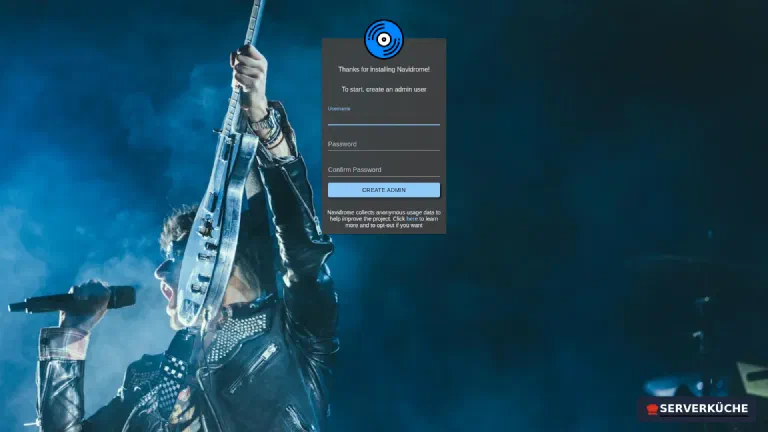
Pick a username and a strong password. Afterwards you land directly in your library.
Step 6: Browse the library
The web interface shows your music by album, artist, genre and recently added – with cover grids and search:
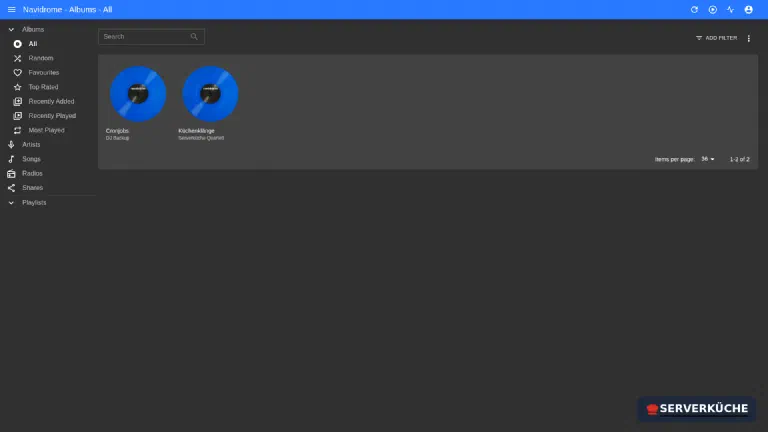
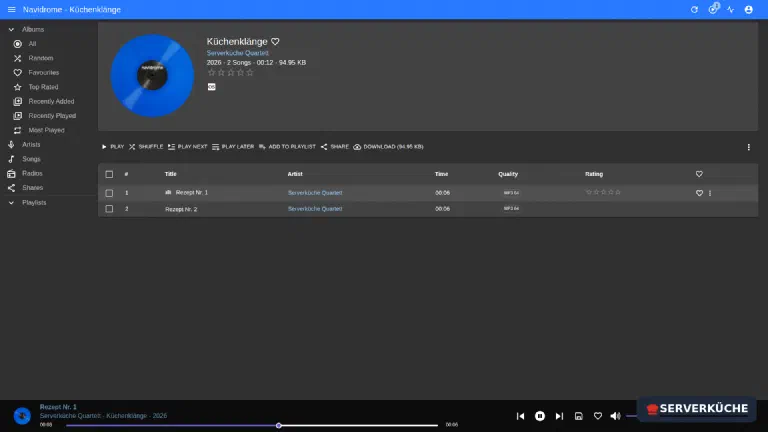
Clicking an album opens the track list; double-clicking a track starts playback in the built-in player at the bottom:
Step 7: Connect mobile apps via Subsonic
Navidrome speaks the Subsonic API – an established standard supported by many music apps. That’s how you listen to your collection on the go with the app of your choice. In the app you enter:
- Server:
https://YOUR_DOMAIN - Username/password: your Navidrome account
Recommended apps: Symfonium or Tempo (Android), play:Sub or substreamer (iOS). Create separate user accounts for family members in the Navidrome settings instead of sharing the admin account.
Transcoding saves mobile data
When things go wrong
The library stays empty. Either there are no files in the mounted music folder, or the permissions are wrong. Check: docker compose logs | grep -i scan shows tracksImported. If it’s 0, check the path and that the music folder is owned by UID 1000 (see Users & permissions).
Tracks appear unsorted or without cover art. The files’ metadata is incomplete. Navidrome sorts by tags, not by filenames – re-tag the files (e.g. with Picard) and let Navidrome rescan.
New music doesn’t show up. The scan only runs hourly (ND_SCANNER_SCHEDULE). Trigger an immediate scan via the refresh icon at the top of the web interface, or wait for the next interval.
The app won’t connect. Almost always the server URL: it must be https://YOUR_DOMAIN (with https://, no path). Also check that username/password are exactly right – some apps additionally require enabling Subsonic compatibility, which is on by default in Navidrome.
Playback stutters on large FLAC files over mobile. The bandwidth isn’t enough for the original. Enable transcoding for the mobile player (see the tip in step 7).
Maintenance & backups
- Updates. Occasionally bump the image tag (
deluan/navidrome:0.63.2) to the current version anddocker compose up -d; Navidrome migrates its database at start. The rest runs through your normal update process. - Two-part backup. Your music is the valuable, irreplaceable part – it belongs in your Restic backup anyway (or you have it elsewhere). The
datafolder (Navidrome’s index, play statistics, playlists, user accounts) is small and should be backed up too; in a pinch it can also be rebuilt by a fresh scan. - Low effort. After setup, maintenance mainly means dropping new music into the folder – the hourly scan handles the rest. As the collection grows, watch the disk space (
df -h); music adds up fast.
Send feedback: feedback@serverkueche.de
You might also like

Self-hosting Jellyfin: your own media server behind Traefik
Set up Jellyfin with Docker behind Traefik: stream your movies, series and music – with HTTPS and the library on …

Running WordPress Cleanly with Docker & Traefik
Set up WordPress with Docker and MariaDB behind Traefik – with HTTPS, an isolated database and an honest update strategy …

linkding: Self-Host Your Bookmarks
All your bookmarks in one place, across devices and without browser lock-in: linkding as a lean bookmark manager behind …