netcup eos hands-on: the new cloud in preview
netcup's new cloud platform eos in preview: VM, network, ACLs and S3 tried out, with benchmarks against the VPS 1000 and every stumbling block.
Table of contents
netcup is building its own cloud: eos, aimed at people who manage servers via API, Terraform or an AI agent rather than by clicking. We were in the closed preview and tried out what already works – and where it still catches.
Up front: this is the state of a test phase. eos goes public in 2027; netcup customers are to get access earlier through a friends & family launch. Prices, sizes and many details will change until then.
What are we building?
We set up a Debian VM in eos, make it reachable via SSH, back up data with restic into the platform’s S3 storage and measure the VM with the same benchmarks as our VPS 1000. Along the way we show the stumbling blocks you hit the first time – two of them cost half an hour without warning.
eos stands for “European Orchestrated Sovereignty” and launched as a preview in August 2026. So
far the platform runs in one region, Klagenfurt, and bills by the minute. Everything the web
interface does is also available through a REST API with a public OpenAPI description, the
command-line tool eosctl, a Terraform provider and an MCP server for AI agents. That part –
infrastructure as code – is covered in
netcup eos with eosctl and OpenTofu (Tutorial expected in October); here we
look at the platform itself.
Prerequisites
- Access to the eos preview. Sign-up ran through the netcup forum and was open to netcup customers only; according to netcup, the test phase ran until 17 October. Next comes a friends & family launch for netcup customers, with the public launch planned for 2027.
- An SSH key on your machine (
ssh-keygen -t ed25519) – how and why is covered in Harden SSH. - Basic Linux server knowledge, as taught in First steps with your netcup VPS.
Whatever you create in the preview is explicitly not meant for production: no SLAs, no redundancy guarantee, and all data is deleted after the test phase.
Step by step
1. The console: organisation, realm, permissions
After logging in (password plus TOTP, or directly with a security key) you land on the dashboard of an organisation. Below it sit realms – workspaces, for example one per project or environment. Permissions are granted through teams; for automation there are client credentials at organisation or realm level.
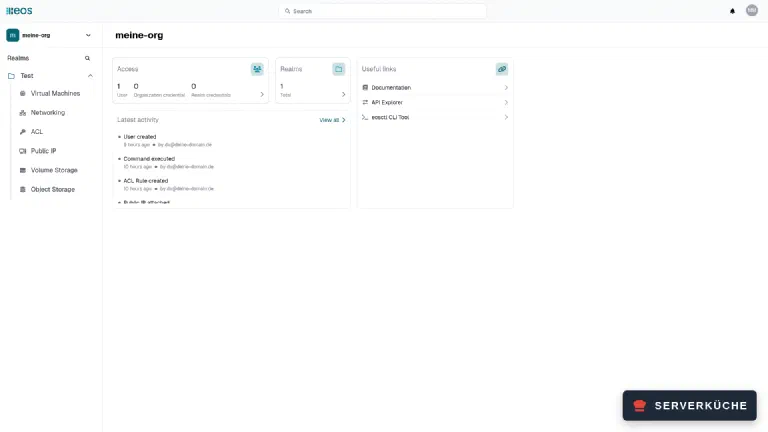
The realm’s left-hand menu lists the building blocks: Virtual Machines, Networking, ACL, Public IP, Volume Storage and Object Storage. Kubernetes, managed databases, load balancers and a container registry are still missing. There are no automatic backups either – you create snapshots by hand.
2. Creating the first VM
Under Virtual Machines → Create new you pick the size, image and root disk. The preview offered three sizes, all with a 1 Gbit/s network card:
| Type | vCores | RAM |
|---|---|---|
| vServer Mini | 1 | 2 GB |
| vServer Small | 2 | 4 GB |
| vServer Medium | 4 | 8 GB |
Images available: Alpine Edge, Arch Linux, Debian 13 and Ubuntu 26.04, each also as a cloud variant with cloud-init. The root disk size is free, starting at 10 GB.
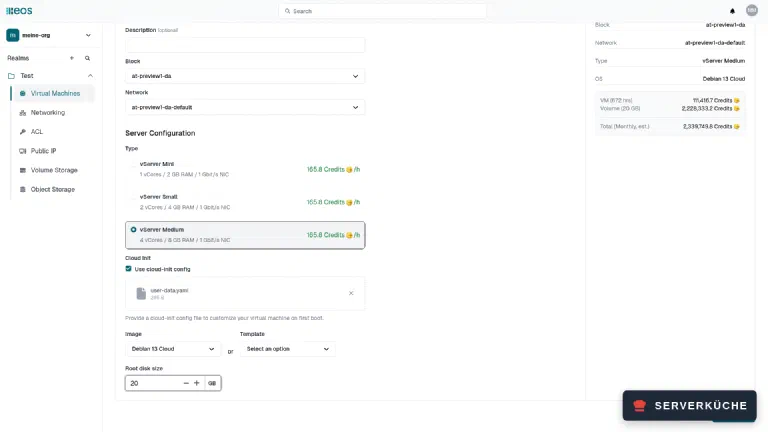
Prices in the preview are play money (“credits”) and clearly placeholders: all three sizes cost
the same, 10 GB of disk is supposed to cost ten times as much as the VM, and the console regularly
reports Price conversion error in the top right. Nothing about later prices can be read from it.
A new VM reached ready / started in about half a minute.
3. Cloud-init: the SSH server is missing
The most important stumbling block first: even the cloud images ship without an SSH server.
Cloud-init dutifully creates your user and key, but openssh-server is not installed. Pass only a
user with a key and you get a VM that accepts nothing on port 22.
The console only takes cloud-init as a file upload, not as a text field. So create a file
user-data.yaml locally:
#cloud-config
users:
  - name: koch
    groups: sudo
    shell: /bin/bash
    sudo: "ALL=(ALL) NOPASSWD:ALL"
    ssh_authorized_keys:
      - ssh-ed25519 AAAA… YOUR_KEY
package_update: true
packages:
  - openssh-server
write_files:
  - path: /etc/ssh/sshd_config.d/10-nur-schluessel.conf
    content: |
      PasswordAuthentication no
      PermitRootLogin no
Replace YOUR_KEY with the contents of your ~/.ssh/id_ed25519.pub. The file creates a user
koch with sudo rights, installs the SSH server and disables password and root login through a
drop-in file.
Don't use ssh_pwauth
ssh_pwauth: false locks you out. To apply it, cloud-init writes an
/etc/ssh/sshd_config – at a point when the package isn’t installed yet. The result is a file with
exactly one line, PasswordAuthentication no, and the openssh-server installed afterwards keeps
it. Without Debian’s default configuration UsePAM yes is missing, and the account whose password
cloud-init locked is then refused even with a key. The log says
User koch not allowed because account is locked. The drop-in file above avoids this.eos’s official SSH guide, by the way, takes a different route: set a root password and allow
PermitRootLogin yes. That may do for a test, not for a server on the internet.
4. The web console: root without logging in
Without SSH you’re still not locked out. In a VM’s three-dot menu, Open Console opens a root shell in the browser – no password, straight in as root.
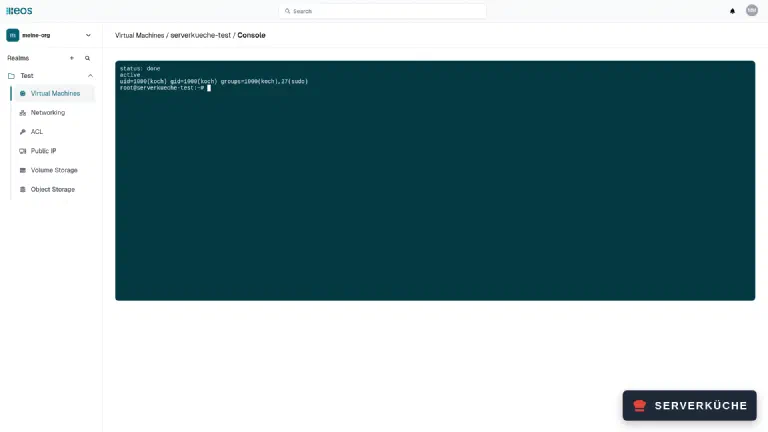
That’s handy for repairs and at the same time the reason your eos account needs a second factor: whoever reaches the console has root on every VM. After the first boot, check there:
cloud-init status
systemctl is-active sshstatus: done
active5. Public IP and ACL: two steps, not one
A new VM only has private addresses. Every network does get a public IPv4 and IPv6, but those are for outbound traffic and port forwards only – they can’t be attached to a VM. For direct access, create your own address under Public IP → Create new and attach it to the VM with Attach Public IP (always 1:1).
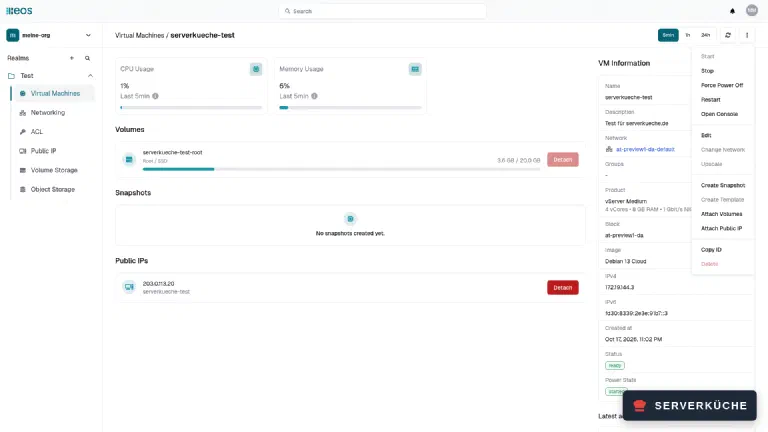
The VM still isn’t reachable after that. eos works “secure by default”: every network has a default ACL, and it is empty. Inbound everything is rejected, outbound everything is allowed. For SSH you need a rule under ACL → Add New Rule:
- Action
Allow, ProtocolTCP - Sources: your own IP – or empty for “from anywhere”
- Destinations: the VM’s internal IP, e.g.
172.19.144.3 - Destination Ports:
22
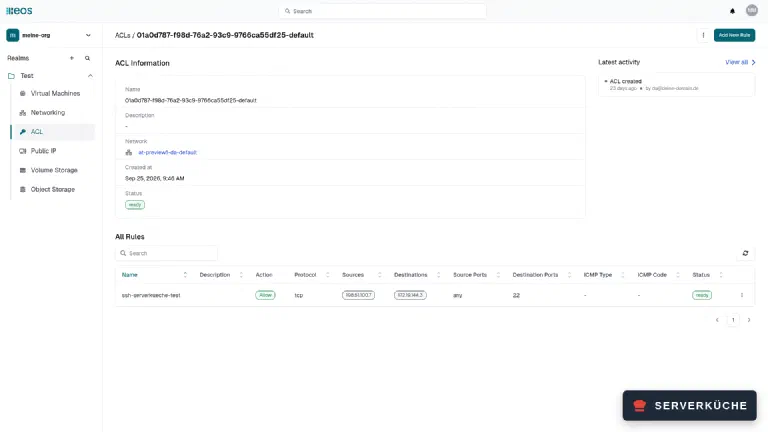
In the destination field the console also offers to pick a VM via @name. In the preview exactly
that failed: the API accepted the rule, and shortly afterwards the console reported
Failed to create ACL Rule. With the internal IP as destination the rule was active immediately.
The cross-check shows whether the ACL works: from the allowed address you get in via SSH, from any other the connection attempt times out. VMs in the same network need no rule – they reach each other privately at around 1 ms.
6. Performance: CPU strong, disk and network halved
We measured a Medium VM (4 vCores, 8 GB) with the same commands as the VPS 1000 G12, which also has 4 cores and 8 GB. These are single runs on preview infrastructure – a snapshot, not a verdict on the later product.
| eos Medium | VPS 1000 G12 | |
|---|---|---|
| sysbench CPU, 1 / 4 threads | 1,509 / 5,831 | 1,495 / 5,974 |
| 7-Zip (total MIPS) | 29,100 | 27,400 |
| AES-256-GCM | 12.5 GB/s | 7.7 GB/s |
| RAM (sysbench, 4 threads) | 28,200 MiB/s | 28,700 MiB/s |
| 4K read / write (IOPS) | 45,700 / 36,700 | 101,000 / 67,000 |
| sequential read / write | 2,100 / 1,650 MiB/s | 4,300 / 3,100 MiB/s |
| Download (Hetzner Falkenstein) | 118 MB/s | 246 MB/s |
Compute and RAM are on par, AES is clearly faster on eos – the VM reports AVX-512 and AES-NI, the CPU model itself is hidden behind “Common KVM processor”. Disk and network deliver about half. For the network that’s simply the 1 Gbit/s card: 118 MB/s is the full line. The disk figures match what netcup itself states: the preview runs on limited infrastructure with reduced performance.
One detail if you measure yourself: on Debian 13 /tmp is a tmpfs in RAM. A fio run there measures
memory, not the disk – put the test files in your home directory.
7. Object storage: S3 with restic
eos comes with S3-compatible storage; Ceph works in the background (users carry an IAM handle
RGW…). A program gets access through an S3 user, which you create under Object Storage →
Users. Two things to note:
- The secret key is shown exactly once. Copy it into your password manager right away.
- The user is a root user with access to all buckets of the organisation. Bucket policies exist for separate permissions.
The endpoint is at-preview1.object-storage.eoscloud.io, addressed path-style. With
restic it looks like this:
export AWS_ACCESS_KEY_ID=YOUR_ACCESS_KEY
export AWS_SECRET_ACCESS_KEY=YOUR_SECRET_KEY
export RESTIC_REPOSITORY=s3:https://at-preview1.object-storage.eoscloud.io/YOUR_BUCKET/restic
export RESTIC_PASSWORD=A_LONG_PASSWORD
restic init
The console shows a bucket URL with a long internal identifier in front of the name; restic doesn’t care – the bucket name is enough. One gigabyte of random data went in in just over 9 seconds and came back out in about 7, bit-identical. Here too the network card is the limit.
We couldn’t create a second bucket. The console greys out the district selection without giving a reason; only the API says it plainly:
Bucket creation is currently unavailable in this district.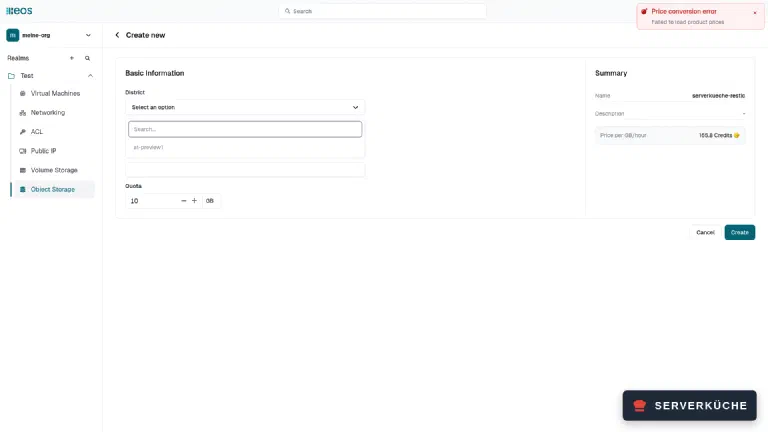
As far as we know, the preview allowed one bucket per organisation. The existing bucket’s usage display also stayed at 0 GB – the statistics hadn’t been updated for days, while the data sat in the bucket correctly.
8. Audit log: who did what
A clear plus: every action lands in the organisation’s audit log with time, person, realm and resource – VM created, IP attached, rule created, console opened.
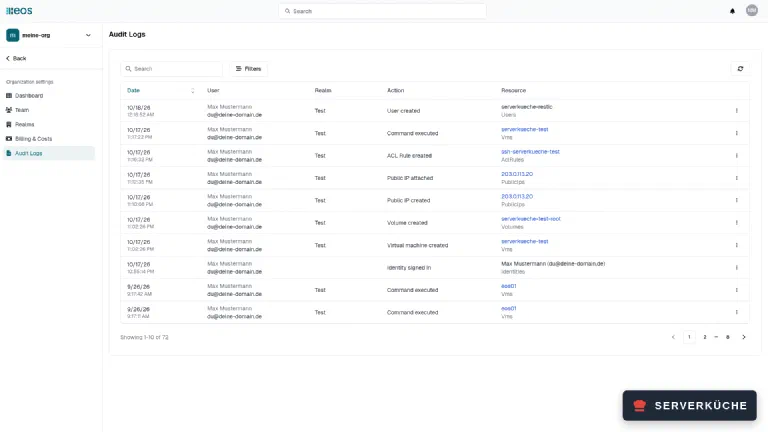
Failed operations such as the rejected ACL rules don’t show up there, though.
When it doesn’t work
SSH reports Connection refused although IP and ACL are right. No SSH server is running on
the VM – the cloud images don’t ship one either. Open the web console, install it with
apt install openssh-server and add the package to your cloud-init file for future VMs (step 3).
The key is refused, the log says account is locked. Your cloud-init file contains
ssh_pwauth. That produces a one-line sshd_config without UsePAM yes. Check with
wc -l /etc/ssh/sshd_config – if it says 1, delete the file in the web console, reinstall the
package with apt install --reinstall -o Dpkg::Options::=--force-confmiss openssh-server and
restart the service with systemctl restart ssh. Debian’s full configuration is then back on disk.
The VM has a public IP but isn’t reachable. The ACL rule is missing. Without a rule, all inbound traffic is blocked; create an allow rule for the port with the VM’s internal IP as destination.
Failed to create ACL Rule right after saving. The destination is entered as @vm-name. Enter
the VM’s internal IP instead, shown on its detail page.
A default IP can’t be attached to the VM. The two public addresses every network brings along are reserved for outbound traffic and port forwards. Create a separate public IP in the same network and attach that one.
Your problem is not listed? Search all error messages →
Maintenance & backups
In the preview there’s one simple rule: don’t store anything important there. netcup may delete resources at any time for maintenance, and after the test phase everything is gone anyway.
For later, once eos is ready for production:
- Organise backups yourself. There are no automatic backups (yet). You create snapshots by hand through the VM menu; for data, a restic backup into a bucket – ideally at a second location – is the more robust route.
- Secure the account. The web console grants root on every VM. A security key or TOTP for every member of the organisation is a must, and client credentials belong in a vault like passwords.
- Maintain your ACLs. Every rule is a hole in the default block. Keep sources as narrow as possible and delete rules when a service goes away.
- Clean up public IPs. An additional public IP costs as long as it exists. Detach it from the VM before deleting, otherwise eos refuses.
Our impression after the days in the preview: the foundation is right – secure defaults, a clean API, a complete audit log and CPU performance at VPS level. What’s missing is what makes a preview a preview: real prices, more regions, backups and a few rough edges in the interface. If you need compute for production today, take a classic netcup VPS or root server; if you want to manage your infrastructure as code and are a netcup customer, keep the friends & family launch in mind.
VPS 1000 G12.5
4 vCores · 8 GB RAM · 128 GB SSD
from €14.50/month
The classic netcup VPS we measured eos against – today the safe choice for production.
💶 1 month free:
Single use, valid for VPS 1000 G12.5. Redeem in the cart →
💶 €5.95 voucher for new netcup customers: always valid · not for domains or VPS Lite
Send feedback: feedback@serverkueche.de
You might also like