Nextcloud Office: Documents in the Browser with Collabora (Part 3)
Collabora Online next to Nextcloud 34 behind Traefik: three paths instead of a second subdomain, the WOPI wiring – and the switch for the editor.
Table of contents
Word in the browser without the file ever leaving your own metal: that is the part of Nextcloud most people switch for in the first place. It is also the part that most often just stays blank after the installation.
What are we building?
We put Collabora Online Development Edition 26.04.6.1.1 next to the Nextcloud 34.0.5 from parts 1 and 2 and connect the two through the app Nextcloud Office 11.1.3. Afterwards you create text, spreadsheet and presentation documents in the browser and edit them with someone else at the same time. All of it runs on your server.
This is part 3 of the Nextcloud series. Part 1 set the instance up, part 2 secured and sped it up; this one adds the office.
This costs memory
Requirements
- A running, hardened Nextcloud from part 2
- The reverse proxy with Traefik it already runs behind
- Access to
occinside the Nextcloud container (docker exec -u www-data nc-app php occ …) - At least 1 GB of free memory on top
VPS 2000 G12.5
8 vCores · 16 GB RAM · 256 GB SSD
from €26.92/month
Nextcloud 250–450 MB, MariaDB 120–170 MB, Redis 10–30 MB, Collabora 530–790 MB: 1 to 1.5 GB together, more as usage grows.
💶 1 month free:
Single use, valid for VPS 2000 G12.5. Redeem in the cart →
💶 €5.95 voucher for new netcup customers: always valid · not for domains or VPS Lite
Step by step
Step 1: Who actually talks to whom here
Three parts work together, and understanding that saves you half the troubleshooting:
Browser      loads Collabora's interface (/browser/…)
Collabora    renders the document – but does not have it
Nextcloud    has the file and hands it out over the WOPI interface
The decisive point: Collabora stores nothing. On every open it fetches the file from Nextcloud over a short-lived, signed WOPI address, keeps it in memory and writes it back there. The container is therefore stateless; you can recreate it at any time without losing anything.
That also tells you what can go wrong: the browser has to reach Collabora, and Collabora has to reach Nextcloud. Two directions, two sources of error.
Step 2: One domain or two?
The official guide puts Collabora on a subdomain of its own (office.YOUR_DOMAIN). That works, but
costs a DNS record and a second certificate. It also works on the same domain as Nextcloud,
because Collabora only claims three path prefixes:
/browser    the interface (JavaScript, images, cool.html)
/hosting    discovery and capabilities, this is how Nextcloud finds the service
/cool       the WebSocket connection while editing
Nextcloud uses none of them, so there is no overlap.
Both routes work. If you prefer to separate them, drop the path part
from the Traefik rule in step 3 and put office.YOUR_DOMAIN in as the host; in step 5 you then
enter that address as the WOPI URL instead of the Nextcloud address. The editor afterwards loads
from the second domain. The only difference is the extra DNS record and the second
certificate.
Step 3: Collabora into the stack
Add a fourth service to the compose.yaml from part 1:
# Addition to the Nextcloud compose.yaml
  collabora:
    image: collabora/code:26.04.6.1.1
    container_name: collabora
    environment:
      aliasgroup1: https://cloud\.YOUR_DOMAIN:443
      server_name: cloud.YOUR_DOMAIN
      extra_params: --o:ssl.enable=false --o:ssl.termination=true --o:welcome.enable=false --o:mount_jail_tree=false
      DONT_GEN_SSL_CERT: "1"
      username: admin
      password: A_STRONG_ADMIN_PASSWORD
    cap_add: [MKNOD]
    labels:
      - traefik.enable=true
      - traefik.docker.network=proxy
      - traefik.http.routers.collabora.rule=Host(`cloud.YOUR_DOMAIN`) && (PathPrefix(`/browser`) || PathPrefix(`/hosting`) || PathPrefix(`/cool`))
      - traefik.http.routers.collabora.priority=100
      - traefik.http.routers.collabora.entrypoints=websecure
      - traefik.http.routers.collabora.tls.certresolver=le
      - traefik.http.services.collabora.loadbalancer.server.port=9980
    networks: [proxy]
    restart: unless-stopped
And add one line to the existing Nextcloud router so the order is unambiguous:
- traefik.http.routers.nc.priority=10The settings one by one:
aliasgroup1tells Collabora which Nextcloud it may accept requests from; everything else is rejected. The value is read as a regular expression, which is why the dots are escaped with\.. The port:443belongs in there.--o:ssl.termination=trueis the most important switch in this whole tutorial. It tells Collabora that TLS was already terminated earlier and that it should still emithttps://addresses.--o:ssl.enable=falseturns off Collabora’s own TLS, Traefik does that.--o:welcome.enable=falseis the switch meant for the welcome window that sits in front of the document after every new version. At the moment it has no effect (more on that under “When it doesn’t work”). It does no harm, so it stays in.--o:mount_jail_tree=falsetells Collabora to copy its system directory for each document instead of bind-mounting it. The bind mount would needCAP_SYS_ADMIN, one of the most powerful Linux capabilities, which we don’t grant the container. Without the switch Collabora tries anyway and then shows a server warning in the editor. Copying costs only milliseconds per opened document.cap_add: [MKNOD]is what Collabora needs to set up its sandbox processes. Without it the container does not start.
cd ~/nextcloud
docker compose up -d
docker compose ps --format '{{ .Name }}\t{{ .Status }}'collabora Up 45 seconds (healthy)
nc-app Up 45 seconds
nc-cron Up 2 minutes
nc-db Up 3 minutes (healthy)
nc-redis Up 3 minutesStep 4: Check from outside before touching Nextcloud
Collabora announces its capabilities at two addresses. The first tells you whether the service is reachable through Traefik at all:
curl -s -o /dev/null -w "%{http_code}\n" https://cloud.YOUR_DOMAIN/hosting/discovery200The second check saves you hours later. Look at which addresses Collabora emits for itself:
curl -s https://cloud.YOUR_DOMAIN/hosting/discovery | grep -o 'urlsrc="[^"]*"' | head -1urlsrc="https://cloud.YOUR_DOMAIN/browser/febe91b271/cool.html?"That has to say https://. If it says http://, --o:ssl.termination=true is missing, and
the browser will later block the embed as mixed content without any usable error message anywhere.
Step 5: The app inside Nextcloud
Now the connection from the other side. The app is called richdocuments internally:
docker exec -u www-data nc-app php occ app:install richdocumentsrichdocuments 11.1.3 installed
richdocuments enabledIf you get richdocuments already installed instead, you already installed the app in part 1 along
with the recommended apps; just carry on with the next command.
Then you tell it where Collabora is. Both values are the same when Collabora runs on the same domain, as it does here:
docker exec -u www-data nc-app php occ config:app:set richdocuments wopi_url \
  --value=https://cloud.YOUR_DOMAIN
docker exec -u www-data nc-app php occ config:app:set richdocuments public_wopi_url \
  --value=https://cloud.YOUR_DOMAIN
And the counter-test, where Nextcloud checks for itself:
docker exec -u www-data nc-app php occ richdocuments:activate-config✓ Fetched /hosting/discovery endpoint
✓ Valid mimetype response
✓ Valid capabilities entry
✓ Fetched /hosting/capabilities endpoint
✓ Detected WOPI server: Collabora Online Development Edition 26.04.6.1
…
Callback URL (used by Collabora to connect back to Nextcloud):
autodetected (will use the same URL as your user for browsing Nextcloud)In the web interface you see the same under Settings → Administration → Office:
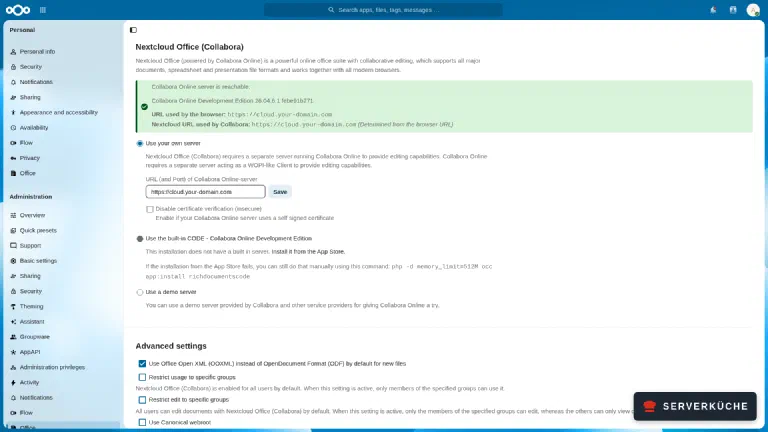
If Collabora’s version is there, the direction Nextcloud → Collabora is right. The other direction only proves itself with the first document.
Step 6: Who may call Nextcloud back?
Collabora fetches the file from Nextcloud over the WOPI interface. By default any address may try. Restrict that to the Docker network Collabora sits in:
docker exec -u www-data nc-app php occ config:app:set richdocuments wopi_allowlist \
  --value='172.18.0.0/16'
Docker tells you which network that is:
docker network inspect proxy --format '{{ range .IPAM.Config }}{{ .Subnet }} {{ end }}'fd00:cafe::/64 172.18.0.0/16The list has to match the route
Step 7: The first document
Open Files and click + New. If the app is wired correctly, new entries appear there:
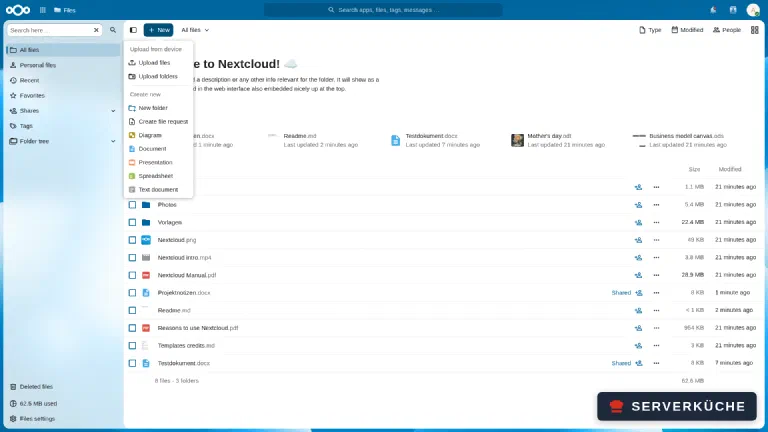
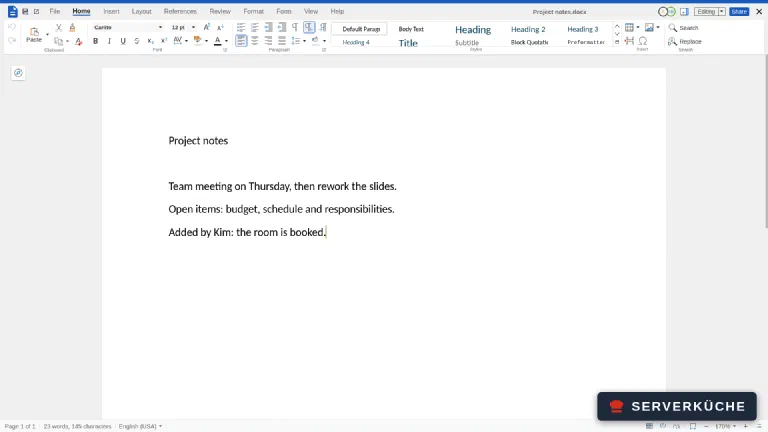
Nextcloud asks for a file name and then opens the editor straight away:
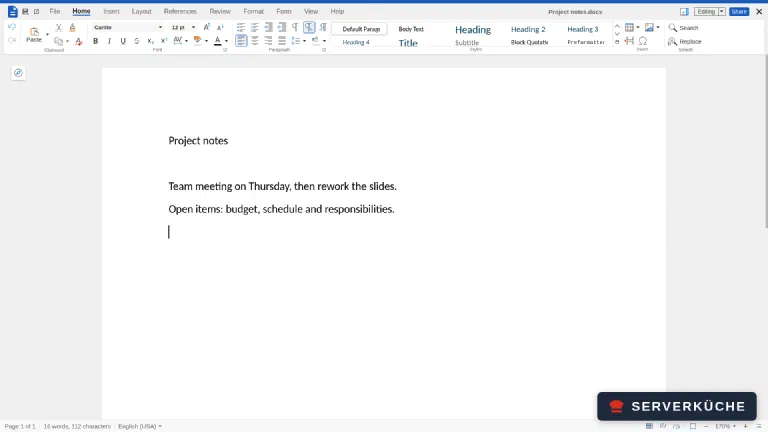
Page number, word count and language sit at the bottom left. This is not a picture but LibreOffice computing on your server and sending the result into the browser as image tiles.
ODF instead of OOXML
.docx/.xlsx by default, see the caption in the screenshot above.
If you do not need a Microsoft format, turn off “Use Office Open XML (OOXML) instead of
OpenDocument Format (ODF) by default for new files” in the Office settings. ODF is the format
LibreOffice and Collabora speak natively; every conversion is an opportunity to lose formatting.Step 8: Two people in the same document
The actual reason for Collabora is simultaneous editing. Share the file with a second account and open it there. The initials of everyone involved appear at the top right:
Changes show up on the other side without a reload. Saving happens automatically back to Nextcloud, and the file’s version history keeps running along as usual.
Step 9: Restrict before everyone piles in
Two settings in the Office settings are worth touching before you unlock it:
“Restrict usage to specific groups” keeps the memory footprint small while only some of your accounts need Office. Every simultaneously open file costs Collabora memory.
With “Restrict edit to specific groups” everyone else may only view documents. That is the sensible default if you also share files with guests.
When it doesn’t work
The editor opens but stays blank, and the browser console says something about “Mixed Content”. Then Collabora is emitting http:// addresses even though the page runs over HTTPS. Check that without a browser: curl -s https://cloud.YOUR_DOMAIN/hosting/discovery | grep -o 'urlsrc="[^"]*"' | head -1. If it says http://, --o:ssl.termination=true is missing from extra_params. That switch tells Collabora that Traefik already handled TLS – without it, it considers itself a plain HTTP service and writes that into its discovery document.
The Office settings report “Collabora Online Server is not reachable”. First check with curl -s -o /dev/null -w "%{http_code}" https://cloud.YOUR_DOMAIN/hosting/discovery whether the service comes through Traefik at all; a 404 means the path rule does not match, a 502 means the container is not running. If you get 200 and Nextcloud still reports an error, aliasgroup1 does not match the address: the value is a regular expression, has to contain the port :443 and escape the domain with \..
The document loads but stays empty, or you get “Document could not be loaded”. That is the other direction: Collabora cannot reach Nextcloud. The most common cause is a wopi_allowlist that is too narrow – check with docker exec -u www-data nc-app php occ config:app:get richdocuments wopi_allowlist whether the network entered is really the one the request comes from. To narrow it down, empty the list briefly; if it loads then, the list was the problem.
The container does not start and exits immediately. Collabora needs cap_add: [MKNOD] to create its sandbox processes. Without that line the start aborts before anything is even listening. The logs only mention it in passing – docker compose logs collabora | head -30 shows it.
A notice at the bottom of the editor asks you to check your server’s warnings. Only admins see it, and behind Open is Collabora’s server audit. If it reports a slow jail setup by copying because bind-mounting isn’t possible, --o:mount_jail_tree=false is missing from extra_params. Collabora then attempts a bind mount for which the container would need CAP_SYS_ADMIN – which we deliberately don’t grant. With the switch, Collabora copies from the start and the audit reports no problems. The container log still shows one Failed to exec coolmount line at startup, immediately followed by Disabling Bind-Mounting … per mount_jail_tree config – that one is harmless.
A welcome window sits on top of the document on the first open. That is Collabora’s pointer to the new version. It appears once per browser and is gone there after being dismissed; a fresh browser profile gets it again. So every team member sees it once, and again after an update. --o:welcome.enable=false in extra_params is the switch meant for this; in version 26.04.6.1 too, the window appears despite the switch being set. If it bothers you, plan for the questions rather than relying on the setting.
Your problem is not listed? Search all error messages →
Maintenance & backups
Updates concern two things separately. Collabora publishes a new CODE version roughly every four weeks:
cd ~/nextcloud
sed -i 's|collabora/code:26.04.6.1.1|collabora/code:NEW_VERSION|' compose.yaml
docker compose pull collabora && docker compose up -d collabora
curl -s https://cloud.YOUR_DOMAIN/hosting/discovery | grep -o 'urlsrc="[^"]*"' | head -1
The last command is the acceptance test: after every update the identifier in the path
(/browser/febe91b271/) has a new value, and https:// still has to be there. You update the
Nextcloud Office app separately through the app store or with occ app:update richdocuments.
Keep the two roughly in step: a very old app with a very new CODE is the most common cause of
features that suddenly go missing.
You have to back up nothing for Collabora. The container is stateless and holds no documents,
no database and no configuration outside the compose.yaml. What belongs in the backup already
belongs to Nextcloud:
~/nextcloud/compose.yaml      # now also contains the Collabora settings
nc_html volume + database     # as described in part 1
The Office app’s settings live in the Nextcloud database and are therefore part of the normal dump.
Memory is the actual maintenance task. This is what the containers use:
collabora  around 530 MB freshly started, 540–790 MB once documents have been open
nc-app     250–450 MB in use
nc-db      120–170 MB
nc-redis    10–30 MB
Every simultaneously open file costs extra. When the server gets tight, restricting to specific
groups from step 9 is the most effective lever, ahead of any fine-tuning. Collabora does clean up
its processes after closing, but not instantly; a look with docker stats --no-stream after a busy
day tells you where you really stand.
The effort in operation: one update a month, about ten minutes including the counter-test. Plus a look once a quarter to see whether CODE and the app still match. Collabora creates no ongoing work; it has nothing that could grow.
Send feedback: feedback@serverkueche.de
You might also like