Optimizing Immich: mobile backup, multilingual AI search & family setup (Part 2)
Immich part 2: make the mobile backup reliable, switch the AI search to your language, add existing photos as an external library, set user quotas.
Table of contents
In part 1 you set up Immich behind Traefik – the timeline is running. Now comes the part that turns the installation into a real Google Photos replacement: a mobile backup that actually runs reliably, an AI search that understands your language, your existing photo collection as an external library, and separate accounts for the family.
What are we building?
Four upgrades for your running Immich v3.1.0 from part 1: first we configure the automatic mobile backup so it keeps running in the background. Then we swap the default search model for a multilingual CLIP model – after that, even a fully phrased query in your own language (“snow-covered peaks above a lake”) finds the right photo: in our German-language test the hit rate rose from 19 to 24 out of 24 queries. Next we add an existing photo archive as an external library without touching the files, and set up family accounts with storage quotas. All steps were played through against the real web interface on a netcup VPS; the screenshots come from that run (German UI – the menu structure is identical in English).
Prerequisites
- A running Immich v3.1.0 behind Traefik – exactly the state from part 1, including the pinned
IMMICH_VERSIONand a backup - The Immich app on your phone, connected to your server (part 1, step 6)
- For the AI search: 8 GB RAM or more – the multilingual models are larger than the default model (real measurements in step 3)
- Optional: a folder with existing photos on the server (for the external library)
VPS 2000 G12.5
8 vCores · 16 GB RAM · 256 GB SSD
from €26.92/month
Multilingual search models and family accounts like RAM – 16 GB gives you headroom.
💶 1 month free:
Single use, valid for VPS 2000 G12.5. Redeem it in an empty cart – the code adds the server itself. Redeem in the cart →
💶 €5 voucher for new netcup customers: always valid · not for domains or VPS Lite
Step by step
Step 1: Making the mobile backup reliable
You enabled the backup itself in part 1 – but with default settings, the app often only uploads while it is open. The important switches live in the app under Backup (app settings, not server settings). The app evolves quickly and individual menu items may be named slightly differently depending on the version – the mechanics stay the same:
- Select albums: back up deliberately – camera album in, WhatsApp folder out. Albums can also be excluded (double-tap in the selection); handy on iOS, where one photo can belong to several albums.
- Enable background backup: only then does the app upload new photos without you opening it.
- Wi-Fi only is the default – new photos only appear on the server once the phone is back on Wi-Fi. If you want to back up on the go, allow mobile data in the backup settings (watch your data plan with videos).
- Album synchronization: optionally, Immich mirrors your phone albums as albums on the server – the structure from your device is preserved instead of everything just landing in the timeline. Synchronization is one-way (phone → server).
Two platform quirks that hit almost everyone:
- Android: aggressive battery optimization by many vendors (Samsung, Xiaomi & co.) kills the background worker. Exempt the Immich app from battery optimization – dontkillmyapp.com lists the vendor-specific steps. You can also restrict background backup to charging only.
- iOS: without Background App Refresh (Settings → General → Background App Refresh) nothing runs in the background. And even then, iOS decides when the task runs – the more often you open the app, the more background time iOS grants it. That is an iOS quirk, not an Immich bug.
You don’t have to fear duplicate uploads: Immich computes a checksum for every file and skips anything already on the server – whether it arrived via web, CLI or another device.
To verify everything arrives, check the server: the timeline shows new photos, and Administration → Server Statistics shows count and storage usage growing per user.
Step 2: Why the search struggles in your language
Immich’s smart search works with a CLIP model: it turns every photo and every query into a numeric vector; the search returns the photos whose vectors are closest to the query. That’s why “dog at the beach” works without anyone tagging photos – and why it runs entirely locally on your server, not in a cloud.
The catch: the default model ViT-B-32__openai was trained on English captions. Single nouns in other languages often still work – they appeared often enough in the training data. Our test run against a library of twelve unambiguous subjects shows exactly that pattern (all queries in German):
- Single search words (“Strand”/beach, “Leuchtturm”/lighthouse, “Katze”/cat): 11 of 12 ranked first – only “Sonnenuntergang in den Bergen” (sunset in the mountains) missed.
- Fully phrased sentences (“verschneite Berggipfel über einem See”/snow-covered peaks above a lake, “Burg hinter Bäumen am Ufer”/castle behind trees on the shore): only 8 of 12. For “zwei alte Fahrräder nebeneinander” (two old bicycles side by side) a lighthouse came first.
So the closer your query gets to a whole sentence, the sooner the English model breaks down – and that is exactly how people search. That’s what we fix now.
Step 3: Switching the AI search to a multilingual model
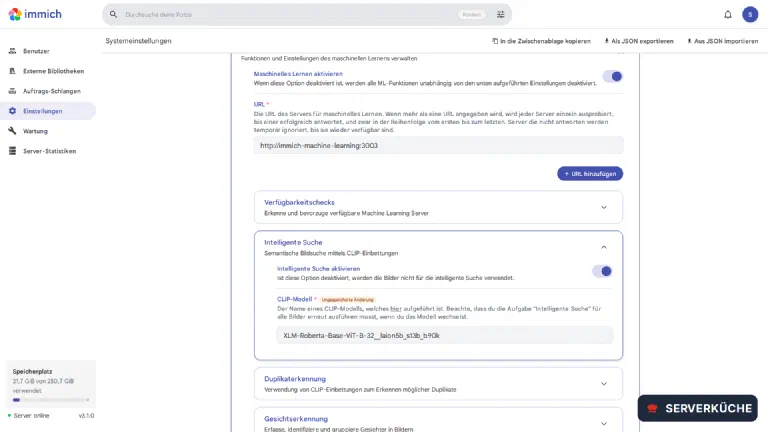
Immich can load any CLIP model from its model catalog. For non-English (and mixed) searches, the multilingual XLM-Roberta-Base-ViT-B-32__laion5b_s13b_b90k proved itself in our test – it understands the query language directly, with no extra configuration.
Open Administration → Settings → Machine Learning and expand Smart Search. Enter the new model name in the CLIP model field and save:
Avoid the nllb models (as of v3.1.0)
nllb-clip-… models. Those expect the search language as a parameter – and in Immich v3.1.0 there is nowhere to set it: neither the system settings nor the account settings offer such a field. Result in our test with nllb-clip-base-siglip__v1: 19 of 24 German queries ranked first – no better than the English default model, and for “Leuchtturm” (lighthouse) a castle came first. Pick an XLM-… or …SigLIP2… model instead; per the docs and our test, they work without any language setting.The new model only applies to new vectors – your existing photos are still indexed with the old model, and the two vector spaces are incompatible. So go to Administration → Job Queues and start the Smart Search job via All:
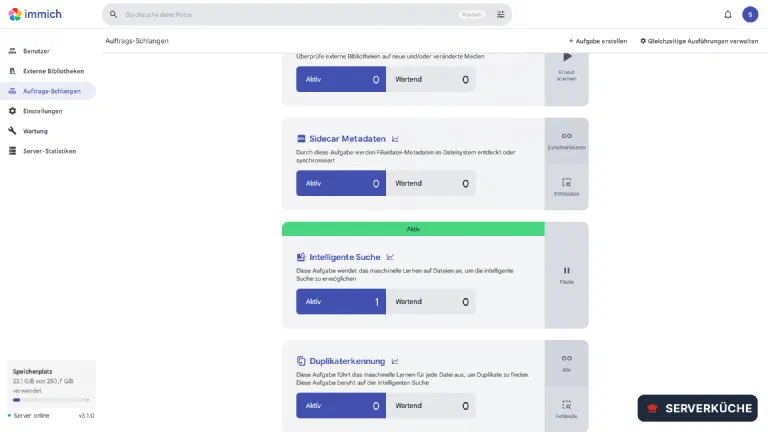
On the first run, the ML container downloads the model (around 1.4 GB) – so the first search result takes a moment. After that, search in your language:
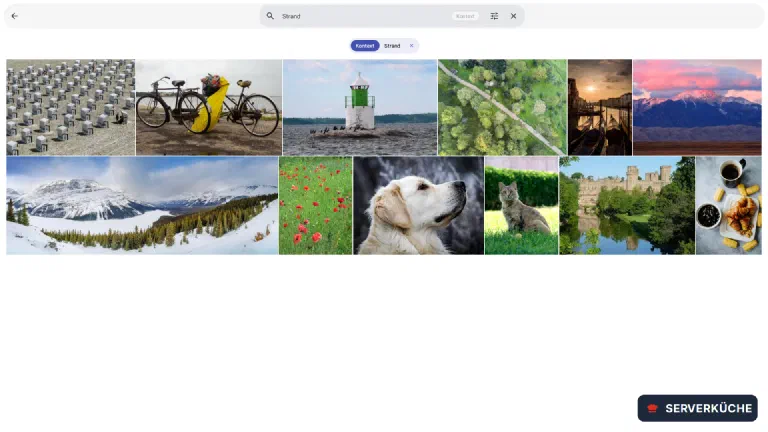
Two things for expectation management: the search ranks, it doesn’t filter – the bottom of the result list always contains non-matching photos too. And it is surprisingly good with descriptive queries: in our test the XLM model put all 24 German queries first, from “Gondel in Venedig” (gondola in Venice) to “roter Mohn zwischen Gräsern” (red poppies among grasses).
One more detail from the job queues: duplicate detection relies, per its own description, on the same CLIP vectors as the smart search. After a model switch, trigger it once via All as well – otherwise it compares old vectors with new ones.
About RAM, measured for real on the test VPS (8 GB), each time after a fresh container start with both the visual and the textual model loaded: the ML container used around 1.0 GB with the default model and around 2.0 GB with the XLM model. On an 8 GB server running a few other services, that gets tight – hence the honest recommendation towards 16 GB if the AI search should run permanently.
Step 4: Adding existing photos as an external library
Immich manages your phone photos itself in UPLOAD_LOCATION. But what about the 20 years of photo archive already sitting on the server? That’s what external libraries are for: Immich indexes the folders but does not touch the files – nothing is moved, renamed or deleted.
First hand the archive folder to the server container – deliberately read-only (:ro), so even a slip in the UI can’t change your originals. In the compose.yaml from part 1, extend the immich-server service:
    volumes:
      - ${UPLOAD_LOCATION}:/data
      - /path/to/YOUR_ARCHIVE:/mnt/archive:ro
      - /etc/localtime:/etc/localtime:ro
Apply the change – Compose only recreates the server container:
docker compose up -dThen, under Administration → External Libraries → Create library, create a library (choose the owner). Immich drops you straight into the new, still empty library. There you add the import path /mnt/archive under Folders → Add – the path inside the container, not on the host. Edit gives it a meaningful name, Scan starts the first run (the same command sits in the ⋮ context menu in the overview). The collection then shows up in the overview:
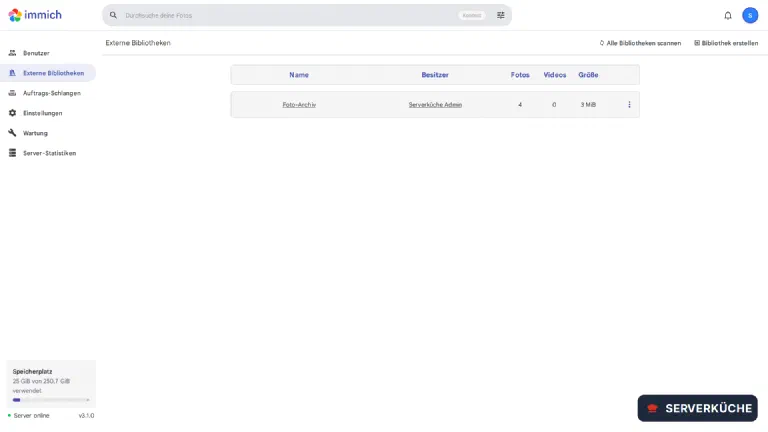
The archive photos now appear in the timeline and search like normal uploads – sorted by their capture date from the EXIF data. New files in the folder are picked up by another scan (manually or via the scheduled scan in the library settings).
External libraries are not covered by your backup
UPLOAD_LOCATION and the database – your archive folder lives outside both. Add it to your Restic job as well, otherwise your oldest photos of all are the unprotected ones.Step 5: Family accounts with storage quotas
Every family member gets their own account with a separate library – nobody sees anyone else’s photos; sharing happens deliberately via albums. To stop a single account from filling the disk, give it a quota when creating it.
Under Administration → Users → Create user you set email, name, initial password and the quota in GiB:
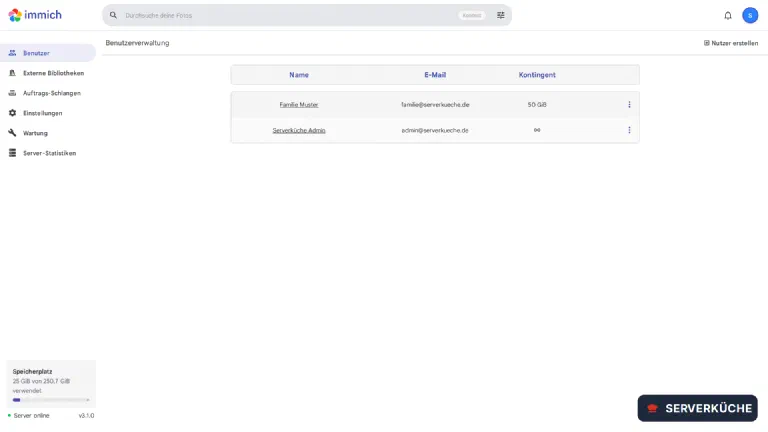
The quota counts the account’s uploaded files; once it is exhausted, the server rejects further uploads with 400 Quota has been exceeded! – the app then shows a storage error, and deleting photos frees up space (permanently only after the trash). There is still no public registration: accounts are only created through the admin account.
For sharing within the family, create an album and add the accounts as members – or use the partner feature (account settings → sharing), which lets two accounts show each other their full timelines without copying photos. For grandma without an account there are shared links: an album can be shared as a public link, optionally with a password and expiry date – just remember that anyone with the link sees the photos as long as it is valid.
When things go wrong
The search returns nonsense after the model switch. The photos are still (or partially) indexed with the old model – old and new vectors don’t mix. Start the All run under Job Queues → Smart Search and wait until the queue is empty. Exactly this mixed state also occurs if you save the setting but forget the re-index.
With an nllb-… model the search is no better than before. Known behaviour in v3.1.0: the language hint these models expect cannot be set in Immich at all (see the warning box in step 3). Switch to an XLM-… or SigLIP2 model and re-index.
The ML container exits with exit 137 after the model switch. Out of memory: the new model no longer fits next to the server, the database and your other services. Either pick a smaller model or add RAM – the XLM base model really uses around 2 GB for the ML container alone.
The external library stays empty after the scan. Almost always the path is wrong: the import path must be the container path (/mnt/archive), not the host path. Check with docker compose exec immich-server ls /mnt/archive whether the container sees the files at all – if nothing shows up, the volume entry is missing or you skipped docker compose up -d after the change.
The phone only backs up while the app is open. On Android, battery optimization kills the background worker (exempt the app, see step 1); on iOS, Background App Refresh is off or iOS deprioritizes the app – opening it more often genuinely helps. And: by default, backup runs on Wi-Fi only – photos taken on the go are only “missing” until you’re back home.
Your problem is not listed? Search all error messages →
Maintenance & backups
The update ritual from part 1 still applies: backup → read the release notes → bump
IMMICH_VERSION→docker compose pull && docker compose up -d. Update all containers together; migrations are not reversible.The model cache grows with every model switch. Old models stay in the volume – after our tests with three CLIP models it held 3.9 GB (default model 583 MB, XLM 1.4 GB, nllb 1.9 GB). Clean up: stop the ML container, empty the volume, start it again (the active model re-downloads):
Terminaldocker compose stop immich-machine-learning docker run --rm -v immich_model-cache:/cache alpine:3 sh -c "rm -rf /cache/clip/*" docker compose start immich-machine-learningReview your backup scope:
UPLOAD_LOCATION+ DB dump (part 1) plus every external library folder. A quick look at your Restic snapshots after adding a new library saves nasty surprises.Keep an eye on storage and quotas: Server Statistics shows usage per account. If an account approaches its limit, raise it in time – rejected uploads mean, on the phone: no backup.
Honest about the effort: with AI search, an external library and multiple users, Immich is not a “set up once, never touch again” service. Plan for one update appointment per month plus the occasional re-index after model or major version switches – in return, the entire photo stack is yours.
Last updated: Sep 9, 2026
Send feedback: feedback@serverkueche.de
You might also like