Pingvin Share X: Sharing Large Files Without WeTransfer
Host files yourself instead of uploading them: Pingvin Share X 2.0 behind Traefik, with expiry, password and view counter – plus the settings that matter.
Table of contents
Sending an 800 MB video to a colleague – and using someone else’s service that keeps the file for as long as it likes. There is another way: an upload field on your own server, a link with an expiry date, and afterwards the file is gone.
What are we building?
We run Pingvin Share X 2.0.0 behind Traefik. You upload files, get a short link, and the share can expire, demand a password and disappear after a set number of views. Whoever receives the link needs no account and no app.
The second part matters just as much: an upload service on the open internet is an invitation when it is configured wrong. So we switch off open registration, cap the file size, and take a look at how the data actually sits on disk.
Why the X in the name
stonith404/pingvin-share, you are deploying unmaintained software – for a service that publicly
accepts uploads, that is a bad idea.Requirements
- Traefik as a reverse proxy with a working Let’s Encrypt resolver and a domain pointing at the server
- Enough disk space for what you intend to share – files sit uncompressed on the server until the share expires
- A clear sense of who you send links to; more on that in step 3
VPS 1000 G12.5
4 vCores · 8 GB RAM · 128 GB SSD
from €14.50/month
Pingvin Share X is frugal – disk space is what matters here, not CPU.
💶 1 month free:
Single use, valid for VPS 1000 G12.5. Redeem in the cart →
💶 €5.95 voucher for new netcup customers: always valid · not for domains or VPS Lite
Step by step
Step 1: Create the stack
mkdir -p /opt/pingvin/data/images && cd /opt/pingvinWe create the subdirectory up front because Pingvin otherwise reaches into nothing on first start.
# /opt/pingvin/compose.yaml
services:
  pingvin:
    image: ghcr.io/smp46/pingvin-share-x:v2.0.0
    container_name: pingvin
    restart: unless-stopped
    environment:
      TRUST_PROXY: "true"
    volumes:
      - ./data:/opt/app/backend/data:rw
      - ./data/images:/opt/app/frontend/public/img:rw
    networks: [proxy]
    labels:
      - traefik.enable=true
      - traefik.http.routers.pingvin.rule=Host(`YOUR_DOMAIN`)
      - traefik.http.routers.pingvin.entrypoints=websecure
      - traefik.http.routers.pingvin.tls.certresolver=le
      - traefik.http.services.pingvin.loadbalancer.server.port=3000

networks:
  proxy:
    external: true
TRUST_PROXY: "true" is the entry people overlook: without it, Pingvin logs every access with
Traefik’s IP instead of the visitor’s. If there is no proxy in front, the value has to stay
false – otherwise any client can claim whatever source IP it likes.
The image tag is pinned deliberately. The project also has a :beta channel – for a service that
accepts other people’s uploads, the stable version is the right choice.
docker compose up -d
docker compose psNAME STATUS
pingvin Up 25 seconds (healthy)The (healthy) comes from the bundled healthcheck – the container does not just report as started
but actually answers. A glance at the logs confirms a clean boot:
docker compose logs --tail 1LOG [NestApplication] Nest application successfully startedOn first start Pingvin creates the SQLite database before that and applies some 40 migrations; that takes a few seconds. Optionally, Pingvin can have uploads scanned by a ClamAV container. For a private setup where only you upload, that is dispensable; as soon as strangers may deposit files (see reverse shares below), it becomes worthwhile.
Check from the outside that the chain holds:
curl -s -o /dev/null -w "%{http_code}\n" https://YOUR_DOMAIN/200Step 2: Create the first account – then close the door
Open https://YOUR_DOMAIN/auth/signUp. The first registered user automatically becomes
administrator – there is no default password anyone could forget to change.
Keep reading right now
Step 3: The settings that actually matter
Under Configuration → General you first enter the App URL, that is https://YOUR_DOMAIN.
This is not cosmetic: Pingvin builds the links you send out from this value. If it still says the
default http://localhost:3000, your recipients get links that point nowhere for them.
The more important part is under Configuration → Security & Access:
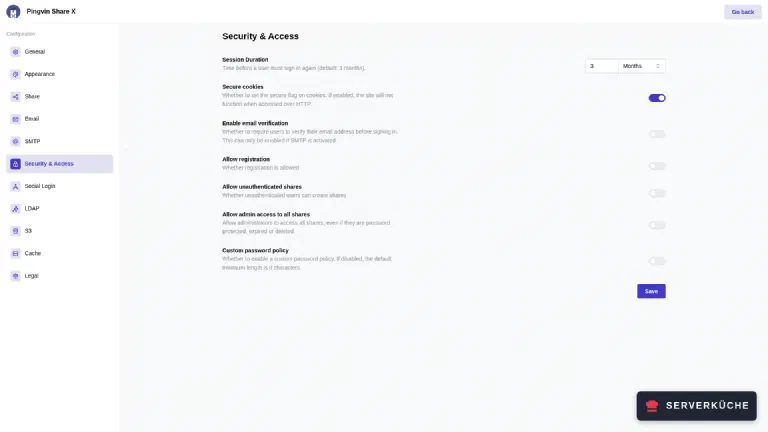
- Allow registration – off. You are the only one creating shares. Afterwards
/auth/signUponly redirects, and the API rejects new accounts too (“Registration is not allowed”). - Secure cookies – on. That makes Pingvin set the
Secureflag on its cookies, so they are never transmitted over unencrypted HTTP. This only works because Traefik delivers proper HTTPS in front. - Allow unauthenticated shares – off by default, and it stays that way. Otherwise any visitor can drop files on your server.
Every page has its own Save button, so save before switching. Under Configuration → Share there are two more values that deserve a conscious decision:
- Default share ID length – default 8. Pingvin says so itself: “A value below 8 is not considered secure.” The link is the password as long as you set none; shorter IDs can be brute-forced.
- Max size – default 1 GB. Set it to something your disk can take, and remember that several shares can be open at the same time.
Also interesting is the Chunk size (default 10 MB): Pingvin uploads large files in pieces. That is why multi-gigabyte uploads work through a reverse proxy without you having to touch timeouts or size limits.
Step 4: A share with expiry, password and view limit
On Upload you drag a file into the field – the dialog opens right after:
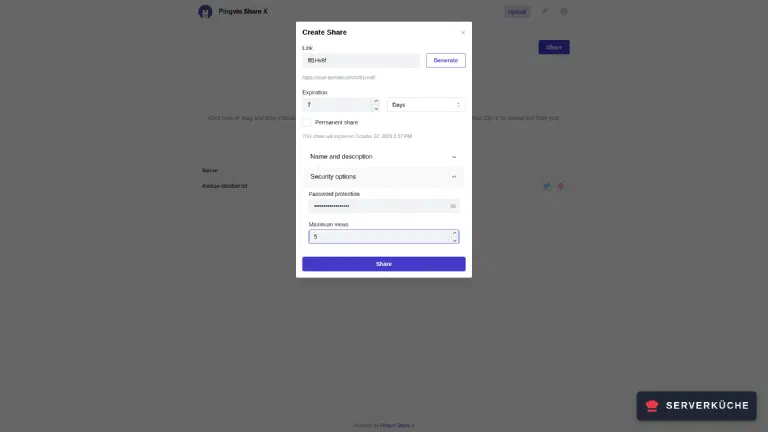
The link ID is generated randomly; Generate gives you a new one, and you can replace it with something meaningful – just not with something guessable. Below it are three limits that work independently of each other:
- Expiration – once it passes, the share is gone; seven days by default. “Permanent share” exists too; use it sparingly, or your disk fills up with things nobody remembers.
- Password protection – an additional password. Send it over a different channel than the link, otherwise it is theatre.
- Maximum views – after the configured number of views the share closes. Handy for “exactly once, exactly this person”.
A click on Share creates it and shows the finished link along with the expiry date.
Step 5: The recipient’s view – and the counter-test
This is what someone sees who opens the link without the password:
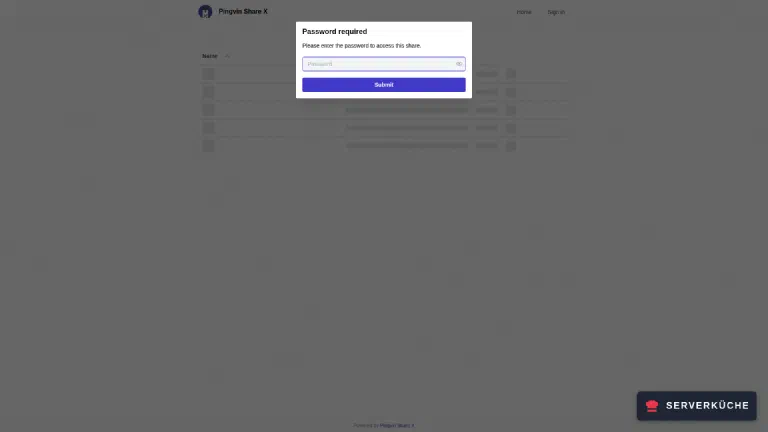
That this is not merely the interface is shown by the API. Query the share directly, without a password:
curl -s https://YOUR_DOMAIN/api/shares/YOUR_SHARE_ID{"message":"This share is password protected","error":"share_password_required","statusCode":403}No file name, no size, no listing – the server gives away nothing before the password. After entering it, the content appears:
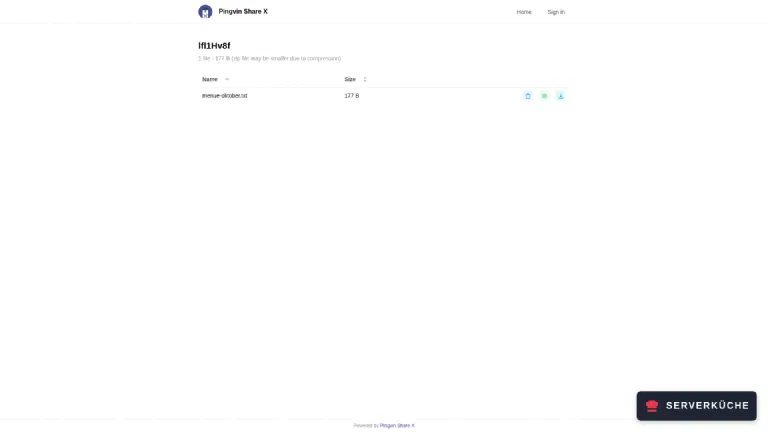
Individual files can be downloaded directly; several are packed into a ZIP on request.
The files are stored in the clear
data/uploads/shares/<share-id>/<uuid>; a text file there can be read with cat.
Anyone with access to the server or to your backup reads everything. For
genuinely confidential content, encrypt the file yourself beforehand, for instance as a
password-protected archive.Step 6: Reverse shares – when others should send you something
The way back is the genuinely underrated part. Under Reverse shares in your account, one click
on Create produces an upload link shaped like https://YOUR_DOMAIN/upload/SOME_ID. You send it
to someone, that person uploads – no account, no login – and the resulting share lands with you.
The dialog deserves the same care as a normal share. Besides the expiry date there is Max share
size, Max uses (“The maximum number of times this URL can be used.”) as well as Simple
mode and Public access. Max uses defaults to 1 – leave it there if you expect exactly one
delivery. Any higher value (up to 1000) means that, until then, anyone the link is forwarded to can
drop files on your disk. Public access is on by default; then anyone with the link to the
resulting share can view it as well. Switch it off and only you and the uploader can see it.
The same applies to link length as above: Pingvin explicitly uses the configured
Default share ID length for reverse shares too. And because other people’s files now land on your
server, this is the moment when the ClamAV integration genuinely pays off.
When it doesn’t work
The links you send point to http://localhost:3000. The App URL under Configuration → General is still on its default. Pingvin does not learn its public address by itself – the reverse proxy does not tell it. Enter https://YOUR_DOMAIN and save; links you already sent have to be recreated.
Every visitor shows up with the same IP in the access logs. That is the address from the Docker proxy network, and TRUST_PROXY: "true" is missing from the Compose file. Only with it does Pingvin evaluate the X-Forwarded-For header. But set it only when a proxy really is in front – without one, any client can invent its own source IP.
A large upload aborts halfway through. Check Max size under Configuration → Share first; the default is 1 GB, and the interface tells you before you even upload (“Maximum total upload size: 1 GB.”). If that is not it, Chunk size is the next lever: pieces smaller than the default 10 MB are more reliable on shaky connections, larger ones faster on stable ones.
Strangers are creating accounts on your instance. Then Allow registration is still on – the shipping state. Switch it off under Configuration → Security & Access and delete the foreign accounts under Administration → User management. To verify: curl -s -o /dev/null -w "%{http_code}\n" https://YOUR_DOMAIN/auth/signUp has to return 307 afterwards, not 200.
You get logged out immediately after signing in. Usually Secure cookies is enabled while you are visiting over http:// – the browser then discards the cookie. Open the site over HTTPS. If you deliberately run Pingvin without TLS, the switch has to stay off; the setting says as much itself: “If enabled, the site will not function when accessed over HTTP.”
Your problem is not listed? Search all error messages →
Maintenance & backups
Updates are a tag change. Read the release notes first, because the fork is actively developed and versions appear at short intervals:
cd /opt/pingvin
cp -a data data-backup-$(date +%F)
sed -i 's/pingvin-share-x:v2.0.0/pingvin-share-x:vNEW_VERSION/' compose.yaml
docker compose pull && docker compose up -d
docker compose logs --tail 5
The copy beforehand matters because database migrations run at startup. One update per quarter is enough in practice, unless something security-relevant is announced.
Two things need backing up, and both live under data/:
/opt/pingvin/data/pingvin-share.db     # accounts, shares, settings (SQLite)
/opt/pingvin/data/uploads/             # the actual files
Here a question is worth asking that you would not ask of other services: do you want to back up the uploads at all? The whole point is that files disappear once the share expires. A backup that holds on to them undoes exactly that – and because they are stored unencrypted, they travel into your backup target in the clear. For most people it is enough to back up the database and deliberately leave the uploads out. If you take both, the backup belongs encrypted, the way Restic does it anyway.
Cleanup does not happen by itself if you use “Permanent share”. Expired shares Pingvin clears
out on its own; permanent ones stay until you delete them. A look at
du -sh /opt/pingvin/data/uploads every few months tells you whether something has piled up.
Realistic effort: next to nothing once it is set up – one update per quarter and the occasional glance at disk usage. The one point that needs discipline is how you handle links: every link you send is an access grant, and unlike a password it cannot be recalled. That is what the expiry date is for.
Even more private
Send feedback: feedback@serverkueche.de
You might also like