Self-hosting Immich: your private photo backup behind Traefik
Set up Immich with Docker behind Traefik: the self-hosted alternative to Google Photos – with automatic phone backup, face recognition and HTTPS.
Table of contents
Thousands of photos and videos from your phone – and all of them at Google or Apple. Immich brings them back to your server: a self-hosted photo service that comes astonishingly close to Google Photos, including automatic phone upload, timeline, search and face recognition. In this recipe we set up Immich cleanly behind Traefik.
What are we building?
By the end, Immich v3 runs behind your Traefik proxy, reachable at
https://photos.YOUR_DOMAIN with valid HTTPS. The official Immich phone app then backs
up your new photos and videos automatically to your server – like the cloud backup of Google
Photos, except the images live exclusively with you. Via the web interface you browse your
timeline, search by full text (“beach”, “dog”) and let Immich group faces.
Immich consists of four containers: the server (web + API), a machine-learning service (for search and face recognition), a PostgreSQL database with a vector extension, and a cache (Valkey). Sounds like a lot – but the official template takes most of it off your hands, and we only hang the server onto Traefik.
The appeal over Google Photos: the images don’t leave your server, there are no storage subscriptions and no automatic analysis of your shots by a corporation. In return, you bear responsibility for operation and – very importantly – for backups: if the server dies and you have no backup, the photos are gone. That’s exactly why the backup below is not optional but mandatory.
Immich moves fast – pin the version
v3.3.3) instead of release or latest, and make a backup
before every update. That way you decide when to update.Prerequisites
- A running Traefik reverse proxy with the
proxynetwork and the Let’s Encrypt resolverle– see reverse proxy with Traefik. - A subdomain
photos.YOUR_DOMAINwith a DNS record to your server IP – see connecting a domain to your server. - A backup. Your photo collection is irreplaceable – first set up backups with Restic.
How big does the server need to be?
How much RAM your photo library including AI search really needs is calculated by the server calculator.
VPS 2000 G12.5
8 vCores · 16 GB RAM · 256 GB SSD
from €26.92/month
For a large photo library with face recognition, 16 GB RAM is comfortable.
💶 1 month free:
Single use, valid for VPS 2000 G12.5. Redeem in the cart →
💶 €5.95 voucher for new netcup customers: always valid · not for domains or VPS Lite
Step by step
Step 1: Create the DNS record
Create an entry photos.YOUR_DOMAIN that points to your server IP, and check it:
dig +short photos.YOUR_DOMAINYour server IP must come back – otherwise Traefik won’t fetch a certificate later.
Step 2: Prepare the folder and .env
Immich is configured via a .env file. Create the project:
mkdir -p ~/immich && cd ~/immichCreate a .env with the core values (set a strong DB password – letters and digits
only, no special characters, Immich’s DB init doesn’t like those):
UPLOAD_LOCATION=./library
DB_DATA_LOCATION=./postgres
DB_PASSWORD=YOUR_DB_PASSWORD
DB_USERNAME=postgres
DB_DATABASE_NAME=immich
IMMICH_VERSION=v3.3.3UPLOAD_LOCATION– this is where your photos and videos land. It’s the most important directory for the backup.DB_DATA_LOCATION– the PostgreSQL data. Must be on a local disk (no network drive/NFS – the DB resents that).IMMICH_VERSION– the pinned version.
Step 3: Create the compose.yaml
We adopt the official Immich template and only add the Traefik labels on the immich-server.
Create compose.yaml:
name: immich
services:
  immich-server:
    image: ghcr.io/immich-app/immich-server:${IMMICH_VERSION}
    volumes:
      - ${UPLOAD_LOCATION}:/data
      - /etc/localtime:/etc/localtime:ro
    env_file: .env
    environment:
      DB_HOSTNAME: database
      REDIS_HOSTNAME: redis
    depends_on:
      redis:
        condition: service_started
      database:
        condition: service_healthy
    labels:
      - "traefik.enable=true"
      - "traefik.http.routers.immich.rule=Host(`photos.YOUR_DOMAIN`)"
      - "traefik.http.routers.immich.entrypoints=websecure"
      - "traefik.http.routers.immich.tls.certresolver=le"
      - "traefik.http.services.immich.loadbalancer.server.port=2283"
    networks: [default, proxy]
    restart: unless-stopped

  immich-machine-learning:
    image: ghcr.io/immich-app/immich-machine-learning:${IMMICH_VERSION}
    volumes:
      - model-cache:/cache
    networks: [default]
    restart: unless-stopped

  redis:
    image: docker.io/valkey/valkey:9
    healthcheck:
      test: ["CMD-SHELL", "redis-cli ping | grep -q PONG || exit 1"]
    networks: [default]
    restart: unless-stopped

  database:
    image: ghcr.io/immich-app/postgres:14-vectorchord0.4.3-pgvectors0.2.0
    environment:
      POSTGRES_PASSWORD: ${DB_PASSWORD}
      POSTGRES_USER: ${DB_USERNAME}
      POSTGRES_DB: ${DB_DATABASE_NAME}
      POSTGRES_INITDB_ARGS: '--data-checksums'
    shm_size: 128mb
    volumes:
      - ${DB_DATA_LOCATION}:/var/lib/postgresql/data
    healthcheck:
      test: ["CMD-SHELL", "pg_isready -U ${DB_USERNAME} -d ${DB_DATABASE_NAME}"]
      interval: 10s
      timeout: 5s
      retries: 5
    networks: [default]
    restart: unless-stopped

volumes:
  model-cache:

networks:
  default:
  proxy:
    external: true
Important to understand:
- Only
immich-serveris on theproxynetwork and carries Traefik labels. The ML service, Valkey and the database stay exclusively on the internaldefaultnetwork – not reachable from outside. loadbalancer.server.port=2283– Immich listens on port 2283 in the container.- The database is deliberately the prebuilt Immich Postgres image with the vector
extension VectorChord (for image search). Don’t just use a standard
postgres– the extension is then missing. POSTGRES_INITDB_ARGSandshm_sizeare in the official template too:--data-checksumsmakes Postgres write checksums when the database is created so that silent data corruption gets noticed;shm_size: 128mbraises Docker’s tight 64 MB default for/dev/shm, on which larger queries would otherwise fail. The checksums only take effect on a freshly created database – on an instance that is already running, the entry changes nothing.- Valkey is the Redis successor; the service is still called
redisin the Immich template for compatibility reasons. Its healthcheck deliberately looks for the answerPONGinstead of just the exit code ofredis-cli ping: if the server replies with an error,redis-clistill exits with code 0 – the container would count as healthy when it isn’t. Immich corrected this in the official template in September 2026; older guides still show the variant withoutgrep. - The healthcheck on the database reports when Postgres is really ready. Via
depends_on: … condition: service_healthy,immich-serveronly starts then – this prevents migration errors and the “database not reachable” start on the first boot.
Applying changes to the .env
.env, a docker compose restart is not enough –
Docker only reads the environment variables when recreating the containers. Use
docker compose up -d then; Compose detects the change and rebuilds the affected containers.Step 4: Allow large uploads (Traefik timeout)
This is the stumbling block with Immich behind Traefik: by default Traefik aborts
connections after 60 seconds (readTimeout). When uploading large videos from the phone
this leads to aborted uploads (error 502/499). Increase the timeout on the websecure
entrypoint in your Traefik configuration (the traefik service from the
Traefik tutorial):
    command:
      # ... your existing lines ...
      - "--entrypoints.websecure.transport.respondingTimeouts.readTimeout=600s"
Restart Traefik afterwards (docker compose up -d in the Traefik folder). Unlike nginx,
Traefik has no fixed size limit for uploads – only this timeout has to be high.
Step 5: Start and run through the initial setup
Pull the images (several GB – this takes a while) and start:
docker compose up -d
docker compose logs -f immich-server
The images are several gigabytes in size – the first pull takes a few minutes depending on
your connection. Then check that all four containers are running:
docker compose psAll four services have to show up in the SERVICE column – immich-server,
immich-machine-learning, redis and database. Under STATUS, the server, the ML
service and the database read Up … (healthy); redis does too, because we adopted the
healthcheck from the official template. Now wait until
Immich Server is listening on http://[::1]:2283 [v3.3.3] [production] appears in the log,
then open https://photos.YOUR_DOMAIN. Traefik fetches the Let’s Encrypt certificate on the first
access (be patient for a moment). On the very first start, Immich greets you with “Welcome
to Immich” and the choice of whether you start fresh or restore a backup:

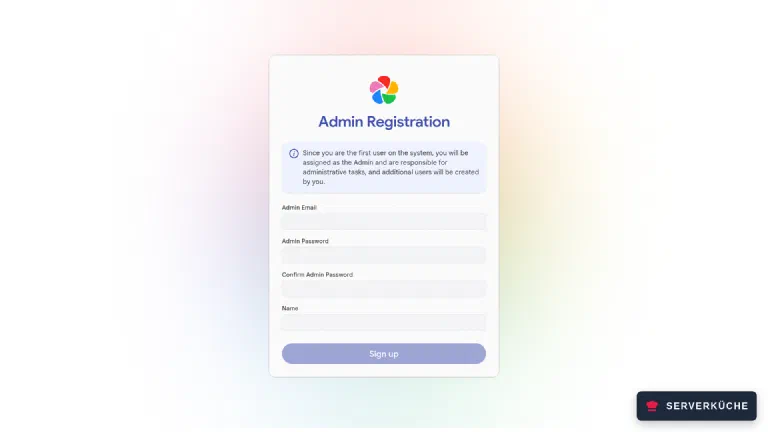
Click Getting Started (you only need Restore if you’re importing a backup). Then you create the administrator account – as the first user you automatically become admin:
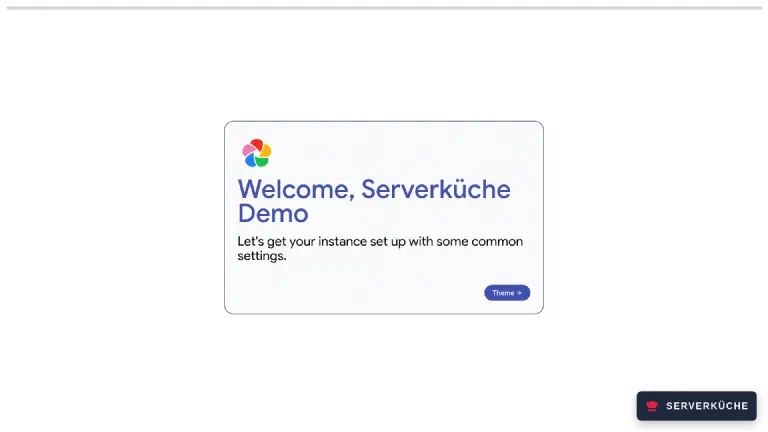
After the first login, a short setup wizard guides you through theme, language and basic privacy settings:
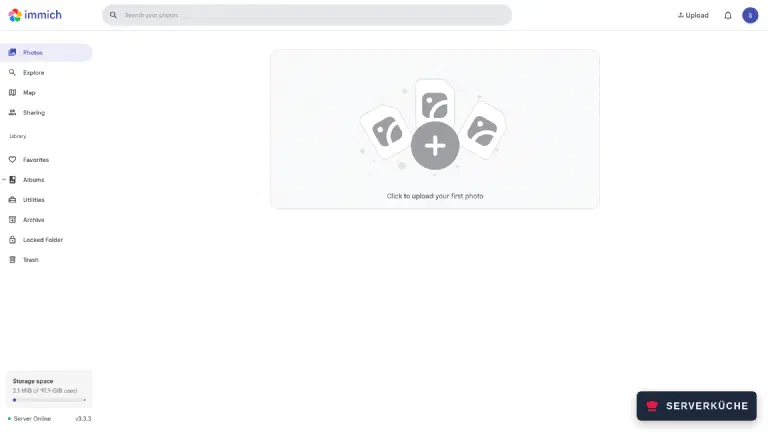
After that you land on your (still empty) timeline – the heart of Immich:
Step 6: Connect the phone app
The real benefit comes from the app. Install Immich from the App Store or Play Store (or
F-Droid). At launch it asks for the server address – enter https://photos.YOUR_DOMAIN
and log in with your account. Then, in the app settings, enable the backup and choose the
albums to be uploaded.
From now on your phone backs up new photos automatically to your server – in the background and over Wi-Fi. The first pass of a large library takes a while; after that only new shots are added.
After the upload, Immich keeps working in the background: it generates thumbnails, reads the capture metadata (date, location) and lets the ML service recognize faces and index the images for smart search. These jobs run for some time after the first big import – so faces and search hits only appear gradually. You see the progress under Administration → Job Queues. In the sidebar you then find the typical photo features: Explore (by people and places), the map with geolocation, sharing and albums. The memories (“a year ago”) show up by themselves as soon as older shots are in the library. How to tame the ML jobs, switch to a better search model and connect the mobile app properly is covered in Optimize Immich and use it on mobile.
Videos & transcoding on the VPS
More users
Your photos are on the internet
photos.YOUR_DOMAIN, the login page is open on the net. So
set a long, unique password for the admin and all user accounts. Immich v3 has no
built-in two-factor authentication – the account settings only offer a password and a PIN
code for the locked folder. You only get a second factor through an upstream login service
via OAuth/OIDC, for example with
Authentik. Whoever wants to be extra safe makes
Immich reachable only via a WireGuard VPN – but for
automatic phone upload, direct HTTPS reachability is usually the more practical way.When things go wrong
Uploads of large videos abort after about a minute (error 502 or 499). Traefik’s
readTimeout (default 60 s) kicks in. Set it to 600s (or higher) as in step 4 and restart
Traefik. This is by far the most common Immich-behind-proxy error.
The immich-machine-learning container crashes or exits with “exit 137”, search and face
recognition don’t work. Too little RAM – the container was killed by the system (out of
memory). Give the server more memory, or disable ML by removing the service
immich-machine-learning from the compose.yaml. Immich then runs without face recognition
and smart search, but upload and timeline work normally.
After an update the containers no longer start or report migration errors. Server, machine
learning and database must run on the same version. Set the new IMMICH_VERSION in the
.env and update all containers together (docker compose pull && docker compose up -d).
A downgrade after a migration isn’t possible – only a reset from the backup.
Immich shows “maintenance mode” / “temporarily unavailable”. Immich v3 starts into a
maintenance mode under certain database states. The log (docker compose logs immich-server)
then contains a URL with a one-time token (…/maintenance?token=…) – through it you log
into the maintenance mode and choose “restart” or end it. After that the normal interface is
back.
Container won’t start, “permission denied” on the database or upload directory.
UPLOAD_LOCATION or DB_DATA_LOCATION have the wrong access rights or are on a network
drive. Put both on a local disk and make sure Docker may write into them.
Your problem is not listed? Search all error messages →
Maintenance & backups
Two things belong in the backup – consistently together. Your photos (
UPLOAD_LOCATION, i.e.~/immich/library) and the database. The DB dump contains only the metadata; without the matching files it’s worthless, and vice versa. Cleanest is to stop Immich briefly and back up both together:Terminaldocker compose stop immich-server docker compose exec -T database pg_dump --clean --if-exists \ --dbname=immich --username=postgres | gzip > immich-db.sql.gz docker compose start immich-serverBack up the dump together with the
libraryfolder encrypted and off-site with Restic. On top of that, Immich creates regular database dumps of its own under Administration → Settings → Database Dump Settings (they land inUPLOAD_LOCATION/backups) – you still have to back up the photos separately, and these dump jobs are not monitored: Immich does not notify you when one of them fails.Rehearse the worst case once. A backup you’ve never restored is just a hope. To restore, you import the DB dump into a fresh Immich instance of the same version and place the
libraryfolder in the same spot – Immich offers the option “Restore From Backup” on the first start for this (the second button from step 5). What matters is the same version: the database state and the program must match.Backup before every update. Because migrations aren’t reversible, the backup is your only way back. Back up first, then raise
IMMICH_VERSION, thendocker compose pull && docker compose up -d.Honest about the effort: Immich often brings several releases per month. You don’t have to follow every one – but before a jump across several versions, read the release notes, and stick to the pinned version until you deliberately update.
Keep an eye on disk space. Photos and videos grow steadily; Immich additionally creates thumbnails and converted videos. Monitor the disk usage (e.g. with Uptime Kuma) so the server doesn’t fill up.
Last updated: Oct 19, 2026
Send feedback: feedback@serverkueche.de
What's next?

You might also like