Self-hosting Nextcloud: your own cloud behind Traefik
Set up Nextcloud with Docker behind Traefik: your own cloud for files, calendar and contacts – with MariaDB, Redis and automatic HTTPS.
Table of contents
Your files, your calendar, your contacts – but on your server instead of at a cloud corporation. Nextcloud is the flagship of self-hosting: a full-featured cloud you run yourself. In this recipe we set it up cleanly behind Traefik, with its own database, caching and automatic HTTPS.
What are we building?
By the end, Nextcloud 34.0.5 runs behind your Traefik proxy, reachable at
https://cloud.YOUR_DOMAIN with a valid Let’s Encrypt certificate. Nextcloud is your
private cloud: sync files (like Dropbox), calendar and contacts across all devices, photos,
notes, office documents. You connect the official desktop sync client and the phone
apps with your server – the data lives exclusively with you.
We deliberately use the classic nextcloud image (not “Nextcloud All-in-One”) plus
MariaDB as the database and Redis for caching and file locking. This combination is
stable, well documented and fits exactly into the Traefik pattern from the Serverküche.
Why not Nextcloud AIO?
Prerequisites
- A running Traefik reverse proxy with the shared
proxynetwork and the Let’s Encrypt resolverle– set up as in the tutorial reverse proxy with Traefik. - A subdomain
cloud.YOUR_DOMAINwhose DNS record (A/AAAA) points to your server IP – see connecting a domain to your server. - A working backup. A cloud is the place where data loss hurts most – first set up backups with Restic.
How big does the server need to be?
How big your server should be for your user count is estimated by the server calculator in a few clicks.
VPS 1000 G12.5
4 vCores · 8 GB RAM · 128 GB SSD
from €14.50/month
For a private Nextcloud with a few users, the VPS 1000 is quite enough.
💶 1 month free:
Single use, valid for VPS 1000 G12.5. Redeem in the cart →
💶 €5.95 voucher for new netcup customers: always valid · not for domains or VPS Lite
Step by step
Step 1: Create the DNS record
At your DNS provider, create an entry cloud.YOUR_DOMAIN that points to your server IP
(A record for IPv4, AAAA for IPv6). Check that it resolves:
dig +short cloud.YOUR_DOMAINYou should see your server IP. Only once the record is set can Traefik fetch the HTTPS certificate later.
Step 2: Determine the proxy subnet
Nextcloud sits behind Traefik. So that Nextcloud’s brute-force protection recognizes the
real visitor IP (and doesn’t ban the internal Traefik IP), we have to enter Traefik as a
“trusted proxy”. For that you need the subnets of your proxy network:
docker network inspect proxy --format '{{ range .IPAM.Config }}{{ .Subnet }} {{ end }}'If you created the network as in reverse proxy with Traefik, it has two subnets – one for IPv6, one for IPv4:
fd00:cafe::/64 172.18.0.0/16The IPv4 range may read 172.19.0.0/16 or similar on your machine, Docker assigns it when
the network is created. Remember both values – they go into the configuration as
TRUSTED_PROXIES shortly.
Step 3: Create the compose.yaml
Create a folder and change into it:
mkdir -p ~/nextcloud && cd ~/nextcloudCreate the compose.yaml. Replace cloud.YOUR_DOMAIN, all passwords and the
TRUSTED_PROXIES subnets from step 2:
services:
  nc-db:
    image: mariadb:11.4
    container_name: nc-db
    command: --transaction-isolation=READ-COMMITTED --log-bin=binlog --binlog-format=ROW
    environment:
      MARIADB_ROOT_PASSWORD: A_STRONG_ROOT_PASSWORD
      MARIADB_DATABASE: nextcloud
      MARIADB_USER: nextcloud
      MARIADB_PASSWORD: A_STRONG_DB_PASSWORD
    volumes:
      - nc_db:/var/lib/mysql
    healthcheck:
      test: ["CMD", "healthcheck.sh", "--connect", "--innodb_initialized"]
      interval: 10s
      timeout: 5s
      retries: 6
    networks: [default]
    restart: unless-stopped

  nc-redis:
    image: redis:8-alpine
    container_name: nc-redis
    command: redis-server --requirepass A_STRONG_REDIS_PASSWORD
    networks: [default]
    restart: unless-stopped

  nc-app:
    image: nextcloud:34-apache
    container_name: nc-app
    depends_on:
      nc-db:
        condition: service_healthy
      nc-redis:
        condition: service_started
    environment:
      MYSQL_HOST: nc-db
      MYSQL_DATABASE: nextcloud
      MYSQL_USER: nextcloud
      MYSQL_PASSWORD: A_STRONG_DB_PASSWORD
      REDIS_HOST: nc-redis
      REDIS_HOST_PASSWORD: A_STRONG_REDIS_PASSWORD
      NEXTCLOUD_TRUSTED_DOMAINS: cloud.YOUR_DOMAIN
      OVERWRITEPROTOCOL: https
      OVERWRITECLIURL: https://cloud.YOUR_DOMAIN
      TRUSTED_PROXIES: "fd00:cafe::/64 172.18.0.0/16"
      PHP_MEMORY_LIMIT: 1024M
      PHP_UPLOAD_LIMIT: 10G
    volumes:
      - nc_html:/var/www/html
    labels:
      - "traefik.enable=true"
      - "traefik.http.routers.nc.rule=Host(`cloud.YOUR_DOMAIN`)"
      - "traefik.http.routers.nc.entrypoints=websecure"
      - "traefik.http.routers.nc.tls.certresolver=le"
      - "traefik.http.routers.nc.middlewares=nc-dav"
      - "traefik.http.services.nc.loadbalancer.server.port=80"
      # .well-known redirect for CalDAV/CardDAV (see below)
      - "traefik.http.middlewares.nc-dav.redirectregex.regex=https://(.*)/.well-known/(?:card|cal)dav"
      - "traefik.http.middlewares.nc-dav.redirectregex.replacement=https://cloud.YOUR_DOMAIN/remote.php/dav/"
      - "traefik.http.middlewares.nc-dav.redirectregex.permanent=true"
    networks: [default, proxy]
    restart: unless-stopped

volumes:
  nc_html:
  nc_db:

networks:
  default:
  proxy:
    external: true
What matters here:
- Three containers:
nc-app(Nextcloud),nc-db(MariaDB),nc-redis. Onlync-appis on theproxynetwork (for Traefik) and on the internaldefaultnetwork. Database and Redis stay exclusively internal – they have noports:and are not reachable from outside. - Two named volumes:
nc_html(program code,config.php, user data) andnc_db(the MariaDB data). Thenc_dbvolume is mandatory: without the entry, the database lands in an anonymous volume, and adocker compose downfollowed byupwould lose it irrecoverably. healthcheck+depends_on: service_healthy: Nextcloud starts faster than the database initializes. Without this healthcheck the initial install fails with a “Connection refused”. This way the app container waits until MariaDB is really ready.NEXTCLOUD_TRUSTED_DOMAINS: without your own domain here, Nextcloud greets you with “Access through untrusted domain”.OVERWRITEPROTOCOL: httpstells Nextcloud it runs behind HTTPS – otherwise it builds internal links ashttp://and logins/redirects break.TRUSTED_PROXIES: the subnets from step 2, separated by a space – the image splits the value into a list itself. This lets Nextcloud recognize the real client IP; otherwise the brute-force protection bans the Traefik IP. Both ranges belong in there, because Traefik and Nextcloud each have an IPv4 and an IPv6 address on theproxynetwork – which of the two the connection uses is not something you pin down.PHP_MEMORY_LIMIT/PHP_UPLOAD_LIMIT: the defaults (512 MB) are too small for large uploads. Set generously here.loadbalancer.server.port=80: the Apache image listens on port 80 in the container.- The
nc-davmiddleware solves a classic Nextcloud problem – more on that shortly.
CalDAV/CardDAV: the .well-known redirect
/.well-known/caldav and
/.well-known/carddav to /remote.php/dav/. Behind a reverse proxy, Nextcloud’s own
redirect doesn’t work reliably – this later leads to a warning in the security check and to
problems with calendar setup. The nc-dav middleware above does the redirect directly in
Traefik. Important: the pattern must match the full https://… URL – redirectregex
always checks the complete URL, not just the path. A pure path pattern like ^/.well-known/…
therefore never matches.Step 4: Start and run through the initial setup
Start the stack:
docker compose up -dOn the first start, MariaDB initializes the database and Nextcloud unpacks itself – that takes a minute or two. Follow it in the log:
docker compose logs -f nc-appOn the first run the image unpacks Nextcloud into the volume; you see lines like
Initializing nextcloud 34.0.5.1 ... and finally Initializing finished, followed by the
Apache start. If restarting appears repeatedly instead, take a look at the “When things go
wrong” section. With Ctrl+C you leave the log view again (the container keeps running).
Then open https://cloud.YOUR_DOMAIN. Traefik fetches the certificate on the first access
(can take a few seconds). Because we already configured the database and Redis via
environment variables, Nextcloud detects that automatically and only asks for an
administration account:
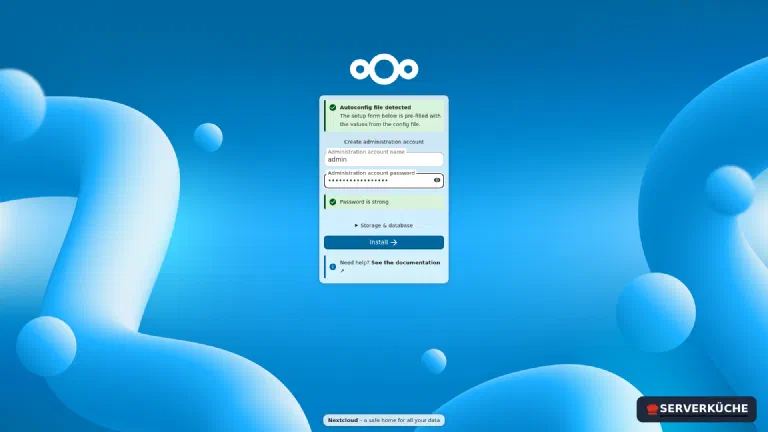
Set an admin name and a strong password and click Install. Nextcloud sets up the instance and then suggests a few apps:
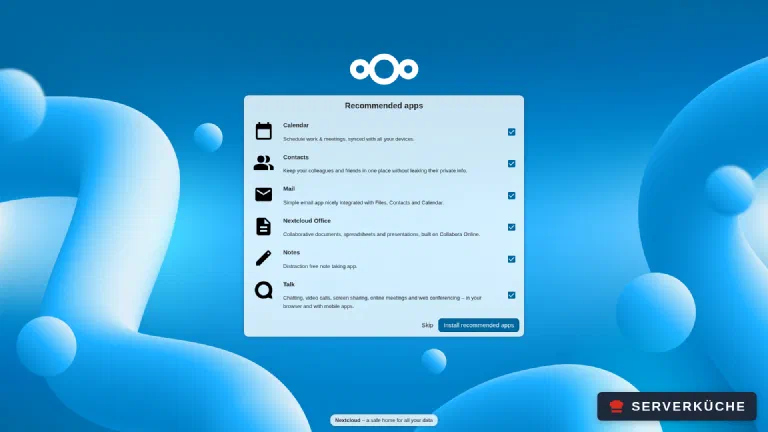
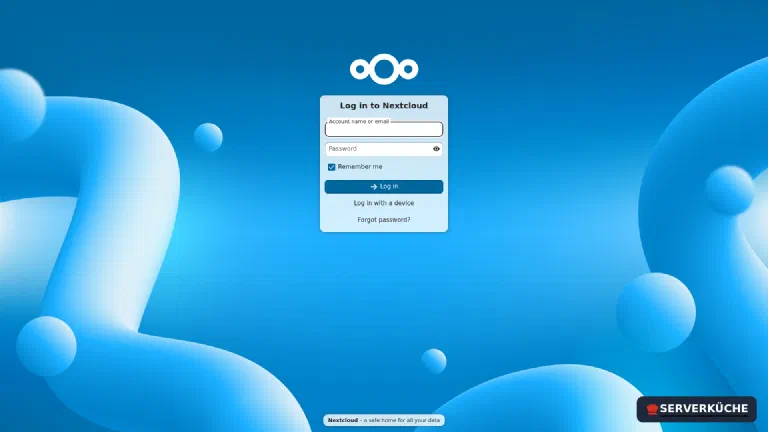
Skip moves on without them; each one can be installed later with a single click. Nextcloud Office on its own doesn’t give you an editor yet, by the way – it needs a separate office server, which part 3 with Collabora (Tutorial expected in November) sets up. You are already logged in at this point. On your next visit or after logging out, the login page greets you:
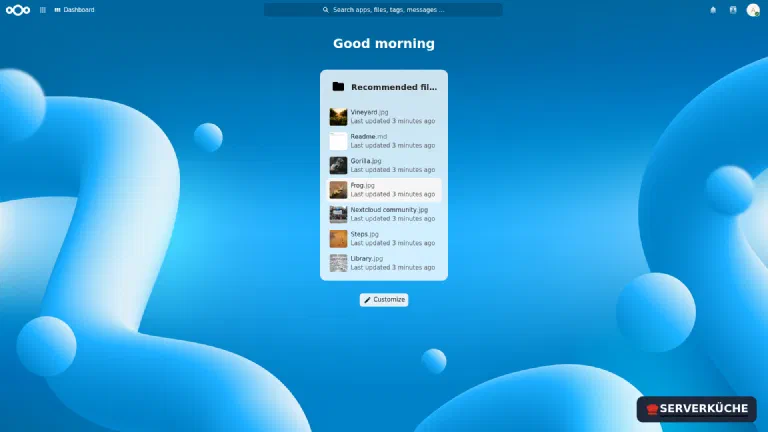
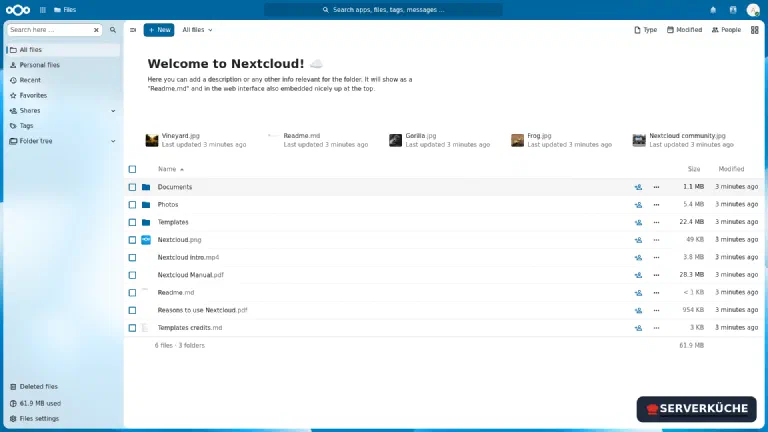
After the login, the dashboard greets you, and under Files you find your cloud with a few example files:
Step 5: Set up background jobs (cron)
Nextcloud has to perform tasks regularly (cleanup, notifications, thumbnails). By default
this happens via “AJAX” on every page load – which is unreliable. The recommended way is a
cron sidecar: a second container with the same image that only runs cron.php. Add a
service to the compose.yaml:
  nc-cron:
    image: nextcloud:34-apache
    container_name: nc-cron
    entrypoint: /cron.sh
    depends_on:
      nc-db:
        condition: service_healthy
    volumes:
      - nc_html:/var/www/html
    networks: [default]
    restart: unless-stopped
The sidecar shares the nc_html volume with the app and runs the jobs every five minutes.
Apply the change and set the mode in Nextcloud to “Cron”:
docker compose up -d
docker exec -u www-data nc-app php occ background:cron
The last command acknowledges with Set mode for background jobs to 'cron'. Under
Administration → Basic settings, “Cron” should now be active.
occ – the command-line tool
occ is Nextcloud’s admin tool. You always call it as the user www-data in the app
container: docker exec -u www-data nc-app php occ <command>. Two useful cleanup commands
right after installation:
docker exec -u www-data nc-app php occ db:add-missing-indices
docker exec -u www-data nc-app php occ config:system:set default_phone_region --value=DE
Step 6: Connect the clients
Now the real benefit. There are three ways to use your cloud:
- Desktop sync client (Windows/macOS/Linux): install the “Nextcloud Desktop” client,
enter
https://cloud.YOUR_DOMAINas the server address, log in and choose a local folder. Files are synced like with Dropbox. With virtual files (Windows/macOS) they only take up space on the disk when you open them – handy when your cloud is larger than the local disk. - Phone app (Android/iOS): the official Nextcloud app, same server address. Ideal for automatic photo upload from the smartphone.
- Calendar & contacts: in your device’s system settings, create a CalDAV/CardDAV account
with the address
https://cloud.YOUR_DOMAIN– thanks to the.well-knownmiddleware from step 3, automatic detection works.
Features like calendar, contacts or mail are separate apps you install with one click via the user menu (avatar, top right) under Apps – so Nextcloud is extensible without you touching anything on the server.
Don't work with the admin account
When things go wrong
“Access through untrusted domain” instead of the login page. Your domain isn’t in
trusted_domains. Check NEXTCLOUD_TRUSTED_DOMAINS in the Compose file. To set it
afterwards, use occ: docker exec -u www-data nc-app php occ config:system:set trusted_domains 1 --value=cloud.YOUR_DOMAIN.
The security check reports “Your web server is not set up properly to resolve
.well-known/caldav”. The CalDAV/CardDAV redirect isn’t working. Check the nc-dav
middleware labels (step 3) and that the router includes them via
...routers.nc.middlewares=nc-dav. The regex must match the full https://… URL –
redirectregex checks the complete URL, not just the path.
Warning “The ‘Strict-Transport-Security’ HTTP header is not set”. The HSTS header is
missing. Set it as a Traefik middleware and attach it to the router:
traefik.http.middlewares.nc-secure.headers.stsSeconds=15552000. Attach it additionally to
the nc-dav middleware on the router (...routers.nc.middlewares=nc-dav,nc-secure). The
header must come from the proxy, not from Nextcloud. In part
2 we set up exactly this nc-secure middleware
fully (including includeSubdomains).
Large uploads break off or end with a timeout / “413”. The PHP limit is too small.
Increase PHP_UPLOAD_LIMIT and PHP_MEMORY_LIMIT (step 3) and restart the container. In
rare cases these variables don’t take effect – then mount your own php.ini snippet into the
image.
On the first start the installation aborts with “MySQL server has gone away” or “Connection
refused”. The app container was faster than the database. That’s exactly what the
healthcheck with depends_on: condition: service_healthy is for – check that both are
present in your Compose file, and restart with docker compose up -d.
Your problem is not listed? Search all error messages →
Maintenance & backups
Backups are mandatory for a cloud. A consistent backup needs three things: the database (MariaDB dump), the data directory (your files) and the configuration (
config.php). Put Nextcloud into maintenance mode briefly before the backup so the database and files match each other:Terminaldocker exec -u www-data nc-app php occ maintenance:mode --on docker exec nc-db mariadb-dump -u root -pA_STRONG_ROOT_PASSWORD nextcloud > nextcloud-db.sql docker exec -u www-data nc-app php occ maintenance:mode --offBack up the dump together with the
nc_htmlvolume encrypted and off-site with Restic – thanks to the dump you don’t need to additionally back up the rawnc_dbvolume. Thenc_htmlvolume contains both the program code and theconfig.phpas well as – underdata/– your actual user files. If your cloud grows a lot, you can later move thisdata/directory to a separate, larger volume; for now one volume for everything is enough.Updates: only one major version per step. From 34 to 35, never directly to 36. Bump the image tag (
nextcloud:35-apache), thendocker compose pullanddocker compose up -d. The container runs the necessaryocc upgradeautomatically on start. Always make a backup first. Bump the cron sidecar to the same version.Check security. After setup, run the official Nextcloud Security Scan against your domain (target: grade A) and work through the warnings from the admin overview. The overview under Administration → Overview runs automatic checks and shows exactly what’s still missing. Keep Nextcloud up to date – security holes are closed promptly, but only if you update.
Honest about the effort: a self-hosted cloud wants to be maintained. Reckon with an update pass roughly monthly and a regular look at the admin overview. In return, the data then really belongs to you.
Last updated: Oct 18, 2026
Send feedback: feedback@serverkueche.de
What's next?
You might also like