Syncthing: Sync Files Between Devices – Without the Cloud
Sync folders directly between your devices, encrypted and without a third-party cloud: Syncthing as peer-to-peer sync behind Traefik, with backup tips.
Table of contents
Dropbox without Dropbox: Syncthing syncs folders directly between your devices – encrypted, without the files ever sitting on someone else’s server. On an always-reachable VPS your server becomes a reliable sync node that mediates even when your laptop and phone are never online at the same time.
What are we building?
An always-on Syncthing node with Syncthing v2.1.5 behind Traefik. By the end you reach the web interface encrypted under your domain, have secured it with a password and can pair your devices via their device IDs so that selected folders sync automatically. Unlike Nextcloud, Syncthing isn’t central storage but a peer-to-peer sync: every device holds a full copy, and the server is just a particularly reliable participant.
Prerequisites
- A server with Traefik running and Docker Compose
- A subdomain pointing at the server –
YOUR_DOMAINbelow - The ability to open port 22000 (TCP+UDP) – that’s where the actual sync runs. On a netcup VPS that means two layers: the UFW firewall on the server and, if an inbound policy is assigned to you in the SCP, the netcup firewall on top. Without an open port it still works – but then via third-party relay servers, see step 7
- Syncthing on at least one other device (desktop, or the Android app)
VPS 1000 G12.5
4 vCores · 8 GB RAM · 128 GB SSD
from €14.50/month
A small VPS as an always-on sync node is plenty – Syncthing is frugal.
💶 1 month free:
Single use, valid for VPS 1000 G12.5. Redeem in the cart →
💶 €5.95 voucher for new netcup customers: always valid · not for domains or VPS Lite
Step by step
Step 1: Create the directories – and set the permissions right away
Syncthing stores its configuration and the synced data in two folders. The container runs as a normal user (UID 1000), so the folders must belong to that user – this is the most common startup trap:
mkdir -p /opt/syncthing/config /opt/syncthing/data
chown -R 1000:1000 /opt/syncthing/config /opt/syncthing/data
cd /opt/syncthingWithout chown, Syncthing won't start
permission denied" in the log). The chown to UID/GID 1000 before the first start prevents this – more on permissions in Users & permissions.Step 2: The Compose file
Replace YOUR_DOMAIN. The important thing is the difference between the web interface and the sync traffic:
services:
  syncthing:
    image: syncthing/syncthing:2.1.5
    restart: unless-stopped
    hostname: koch-server
    environment:
      PUID: '1000'
      PGID: '1000'
    volumes:
      - ./config:/var/syncthing/config
      - ./data:/var/syncthing/Sync
    ports:
      - "22000:22000/tcp"   # sync protocol (direct, not via Traefik)
      - "22000:22000/udp"   # sync over QUIC
      - "21027:21027/udp"   # local device discovery
    networks: [proxy]
    labels:
      - "traefik.enable=true"
      - "traefik.http.routers.syncthing.rule=Host(`YOUR_DOMAIN`)"
      - "traefik.http.routers.syncthing.entrypoints=websecure"
      - "traefik.http.routers.syncthing.tls.certresolver=le"
      - "traefik.http.services.syncthing.loadbalancer.server.port=8384"

networks:
  proxy:
    external: true
Only the web interface (port 8384) runs through Traefik – that’s what the labels handle. The actual sync traffic (port 22000) is its own protocol, not HTTP, so it’s published directly via ports:, not routed through Traefik. This separation is exactly what Understanding Docker networks explains.
Step 3: Open the firewall and start
Open the sync port in the firewall (otherwise the devices won’t find each other):
ufw allow 22000/tcp
ufw allow 22000/udp
If you also use the netcup firewall in the SCP, allow the same port there too – otherwise the upstream firewall blocks the sync before it ever reaches the server. Whether the port really gets through you check later from another machine (not from the server itself, which always reaches itself):
nc -vz YOUR_DOMAIN 22000Connection to YOUR_DOMAIN (203.0.113.10) 22000 port [tcp/*] succeeded!If the command runs into a timeout instead, the port is still closed in one of the two firewalls. That’s not fatal – Syncthing falls back to relay servers (step 7) – but the direct route is faster and stays between your own machines.
Then start:
docker compose up -dPatience: Traefik waits for the health check
healthy. Until the first check passes there is no route at all for your domain – and therefore no certificate either. So during that minute the browser doesn’t show a 404 but a certificate warning first: Traefik answers with its own fallback certificate (curl aborts with “certificate verify failed”; with curl -k you’d get a 404). That’s normal and clears up by itself.You query the status directly on the container:
docker inspect -f '{{.State.Health.Status}}' syncthing-syncthing-1healthyIf it still says starting, wait out the 60 seconds. As soon as healthy appears, Traefik builds the route and fetches the Let’s Encrypt certificate – a few seconds later the interface responds with valid HTTPS:
curl -sI https://YOUR_DOMAIN/ | head -1HTTP/2 200Step 4: The web interface and the crucial security step
Open https://YOUR_DOMAIN/. The interface is in English by default; you see your device (“This Device”) with its device ID, version and status:
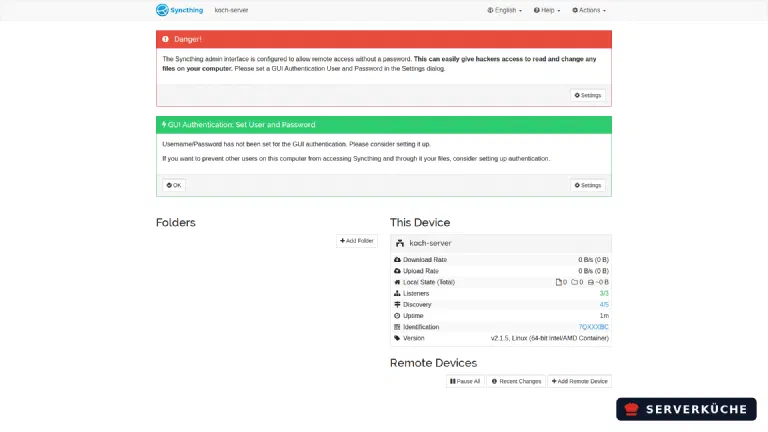
On a fresh install Syncthing warns at the top with a red banner that no GUI password is set yet – and that’s serious: without a password, anyone who reaches the interface can access your files. So under Actions → Settings → GUI immediately set a username and a strong password:
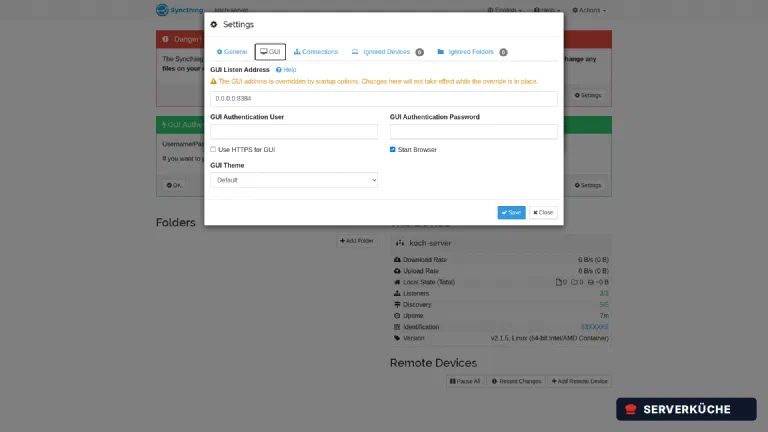
After Save Syncthing reloads and greets you with a login form from then on – on top of Traefik’s HTTPS.
The orange line above the GUI Listen Address field (“The GUI address is overridden by startup options”) is not an error: the official image pins the address via the environment variable STGUIADDRESS=0.0.0.0:8384 so the interface is reachable from outside the container at all. That one field is therefore without effect – every other setting on the tab works normally.
Set the GUI password in the interface, not via generate as root
syncthing generate as root inside the container instead writes config.xml with the wrong owner – after that Syncthing won’t start (permission denied). If it happens: chown -R 1000:1000 /opt/syncthing/config and restart.Step 5: Pair a second device
Syncthing connects devices via their device ID – a long, unique key. Pairing is mutual: each device has to know the other. Click Add Remote Device:

You find the other device’s ID there under Actions → Show ID (as text and QR code). Enter it here, give it a name and save. On the other device you repeat this with your server’s ID. Once both sides know each other, the device shows as “connected” – that takes about 20 seconds.
Step 6: Share a folder
Now you define what gets synced. Via Add Folder you choose a path (on the server e.g. /var/syncthing/Sync/dokumente, which corresponds to the mounted ./data folder – the name is yours to pick; the screenshots below use dokumente) and give it a folder ID. Under the Sharing tab you tick the devices to sync the folder with. On the other device you confirm the incoming share – from then on Syncthing keeps both sides identical automatically.
File versioning as protection against mistakes
.stversions folder. Important: this protects against mistakes, it’s not a backup (see below).Clicking the folder name expands its details. This is what a finished node looks like – folder and remote both on Up to Date:

The Folder Path row shows the path inside the container (/var/syncthing/Sync/dokumente). On the server the same folder lives at /opt/syncthing/data/dokumente – that’s the bind mount from the Compose file, and exactly where your backups will reach in later.
Step 7: Discovery and relays – who learns about your node
So that two devices find each other without you maintaining IP addresses, Syncthing uses two services run by the project. Both are switched on in a fresh install:
- Global discovery announces your device ID together with its current IP to public discovery servers. Another device asks there for your ID and gets the address back.
- Relaying forwards the data stream through third-party relay servers when no direct connection can be made – for instance because port 22000 is closed.
That’s convenient, and for home connections behind NAT it is often the only chance of a connection at all. On a VPS with port 22000 open you don’t need the detour, and it comes at a price: with relaying your traffic passes through servers that aren’t yours. The contents stay end-to-end encrypted – a relay only sees that two device IDs are talking, and how much. If you’d rather avoid even that, turn it off under Actions → Settings → Connections:
- Enable Relaying off – forces direct connections.
- Global Discovery off, provided you give every device a fixed address instead (
tcp://YOUR_DOMAIN:22000).
Check the port first, then disable relaying
nc -vz test from step 3 first, then switch it off.On your first login Syncthing also asks in a purple dialog about anonymous usage statistics. Answering No settles it; later you change it under Actions → Settings → General in the “Anonymous Usage Reporting” field (pick Disabled). The likewise preset crash reporting sits one level deeper under Actions → Advanced → Options (crashReportingEnabled).
When things go wrong
The container won’t start / restart loop with permission denied. The permissions on the config or data folder are wrong. chown -R 1000:1000 /opt/syncthing/config /opt/syncthing/data and restart (see the warning in step 1).
The browser reports an invalid certificate even though the container is running. The health check isn’t healthy yet, so Traefik doesn’t know the domain and answers with its fallback certificate (with curl -k you’d get a 404). Wait up to 60 seconds after start, check docker inspect -f '{{.State.Health.Status}}' syncthing-syncthing-1 and reload the page. If it stays that way, look in docker compose logs for why the health check fails.
Two devices won’t connect. Check three things: is port 22000 (TCP+UDP) open in both firewalls – UFW on the server and, where applicable, the netcup firewall in the SCP? Did you enter the ID on both devices (pairing is mutual)? And is the ID exact (typos are caught easily thanks to a built-in checksum)? A “Disconnected” state with correctly entered IDs almost always points to the firewall port.
A folder is stuck at “Syncing 0%”. Usually the share confirmation is missing on the other side, or the folder ID doesn’t match – it must be identical on both devices. Also check the write permissions in the target folder.
No access after setting the GUI password. Forgot the password? You can reset it in config.xml (<gui> block) by removing the <user> and <password> lines and restarting Syncthing – then the interface is reachable without a login again (and you set it anew immediately).
Your problem is not listed? Search all error messages →
Maintenance & backups
- Updates. Occasionally bump the image tag (
syncthing/syncthing:2.1.5) to the current version anddocker compose up -d. Syncthing stays compatible within a major version; when jumping to a new major (like v2 here) read the release notes first. Your normal update process handles the rest. - Backup is mandatory – sync is not a backup. This is the most important point: Syncthing mirrors changes, including accidental deletion and ransomware encryption. So back up the sync folder additionally with a real, versioned backup that the sync can’t reach – e.g. Restic on the server. The
configfolder (device IDs, folder shares) belongs in the backup too. - Honest effort. Once set up, Syncthing runs with very little maintenance and is frugal – idling, the container uses about 42 MiB of RAM at 0.1 % CPU. What grows is disk space: keep an eye on it (
df -h) when syncing large folders with versioning, and prune old.stversionsfolders occasionally.
Last updated: Sep 22, 2026
Send feedback: feedback@serverkueche.de
You might also like