Setting up Traefik: reverse proxy with automatic HTTPS
Traefik as a reverse proxy in front of your containers, with automatic Let's Encrypt certificates: every app gets a domain and HTTPS via a few labels.
Table of contents
This is the most important building block of the Serverküche. A reverse proxy takes in all requests on ports 80 and 443 and distributes them to the right container based on the domain – and Traefik fetches the HTTPS certificates fully automatically from Let’s Encrypt. From here on, every further app gets its domain and its TLS with a few lines of labels, without you ever touching a certificate by hand again.
What are we building?
By the end, Traefik v3 runs as the central entry point on your server. It listens
on ports 80/443, detects new containers automatically via Docker labels, redirects
HTTP to HTTPS automatically, and obtains a valid Let’s Encrypt certificate for
every domain. As the first app, we hang whoami behind the proxy – a tiny test
service that shows routing and TLS are working. A secured dashboard comes on top.
The pattern from this tutorial – a shared proxy network plus a few labels – repeats
afterwards in every app recipe.
A request always passes through the same four stations in Traefik – this vocabulary helps you debug:
- Entrypoint – the port on which the request arrives (
web= 80,websecure= 443). - Router – decides based on a rule (usually
Host(...)) whether this request belongs to an app. - Middleware (optional) – modifies the request along the way (e.g. HTTPS redirect, basic auth, security headers).
- Service – the container that ultimately responds.
Debugging mnemonic: “Entrypoint → Router → Middleware → Service”. If a request ends up nowhere, it’s almost always the router (wrong domain) or the network (service not reachable) at fault.
Prerequisites
- Docker + Compose installed and the Compose basics understood
- A rough idea of how HTTPS works – Traefik does the work for you, but the background helps when a certificate gets stuck
- A domain connected to the server:
YOUR_DOMAINand the subdomains must resolve to the server via A/AAAA - Ports 80 and 443 are reachable from the internet – Let’s Encrypt uses them to verify that you own the domain. Open firewalls accordingly (see setting up a firewall with UFW).
No resolving domain, no certificate
dig +short YOUR_DOMAIN that your server IP comes back. If the record still
points nowhere, certificate issuance fails – that’s the most common Traefik error of
all.Step by step
Step 1: Create the shared proxy network
Traefik and all apps must share a Docker network so Traefik can reach the containers. We create it once and explicitly, so later stacks can simply dock onto it:
docker network create --ipv6 --subnet fd00:cafe::/64 proxyCheck:
docker network ls | grep proxyace6d528b14b proxy bridge localThis network is independent of the individual Compose projects – that’s why we later
include it as external.
Why --ipv6? A Docker network without IPv6 does accept IPv6 visitors, but Docker
then cannot rewrite the connection onto the container directly and routes it through a
helper process. That process replaces the source address with the bridge gateway’s: in
Traefik and in every app behind it you then see 172.x.x.x instead of the real address.
Over IPv4 you never notice, over IPv6 you always do – and a domain with an AAAA record
is reached over IPv6 by most browsers. The range fd00:cafe::/64 is private (ULA) and
only visible internally; you can pick any other range out of fd00::/8.
If the proxy network already exists without IPv6
You cannot retrofit this – the network has to be created anew, and for that no container
may still be attached to it. So first shut down all stacks (docker compose down in
every project folder, Traefik last), then:
docker network rm proxy
docker network create --ipv6 --subnet fd00:cafe::/64 proxy
Afterwards bring everything back up, Traefik first. You check the result with
docker network inspect proxy | grep EnableIPv6 – it has to say true. No data is lost
in the process; volumes are not attached to the network.
Step 2: Create the Traefik project
Create a dedicated folder for Traefik and, inside it, the file where the certificates are stored:
mkdir -p ~/traefik && cd ~/traefik
touch acme.json
chmod 600 acme.jsonacme.json needs 600
chmod 600 acme.json, Traefik skips the Let’s Encrypt resolver: the
container does start, but issues no valid certificate – you land on Traefik’s
self-signed emergency certificate. The log then reads permissions 644 for /acme.json are too open, please use 600. The file contains your private keys – only
the owner may read it.Step 3: The Traefik compose.yaml
Now the central configuration. It’s long, but every line has a purpose – the explanation follows right below:
services:
  traefik:
    image: traefik:v3.7
    command:
      # Dashboard (secured in step 7)
      - "--api.dashboard=true"
      # Docker as source; only containers with traefik.enable=true
      - "--providers.docker=true"
      - "--providers.docker.exposedbydefault=false"
      - "--providers.docker.network=proxy"
      # Entrypoints: 80 (HTTP) and 443 (HTTPS)
      - "--entrypoints.web.address=:80"
      - "--entrypoints.websecure.address=:443"
      # Redirect everything from HTTP to HTTPS automatically
      - "--entrypoints.web.http.redirections.entrypoint.to=websecure"
      - "--entrypoints.web.http.redirections.entrypoint.scheme=https"
      # Let's Encrypt resolver named "le" via HTTP challenge
      - "--certificatesresolvers.le.acme.email=YOUR_EMAIL"
      - "--certificatesresolvers.le.acme.storage=/acme.json"
      - "--certificatesresolvers.le.acme.httpchallenge=true"
      - "--certificatesresolvers.le.acme.httpchallenge.entrypoint=web"
    ports:
      - "80:80"
      - "443:443"
    volumes:
      - /var/run/docker.sock:/var/run/docker.sock:ro
      - ./acme.json:/acme.json
    networks:
      - proxy
    restart: unless-stopped

networks:
  proxy:
    external: true
The most important blocks:
providers.docker+exposedbydefault=false: Traefik watches the Docker socket, but only containers that explicitly carrytraefik.enable=true. No service is accidentally made public.providers.docker.network=proxy: tells Traefik which network it uses to reach the containers – important when containers are attached to several networks.entrypoints web/websecure: ports 80 and 443. The tworedirectionslines send every HTTP call automatically to HTTPS.certificatesresolvers.le: the Let’s Encrypt resolver. Via the HTTP challenge, Traefik proves to Let’s Encrypt that the domain points to this server and stores the certificate inacme.json. For this, port 80 must stay reachable from outside – even if your app only runs over HTTPS, because the challenge comes over HTTP. Let’s Encrypt uses theacme.emailsolely for warnings about expiring certificates; enter a real address.- The Docker socket is mounted read-only (
:ro) – Traefik must read it, but not write to it.
Test with the staging server first
--certificatesresolvers.le.acme.caserver=https://acme-staging-v02.api.letsencrypt.org/directory
as a test. This delivers test certificates (shown as insecure in the browser) without
a limit. Once everything works, remove the line, empty acme.json (> acme.json)
and restart Traefik – then the real certificate comes.Start Traefik:
docker compose up -d
docker compose logs -f traefik
The logs must show no ERR about ACME or the provider. Ctrl+C only ends the
following, not the container.
An empty log is a good sign
--log.level=INFO to the command block and
restart.Step 4: The first app behind Traefik (whoami)
whoami is a tiny service that returns the received request – perfect for testing. Own
folder, own compose.yaml:
mkdir -p ~/whoami && cd ~/whoamiservices:
whoami:
image: traefik/whoami:v1.12
labels:
- "traefik.enable=true"
- "traefik.http.routers.whoami.rule=Host(`whoami.YOUR_DOMAIN`)"
- "traefik.http.routers.whoami.entrypoints=websecure"
- "traefik.http.routers.whoami.tls.certresolver=le"
networks:
- proxy
restart: unless-stopped
networks:
proxy:
external: trueThese are the four labels you’ll need again and again from now on:
traefik.enable=true– only then does Traefik touch the container....routers.whoami.rule=Host(...)– at which domain this container responds.whoamiis a freely chosen router name (unique per container)....entrypoints=websecure– reachable over HTTPS (443)....tls.certresolver=le– fetch the certificate via the resolverledefined in step 3.
Important: the service has no ports: – it’s only reachable via Traefik, not
directly from outside. And it’s on the proxy network, otherwise Traefik won’t
find it.
Create the DNS record whoami.YOUR_DOMAIN beforehand (A/AAAA to the server IP, as in
the DNS tutorial), then:
docker compose up -dOpen https://whoami.YOUR_DOMAIN in the browser. On the first call, certificate
issuance takes a few seconds; after that you see a valid padlock icon and a text
output like:
Hostname: 7854060e86a8
IP: 127.0.0.1
IP: ::1
IP: 172.19.0.3
RemoteAddr: 172.19.0.2:45224
GET / HTTP/1.1
Host: whoami.YOUR_DOMAIN
The Host: line confirms that Traefik routed correctly to this container based on the
domain. Exactly this behavior – a request for whoami.YOUR_DOMAIN lands at the
whoami container, an unknown domain gets a 404 – is the heart of the reverse proxy.
Check which CA issued the certificate. This separates “HTTPS is running” from “I only see Traefik’s emergency certificate”:
echo | openssl s_client -connect whoami.YOUR_DOMAIN:443 -servername whoami.YOUR_DOMAIN 2>/dev/null | openssl x509 -noout -issuerAs long as you use the staging server (as recommended in step 3), a test issuer appears there – the browser still shows the certificate as insecure:
issuer=C=US, O=Let's Encrypt, CN=(STAGING) Ersatz Emmer YR2If TRAEFIK DEFAULT CERT appears here, the resolver fetched no certificate – then go
to troubleshooting below. If a Let’s Encrypt issuer is there, the whole chain works.
Step 5: Switch to the real certificate
Once staging runs cleanly, you fetch the real certificate that’s valid in the browser.
Remove the caserver line from the traefik service (step 3), empty the staging
certificates and restart Traefik:
> acme.json                 # discards the staging certificates (chmod 600 stays)
docker compose up -d
On the next call, Traefik fetches a fresh production certificate. In the issuer line
from above, the (STAGING) then disappears, and the browser shows a valid padlock.
Staging first, then production
Step 6: The HTTP-to-HTTPS redirect
You already enabled this globally in step 3 (the two redirections lines). Test:
curl -sI http://whoami.YOUR_DOMAIN | grep -iE 'HTTP/|location'HTTP/1.1 308 Permanent Redirect
Location: https://whoami.YOUR_DOMAIN/So every unencrypted call is automatically redirected to HTTPS – you no longer have to think about it in any app.
Step 7: Secure the dashboard
Traefik comes with a dashboard that shows which routers and services are active. Never put it unprotected on the internet. We secure it with basic auth and hang it on a dedicated subdomain. First create a user:
sudo apt install -y apache2-utils
htpasswd -nbB admin YOUR_PASSWORD
The output (admin:$2y$05$...) goes into the labels. In the compose.yaml, double
every $ ($$), otherwise Compose interprets it as a variable. Add to the
traefik service:
    labels:
      - "traefik.enable=true"
      - "traefik.http.routers.dashboard.rule=Host(`traefik.YOUR_DOMAIN`)"
      - "traefik.http.routers.dashboard.entrypoints=websecure"
      - "traefik.http.routers.dashboard.tls.certresolver=le"
      - "traefik.http.routers.dashboard.service=api@internal"
      - "traefik.http.routers.dashboard.middlewares=dashboard-auth"
      - "traefik.http.middlewares.dashboard-auth.basicauth.users=admin:$$2y$$05$$..."
After docker compose up -d you reach the dashboard at https://traefik.YOUR_DOMAIN
– after a password prompt.
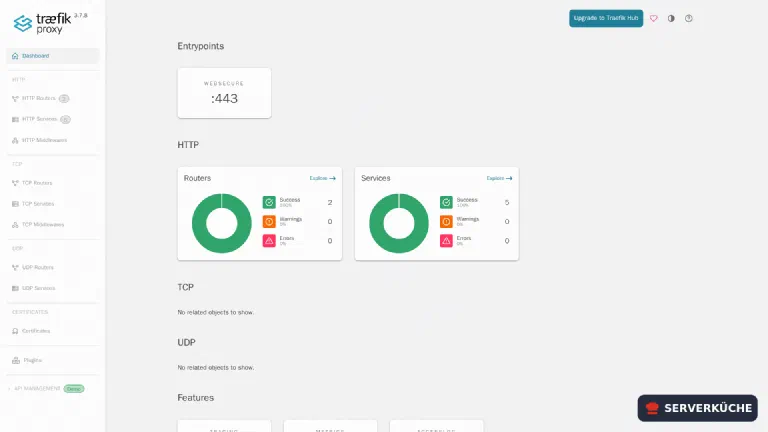
In the dashboard you see, under HTTP → Routers, every detected router (with its
Host(...) rule), under Services the containers behind them, and under
Middlewares your building blocks like dashboard-auth. A router turns green
when rule, service and – for websecure – the certificate are correct; red means
something is missing (usually network or host rule). That makes the dashboard your
first look at “why isn’t my app responding?”.
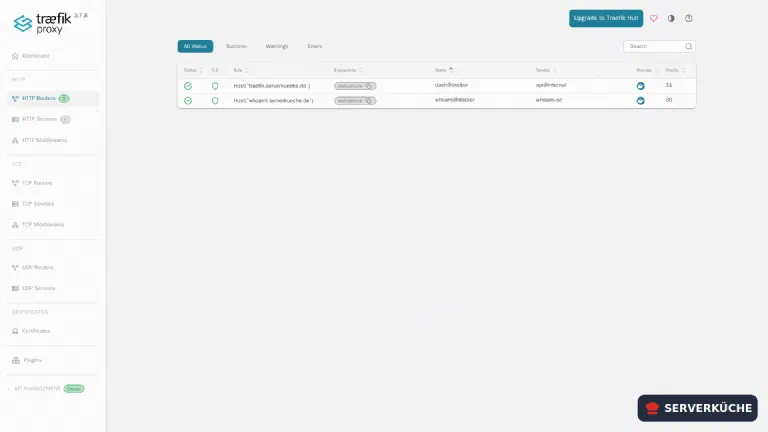
Under HTTP Routers you see each router individually – with its Host(...) rule,
the entrypoint, the TLS status (padlock) and the provider docker. This is how you
check at a glance whether your labels were detected correctly:
Step 8: Security headers as a reusable middleware
A middleware hooks in between router and service and modifies the request or response. A set of security headers belongs on every public app – defined once, attached everywhere. Define the middleware on any container (common: on Traefik itself) via labels:
      - "traefik.http.middlewares.sec-headers.headers.stsSeconds=31536000"
      - "traefik.http.middlewares.sec-headers.headers.stsIncludeSubdomains=true"
      - "traefik.http.middlewares.sec-headers.headers.frameDeny=true"
      - "traefik.http.middlewares.sec-headers.headers.contentTypeNosniff=true"
What the most important ones do:
stsSeconds(HSTS) – the browser will address the domain only over HTTPS from now on. One year (31536000) is the usual value.frameDeny– forbids embedding in foreign<iframe>s (clickjacking protection).contentTypeNosniff– the browser doesn’t guess the content type but takes the one delivered – rules out a whole class of attacks.
Attach it to an app via a label (adjust the router name):
- "traefik.http.routers.whoami.middlewares=sec-headers"Multiple middlewares are given comma-separated (sec-headers,dashboard-auth) and are
run in that order. This is how you gradually build a toolbox (auth, rate limiting,
IP whitelist) that every app can reuse – that toolbox gets built out in
Hardening Traefik.
If a header set should apply to all apps, you don’t attach the middleware to each
router individually, but globally to the entrypoint – one line in Traefik’s command
block:
- "--entrypoints.websecure.http.middlewares=sec-headers@docker"The suffix @docker tells Traefik the middleware comes from the Docker provider (where
you defined it via label).
Tip
stsSeconds once HTTPS runs reliably and permanently. The
browser remembers the setting stubbornly – a broken certificate would then be hard to
work around for the full duration.Step 9: The recipe for every further app
From now on, every app is the same pattern – you never have to touch Traefik again. A
new application gets its own folder with a compose.yaml, is on the proxy network,
and carries exactly these labels (adjust router name and domain; for a port ≠ 80 add
the loadbalancer label as well):
services:
  myapp:
    image: YOUR_IMAGE:TAG
    labels:
      - "traefik.enable=true"
      - "traefik.http.routers.myapp.rule=Host(`app.YOUR_DOMAIN`)"
      - "traefik.http.routers.myapp.entrypoints=websecure"
      - "traefik.http.routers.myapp.tls.certresolver=le"
      # only needed if the app does NOT listen on port 80:
      - "traefik.http.services.myapp.loadbalancer.server.port=YOUR_PORT"
    networks:
      - proxy
    restart: unless-stopped

networks:
  proxy:
    external: true
docker compose up -d, set the DNS record to the server IP, done – domain and HTTPS
are created automatically. This is exactly how
the first real app (Uptime Kuma) hangs behind
the proxy.
When things go wrong
“Certificate invalid” in the browser, or the Traefik log shows ACME errors. The
three usual reasons: (1) The DNS record doesn’t point to the server yet – check dig +short YOUR_DOMAIN. (2) Port 80 isn’t reachable from outside (firewall/netcup
firewall) – the HTTP challenge needs it. (3) You hit the rate limit of the
production CA – switch to the staging server (tip in step 3), test, then go back.
404 page not found when calling the app domain. Traefik doesn’t know the route.
Check: Does the container have traefik.enable=true? Is it on the proxy network?
Is the domain in the Host(...) rule exactly right (incl. subdomain)? The dashboard
(step 7) shows under “HTTP Routers” whether the router was registered.
The browser shows Traefik’s self-signed emergency certificate; the log reads
permissions 644 for /acme.json are too open, please use 600. Traefik is running but
skipped the ACME resolver – hence no real certificate. Run chmod 600 acme.json (step
2) and restart the container.
No app is routed; the Traefik log repeats client version 1.24 is too old. Minimum supported API version is 1.40. Your Traefik version is too old for your Docker
engine – the Docker provider can no longer query the socket. Current Docker (Engine 29,
API level ≥ 1.40) needs Traefik ≥ v3.6; that’s why this tutorial uses
traefik:v3.7. Reproduced against Docker 29: v3.5.6 runs into exactly this error,
v3.6.25 talks to the socket cleanly again. So older tags like v3.3 or v3.5 no
longer work with new Docker – bump the image tag and run docker compose up -d again.
Basic auth on the dashboard is rejected immediately / the router is missing. In the
compose.yaml, the $ characters of the hash must be doubled ($$). Check the
hash once more outside with htpasswd -nbB.
Gateway Timeout or Traefik doesn’t reach the container. Usually the app is on the
wrong network, or Traefik doesn’t know which one is meant.
providers.docker.network=proxy in Traefik and networks: [proxy] on the app must
match.
502 Bad Gateway, even though the container is running. Traefik reaches the
container but hits the wrong port. If the app doesn’t listen on 80, it needs the label
traefik.http.services.<name>.loadbalancer.server.port=<real-port>. This exact case
meets you with the first app in the next tutorial (Uptime Kuma on 3001).
Your problem is not listed? Search all error messages →
Maintenance & backups
- You must back up
acme.jsonand allcompose.yamlfiles. With those, Traefik is restored within minutes after a crash – the certificates don’t need to be reissued (which also spares the rate limit). We build an encrypted off-site backup of these files in the Restic tutorial. - Certificates renew automatically. Let’s Encrypt certificates expire after 90
days; Traefik renews them in good time on its own – no cron job needed. You can check
the expiry date any time by appending
-datesinstead of-issuerto theopensslcommand from step 4 (showsnotBefore/notAfter). - Maintain the Traefik version. The fixed tag (
traefik:v3.7) means you apply updates deliberately. Before jumping to a new minor/major version, read the release notes – Traefik changed the label syntax between v2 and v3, for example. - Keep an eye on the dashboard. A quick login shows whether all routers are “green” – the fastest check of whether everything holds after a deploy.
Last updated: Sep 12, 2026
Send feedback: feedback@serverkueche.de
What's next?











You might also like