Understanding Docker Networks: bridge, internal DNS & the proxy network
Why does every app recipe declare a proxy network? This guide explains Docker networks, internal DNS and container isolation with real commands.
Table of contents
networks: [proxy] – this half-sentence shows up in almost every Serverküche app recipe, usually without comment. Time to explain it once, centrally. Afterwards you’ll understand how containers find each other, why some don’t need internet access and how Traefik reaches them at all.
What are we building?
Not a new service, but the networking model behind every Docker stack. By the end you’ll know why you should create your own networks instead of the default bridge, how containers reach each other by name instead of IP (the internal DNS), what an internal network without internet access is good for, and why the shared proxy network is the trick that lets Traefik reach every app. All output comes from a real Debian 13 server running Docker 29.
Prerequisites
- A server with Docker installed and basic knowledge of Docker Compose
- Root or
dockergroup access (see Users & permissions) - No extra package – Docker ships with everything
VPS 1000 G12.5
4 vCores · 8 GB RAM · 128 GB SSD
from €14.50/month
A small VPS is enough to work through several container networks.
💶 1 month free:
Single use, valid for VPS 1000 G12.5. Redeem it in an empty cart – the code adds the server itself. Redeem in the cart →
💶 €5 voucher for new netcup customers: always valid · not for domains or VPS Lite
Step by step
Step 1: What’s already there
After installation Docker ships with three networks:
docker network lsNETWORK ID NAME DRIVER SCOPE
9d087537e327 bridge bridge local
b622109fef73 host host local
e12e562ad7f6 none null localbridge– the default network. Containers with no explicit network land here. It works, but has one crucial catch (step 3).host– the container shares the host’s network stack directly (no isolation layer, no port mapping). For special cases only.none– no network at all. For containers that should deliberately be offline.
For your own stacks you don’t use any of these directly – you create your own networks. Why is shown in step 3.
Step 2: Creating your own network
docker network create demo-netDocker creates a bridge network and assigns a subnet automatically:
docker network inspect demo-net --format 'name={{.Name}} driver={{.Driver}} subnet={{range .IPAM.Config}}{{.Subnet}}{{end}}'name=demo-net driver=bridge subnet=172.20.0.0/16Every container in this network gets an IP from 172.20.0.0/16. But you don’t want to work with IPs at all – they change on every restart. The real win is something else.
Step 3: The internal DNS – finding containers by name
Start two containers in demo-net: a web server and a client.
docker run -d --name web --network demo-net nginx:1.31-alpine
docker run -d --name client --network demo-net alpine:3 sleep 600
Now the crucial test – the client reaches the web server by its name:
docker exec client ping -c 2 webPING web (172.20.0.2): 56 data bytes
64 bytes from 172.20.0.2: seq=0 ttl=64 time=0.171 ms
64 bytes from 172.20.0.2: seq=1 ttl=64 time=0.095 msDocker automatically resolves the container name web to the right IP. The same works for HTTP:
docker exec client sh -c 'wget -qO- http://web/ | grep title'<title>Welcome to nginx!</title>This is exactly why Compose files say DB_HOST=db instead of an IP: db is the service name, and Docker turns it into the right address. Comparing with the default bridge shows why you avoid it – there’s no name resolution there:
docker run -d --name legacy1 nginx:1.31-alpine
docker run --rm alpine:3 ping -c 1 legacy1ping: bad address 'legacy1'Compose does this automatically
docker compose up automatically creates a dedicated named network for the stack (e.g. myapp_default) – with working DNS. That’s why the services of a Compose file always reach each other by name without you doing anything. The default bridge only affects containers you start manually with docker run and no --network.Step 4: Segmenting – a database with no internet
Not every container needs to see every other one. A database should only be reachable by its app and needs no internet itself. That’s what internal networks are for:
docker network create --internal demo-interninternal: true cuts the route to the outside. The proof:
docker run --rm --network demo-intern alpine:3 \
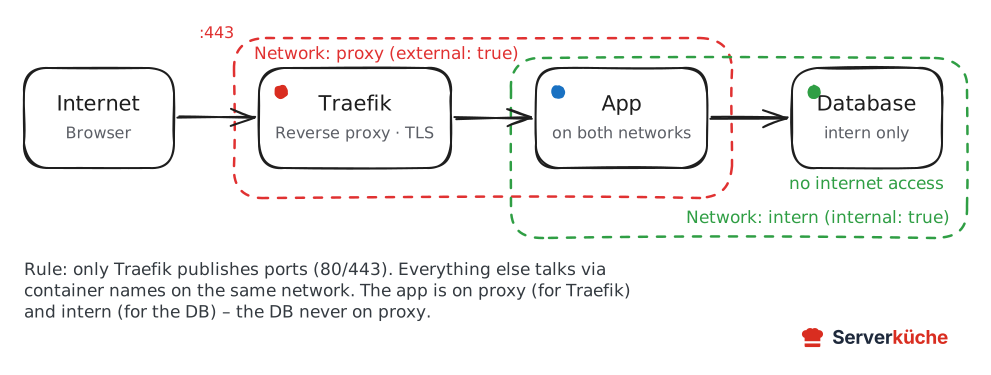
sh -c "wget -qT4 -O- http://deb.debian.org >/dev/null 2>&1 && echo REACHED || echo BLOCKED"BLOCKEDThis is a strong security pattern: even if an attacker compromises the database, it can’t open a connection to the outside (no pulling in malware, no data exfiltration). A typical stack therefore uses two networks: an internal network between app and database, and the public proxy network only between app and Traefik.
Step 5: The proxy network – how Traefik reaches every app
Now the most-copied half-sentence of the catalog. Traefik runs in its own container and has to talk to every app to forward its requests. But containers only talk to each other when they’re on the same network. The solution: a shared, permanent network called proxy.
docker network inspect proxy --format 'name={{.Name}} driver={{.Driver}} subnet={{range .IPAM.Config}}{{.Subnet}}{{end}} internal={{.Internal}}'name=proxy driver=bridge subnet=172.19.0.0/16 internal=falseTraefik stays permanently on this network. Every new app joins it – in Compose like this:
services:
  myapp:
    image: example/app:1.0
    networks:
      - proxy        # so Traefik can reach the app
      - intern       # private link to the database
    labels:
      - "traefik.enable=true"
      # ... the router/service labels

networks:
  proxy:
    external: true   # created by Traefik, do NOT recreate
  intern:
    internal: true
Two things are key here: external: true tells Docker “this network already exists, just attach to it” – if you accidentally recreate it, the app lands in a different proxy network than Traefik and can’t be reached via the domain (the classic 502 troubleshooting case). And through the second network intern the app reaches its database without that database ever sitting on the public network.
Step 6: Publishing ports – only where needed
In all steps so far, containers talk to each other without publishing a single port. A port only needs to go outside when the host or the internet should access it directly:
docker run -d --name pub -p 8099:80 nginx:1.31-alpine
curl -s -o /dev/null -w "%{http_code}\n" http://127.0.0.1:8099/200-p 8099:80 binds host port 8099 to container port 80. In Compose that’s ports: ["8099:80"]. The important difference to expose: expose only makes a port visible to other containers (network-internal), ports opens it to the host.
Behind Traefik, don't publish app ports
ports:. Traefik reaches it via the proxy network; an extra published port would bypass Traefik and thus HTTPS, middlewares and firewall logic. Only publish Traefik’s own ports (80/443). Everything else stays network-internal.When things go wrong
Container can’t reach another by name (bad address). Both aren’t on the same named network, or one uses the default bridge (no DNS). Check which networks a container is on with docker inspect -f '{{range $k,$v := .NetworkSettings.Networks}}{{$k}} {{end}}' CONTAINER.
Traefik returns 502 Bad Gateway. Almost always Traefik and the app are on different proxy networks because the network was created twice. Make sure external: true is set in Compose and check with docker network inspect proxy whether both containers are listed.
network proxy declared as external, but could not be found on up. The external network doesn’t exist yet. Create it once: docker network create --ipv6 --subnet fd00:cafe::/64 proxy. Do not let Traefik create the network itself – it then comes up without IPv6, and behind the proxy IPv6 visitors show up as the gateway address instead of their real IP.
Database has internet despite internal. It’s also attached to a non-internal network (e.g. proxy). A container has the sum of the access of all its networks – the DB belongs only on the internal network, never on the proxy network.
Two stacks collide on the subnet. Docker assigns 172.x ranges automatically, but with many networks the pool can run short (could not find an available, non-overlapping IPv4 address pool). Clean up unused networks: docker network prune.
Your problem is not listed? Search all error messages →
Maintenance & backups
- Check your network assignments. Whether your database accidentally sits on the
proxynetwork is exactly one of the rules the Compose checker tests for. - Networks need no backup – they’re recreated from the Compose file at any time. What matters is that your
compose.yamland thenetworks:declarations are in your backup, not the network state itself. - Clean up orphaned networks. After lots of testing, unused networks pile up.
docker network lsshows them,docker network pruneremoves all without attached containers. The permanentproxynetwork survives this as long as Traefik is running. - The
proxynetwork is infrastructure. Treat it like Traefik itself: create it once, then leave it alone. Deleting it by accident (network prunewith Traefik stopped) forces you to reconnect all apps. More on clean-up in Keeping your Docker stack updated.
Last updated: Sep 12, 2026
Send feedback: feedback@serverkueche.de
You might also like