Running WordPress Cleanly with Docker & Traefik
Set up WordPress with Docker and MariaDB behind Traefik – with HTTPS, an isolated database and an honest update strategy instead of a maintenance nightmare.
Table of contents
WordPress powers a large part of the web – and is notorious for hacked installations. The difference between “runs and is secure” and “becomes a spam cannon” lies in a clean setup and honest maintenance. This recipe delivers both: WordPress with Docker, an isolated database, HTTPS – and a clear statement of what you have to do on an ongoing basis.
What are we building?
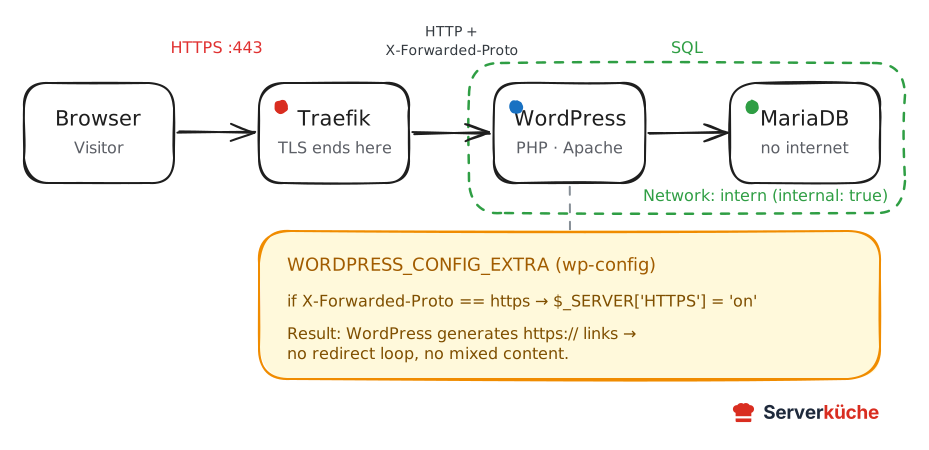
A production-ready WordPress installation with WordPress 7.1.0 (PHP 8.5) and MariaDB 11.8 behind Traefik. The database runs in an isolated internal network with no internet access, WordPress gets its HTTPS from Traefik, and we cleanly solve the classic reverse-proxy pitfall (redirect loop / mixed content). By the end you have a running blog – and you know how to keep it secure.
WordPress or Hugo?
Prerequisites
- A server with Traefik running and Docker Compose
- A domain pointing at the server –
YOUR_DOMAINbelow - A bit more RAM than simple services need – WordPress + database + PHP run comfortably from the VPS 2000 up
VPS 2000 G12.5
8 vCores · 16 GB RAM · 256 GB SSD
from €26.92/month
WordPress with a database and PHP runs comfortably on the VPS 2000.
💶 €5 voucher for new netcup customers: (not for domains or VPS Lite)
Step by step
Step 1: Two containers, two networks
WordPress consists of two parts: the PHP application and a MariaDB database. A clean setup separates the two and isolates the database – it should only be reachable by WordPress and needs no internet itself. That’s exactly what the two networks are for (see Understanding Docker networks): the public proxy network between WordPress and Traefik, and an internal network between WordPress and the database.
mkdir -p /opt/wordpress && cd /opt/wordpressStep 2: The Compose file
Replace YOUR_DOMAIN and all passwords with your own values:
services:
  db:
    image: mariadb:11.8
    restart: unless-stopped
    environment:
      MARIADB_DATABASE: wordpress
      MARIADB_USER: wordpress
      MARIADB_PASSWORD: YOUR_DB_PASSWORD
      MARIADB_RANDOM_ROOT_PASSWORD: "1"
    volumes:
      - db_data:/var/lib/mysql
    networks: [intern]
    healthcheck:
      test: ["CMD", "healthcheck.sh", "--connect", "--innodb_initialized"]
      start_period: 10s
      start_interval: 2s
      interval: 30s
      timeout: 5s
      retries: 5

  wordpress:
    image: wordpress:7.1.0-php8.5-apache
    restart: unless-stopped
    depends_on:
      db:
        condition: service_healthy
    environment:
      WORDPRESS_DB_HOST: db
      WORDPRESS_DB_USER: wordpress
      WORDPRESS_DB_PASSWORD: YOUR_DB_PASSWORD
      WORDPRESS_DB_NAME: wordpress
      WORDPRESS_CONFIG_EXTRA: |
        if (isset($$_SERVER['HTTP_X_FORWARDED_PROTO']) && $$_SERVER['HTTP_X_FORWARDED_PROTO'] === 'https') { $$_SERVER['HTTPS'] = 'on'; }
        define('WP_HOME', 'https://YOUR_DOMAIN');
        define('WP_SITEURL', 'https://YOUR_DOMAIN');
    volumes:
      - wp_data:/var/www/html
    networks: [proxy, intern]
    labels:
      - "traefik.enable=true"
      - "traefik.http.routers.wp.rule=Host(`YOUR_DOMAIN`)"
      - "traefik.http.routers.wp.entrypoints=websecure"
      - "traefik.http.routers.wp.tls.certresolver=le"
      - "traefik.http.services.wp.loadbalancer.server.port=80"

volumes:
  db_data: {}
  wp_data: {}
networks:
  proxy:
    external: true
  intern:
    internal: true
Three details are crucial here:
depends_on: condition: service_healthy– WordPress only starts once the database reports ready via the health check. Without it the first start fails in a race condition.internisinternal: true– the database is only on this network and therefore has no internet access; WordPress reaches it at the hostnamedb.WORDPRESS_CONFIG_EXTRA– the most important part (next step).
The reverse-proxy pitfall: detecting HTTPS
http:// links – which leads to mixed-content errors or a redirect loop (ERR_TOO_MANY_REDIRECTS). The line if (... HTTP_X_FORWARDED_PROTO ... === 'https') { $_SERVER['HTTPS'] = 'on'; } tells WordPress the original connection was HTTPS. Together with WP_HOME/WP_SITEURL that’s the clean solution. In Compose the PHP variables must be written as $$, otherwise Docker interprets them as its own variables.Step 3: Start
docker compose up -dDocker starts the database first, waits for its health check and then starts WordPress. Check:
docker compose psNAME IMAGE SERVICE STATUS
wordpress-db-1 mariadb:11.8 db Up (healthy)
wordpress-wordpress-1 wordpress:7.1.0-php8.5-apache wordpress UpVerify from outside that WordPress responds with valid HTTPS (the 302 redirects to the install):
curl -sI https://YOUR_DOMAIN/ | head -1HTTP/2 302Step 4: The famous 5-minute install
Open https://YOUR_DOMAIN/. WordPress redirects to the install wizard. After the language selection you fill in the basics:
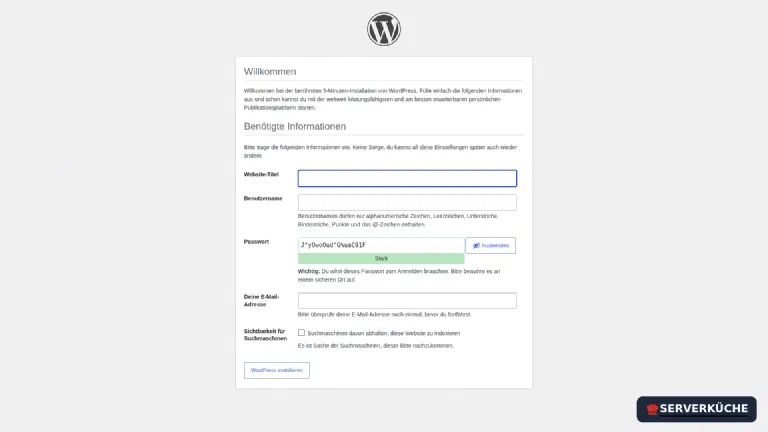
Don't use “admin” as the username
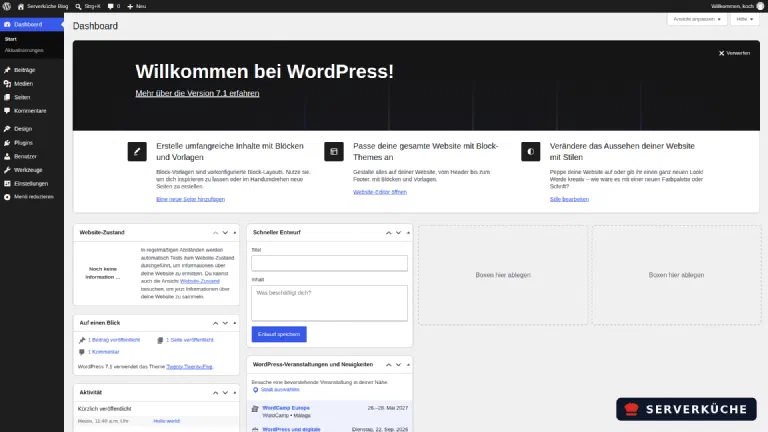
admin – it’s the first target of every brute-force attack on WordPress. Use your own name and a strong password. That’s the simplest and most effective hardening measure of all.After clicking “Install WordPress” and the first login you land in the dashboard:
Step 5: The website is live
Your site is immediately public – with valid HTTPS from Traefik and no mixed-content errors thanks to the proxy configuration:

Step 6: Basic hardening
WordPress is functional out of the box but not optimally secured. The most important immediate measures:
- Enable automatic updates: under Dashboard → Updates make sure at least security updates are applied automatically.
- Delete unnecessary default content: the “Hello world!” post, the sample page and the bundled example plugin (
Hello Dolly) can go. - Less is more with plugins: every plugin is additional attack surface. Only install what you really need, and only from a trustworthy source.
- Protect the login further: ideally put another hurdle in front of the WordPress login (
/wp-login.php). A rate-limit/BasicAuth middleware in Traefik or a 2FA plugin work well. Fail2ban can also evaluate WordPress login attempts. - Keep an eye on XML-RPC: the file
xmlrpc.phpis a common target for brute force and DDoS. If you don’t need it, block it via a Traefik middleware or plugin.
When things go wrong
Redirect loop (ERR_TOO_MANY_REDIRECTS) or mixed-content warnings. The HTTPS detection is missing. Check that the WORDPRESS_CONFIG_EXTRA block with HTTP_X_FORWARDED_PROTO and the $$ signs is set exactly (see the warning in step 2), and restart the WordPress container.
WordPress won’t start, reports “Error establishing a database connection”. Usually a race condition or a password mismatch. Check that depends_on: condition: service_healthy is set and WORDPRESS_DB_PASSWORD matches MARIADB_PASSWORD exactly. Logs: docker compose logs db.
The first start fails even though everything runs later. The database needs a few seconds to initialize on the very first start. The health check covers this; without it, another docker compose up -d helps.
Media uploads fail for large files. PHP limits the upload size. Create your own uploads.ini and mount it to /usr/local/etc/php/conf.d/ with e.g. upload_max_filesize = 64M and post_max_size = 64M.
After a domain change the site points nowhere. WP_HOME/WP_SITEURL are hard-wired in the Compose file – for a new domain, change them there and restart the container (the values override the database setting).
Maintenance & backups
- Honestly: WordPress is maintenance work. Unlike a static site, active code with a database runs here – core, themes and plugins get regular security updates that must be applied promptly. A neglected WordPress will reliably get hijacked. Enable automatic updates and check the update status monthly. Keep the container tag (
wordpress:7.1.0-php8.5-apache) current via your normal update process. - The backup has two parts – both are mandatory. WordPress consists of a database (posts, settings, users) and files (
wp_datavolume: uploads, themes, plugins). A Restic snapshot of the running MariaDB volume alone is no guarantee – back up the database additionally via a dump.-Tmatters here (without it the command hangs on the password prompt and leaves an empty file), as does putting the password directly after-p, with no space:
docker compose exec -T db mariadb-dump -u wordpress -p'YOUR_DB_PASSWORD' --single-transaction wordpress > backup.sqlAfterwards make sure the file isn’t empty (ls -l backup.sql). The dump and the wp_data volume belong in your Restic backup.
- Test the restore. A backup that was never restored is just a hope – run a restore at least once as a test, so that in an emergency you know the dump and files fit together.
Send feedback: feedback@serverkueche.de
You might also like

Self-hosting Nextcloud: your own cloud behind Traefik
Set up Nextcloud with Docker behind Traefik: your own cloud for files, calendar and contacts – with MariaDB, Redis and …

linkding: Self-Host Your Bookmarks
All your bookmarks in one place, across devices and without browser lock-in: linkding as a lean bookmark manager behind …

Navidrome: Stream Your Own Music Like Spotify
Stream your music collection from anywhere – no subscription, no tracking: Navidrome behind Traefik, with app support …